
In this guide, we provide an overview of the Settings page and how it can be used.
Contents
To access the Settings page, select “Settings” from the left.
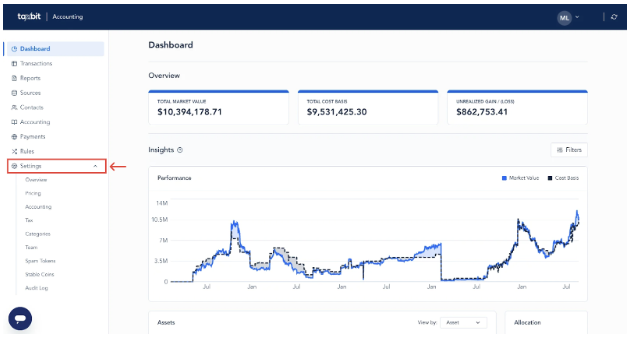
Settings Page Overview
From the Settings page, you will be able to make the necessary changes within each tab to properly configure your Taxbit environment based on your organization’s individual accounting needs. Below, you will find an overview of each:
Overview Tab
From the “Overview” tab, you will be able to validate the name of your organization.
Please note: You will only be able to edit the name of your organization if you do not use Legal Entities. If you need to update the name of a Legal Entity, please contact our team by submitting your request via this online submission form with the names that need to be updated for each entity, and we can assist further.
Pricing Tab
From the “Pricing” tab, you will be able to configure your pricing method, default pricing preferences for your organization’s Principal Market and Fallback Market, as well as select specific tokens you wish to override with a different Principal Market than the default.
For more information on pricing within the Taxbit Accounting Suite, please refer to this guide: Understanding Pricing Within Taxbit
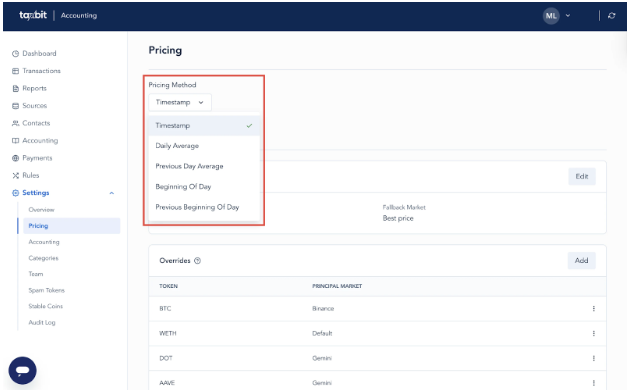
Choose a Pricing Method
The pricing method selected here will determine how an asset is priced within the system. You can choose from the following pricing methods from the drop-down:
- Timestamp
- Daily Average
- Previous Day Average
- Beginning of Day
- Previous Beginning of Day
Selecting Default Pricing Providers
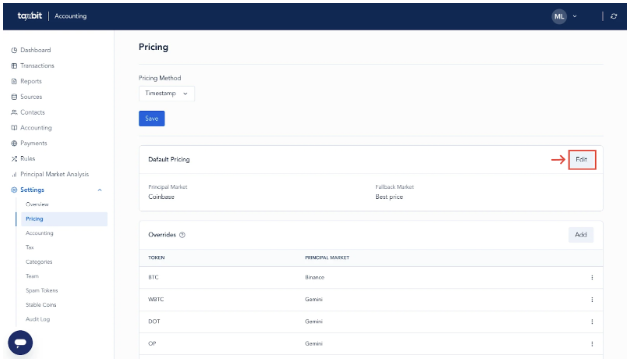
The default pricing providers are the first pricing providers used to ingest pricing. The Principal Market is the first place the system will go to for pricing, and the Fallback Market will be the second if the Principal Market does not have pricing available for a particular asset.
Step 1: To edit the default Principal Market and Fallback Market, select the “Edit” button on the right.
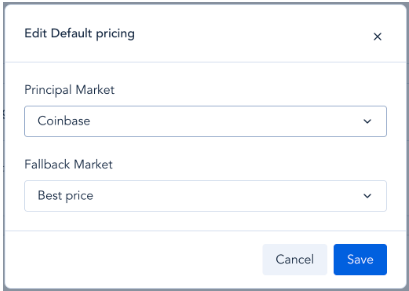
Step 2: From the next window, select your default pricing market provider and your fallback pricing market provider from the available options within each drop-down, then select “Save” at the bottom.
Please note: If you do not see your preferred providers listed, please contact our team by submitting your request via this online submission form.
Adding Pricing Overrides for Individual Tokens
If you do not wish to use the default principal market provider for a particular token, you can override the principal market provider for that specific token by following the steps listed below.
If you are curious about which pricing source to use for any token or wish to compare a token’s trading volume between exchanges, you can analyze these details with Taxbit’s Principal Market Analysis. For more information and how to access this functionality, please refer to this guide: Principal Market Analysis
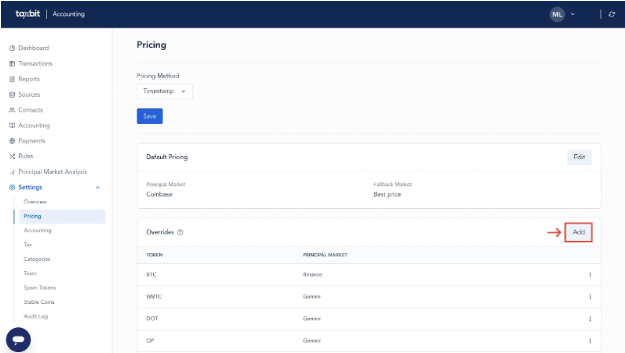
Step 1: Select “Add” from the top right of the Override section of the Pricing tab.
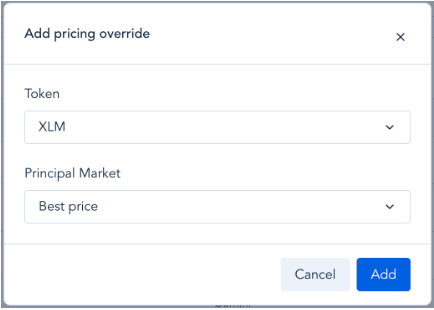
Step 3: Select the token you wish to override from the “Token” drop-down, then select the Principal Market you wish to use for this token. Once you have populated both fields, select “Add” on the bottom right.
Once added, you will see this token listed in the Overrides section along with the Principal Market you chose for it.
Editing Overrides
Step 1: To edit an override, 1) select the three dots to the right of the override you wish to edit, 2) then select “Edit”.
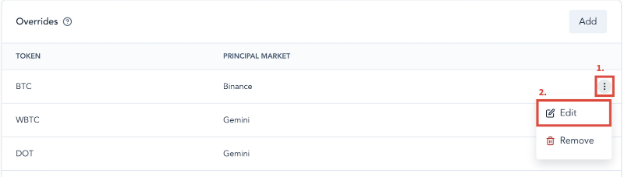
Step 2: From the next window, select the token and the principal market you wish to use for the token, then select “Save” on the bottom right.
Deleting Overrides
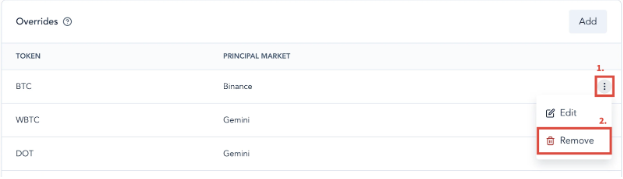
To delete an override, 1) select the three dots to the right of the override you wish to delete, 2) then select “Remove”.
Accounting Tab
The “Accounting” page provides an overview of the key configuration settings for your accounting books. Selecting the appropriate configuration ensures accurate financial reporting and reflects your organization’s specific accounting practices.
Configuration Options
Accounting standard
From here, you can choose between the following accounting standards. Please see the table below for use cases and how they may impact your reporting.
Please note: The accounts in the examples below are only illustrative. We encourage you to map to your own specific general ledger chart of accounts as needed.
| Accounting Standard | Definition | Use Case |
| IFRS - Revaluation | Configures your accounting books to apply IFRS treatment, including impairment to P&L, upward revaluation to OCI (Other Comprehensive Income), and OCI recycling on disposals. |
Accounting Adjustment Cadence: Monthly
Asset: 1 BTC acquired for 20,000 USD on Jan 1 (cost basis = 20,000).
Month-end fair values:
|
| FASB: ASU 2023-08 | Under ASU 2023-08, all period-to-period fair value changes for in-scope crypto assets are recognized in net income (not OCI). In the Taxbit Fair Value reports, this would reflect as an incremental FV Adjustment with NO realized g/l. |
Accounting Adjustment Cadence: Monthly
Asset: 1 BTC acquired for 20,000 USD on Jan 1 (cost basis = 20,000).
Month-end fair values:
|
Please note: It’s important to ensure your adjustment cadence is properly set to match your organization’s close period within Taxbit, ensuring the remeasurement entries appear as expected in reports and journals.
Inventory Separation
The following inventory separation options are available to select from:
- Universal
- Assumes all inventory assets are categorized together for accounting purposes.
- Source
- Allows you to track inventory based on its origin (e.g., Exchanges, Custodial Wallets, Multi-sig treasury wallet, etc.). This can be useful for companies that manage diverse inventory sources or have specific costing requirements for certain assets.
Cost Basis Methodology
This section determines how the cost of goods sold (COGS) is calculated for your inventory. Select the methodology that best aligns with your organization’s accounting practices from the following list:
- FIFO (First-In, First-Out)
- This method assumes the first assets purchased are the first ones sold.
- LIFO (Last-In, First-Out)
- This method assumes the most recently purchased assets are the first ones sold.
- HIFO (Highest-In, First-Out)
- This method assumes the assets with the highest cost are the first ones sold. (Less common)
- Weighted Average Cost (WAC)
- This method calculates an average cost per unit based on all purchases of an asset during the full lot acquisition history.
Negative Balance Handling
This setting defines how your environment handles situations where inventory quantities may fall below zero. There are three options:
- Assume cost basis of 0
- This option assigns a cost basis of zero to any disposition event involving a negative inventory balance.
- Use retroactive cost basis (next relevant acquisition)
- This option uses the cost of the next inventory purchase to apply cost basis to a particular disposition event if it dips into a negative balance.
- Use current market value
- This option references the current market value to establish cost basis when calculating gain/loss on a disposition event involving negative balances.
Please refer to the table below for use cases and how each option may impact your reporting:
| Options | Description | Use Case |
| Assume cost basis of 0 | This option assigns a cost basis of zero to any disposition event involving a negative inventory balance. |
8/1/24 - Buy 2 BTC, bringing the current inventory balance to 2 BTC.
8/3/24 - Sell 3 BTC.
There is no BTC left to establish a cost basis for the remaining 1 BTC. This disposal lot would be assigned a cost basis of 0, and the Realized G/L would be equal to the amount of proceeds received for the disposal. |
| Use retroactive cost basis (next relevant acquisition) |
This option uses the cost of the next inventory purchase to apply cost basis to an earlier disposition event if it dips into a negative balance. |
8/1/24 - Hold 1 BTC.
8/3/24 - Sell 2 BTC. Your current BTC inventory balance is -1 BTC.
8/4/24 - Buy 2 BTC.
The cost basis from this last buy would then be used to establish cost basis for the remaining 1 BTC that was disposed of to calculate the Realized G/L for the remainder of that disposal. |
| Use current market value |
This option references the current market value to establish cost basis when calculating gain/loss on a disposition event involving negative balances. |
There is 0 BTC held.
8/4/24 - Sell 1 BTC for $58,110.
The current market value/proceeds of $58,110 would be used to establish cost basis to calculate the Realized G/L for this disposal. |
Trigger Gain/Loss on Internal Transfers
This setting determines whether internal transfers (movement of inventory between custodial sources) trigger the recognition of gains or losses in your books. Selecting this will record internal transfers at their current market value rather than at cost basis, impacting your financial statements.
Please note: This option is not available to Universal calculation methodologies.
Match transaction values on swaps
This setting is used to anchor the fiat value of an inbound asset on a token swap transaction to the value of the outbound asset to reduce having to account for the slippage resulting from calculating each token’s respective fiat value.
Accounting Adjustments
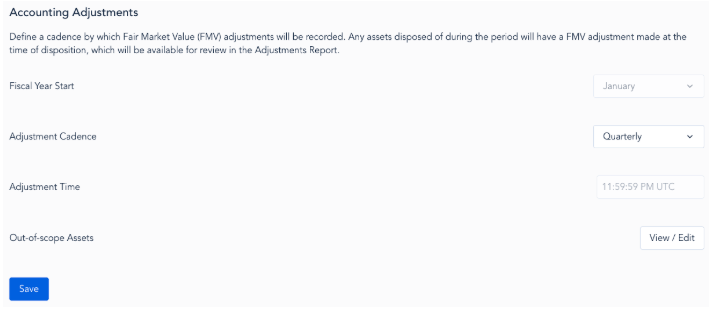
In this section, you can define a cadence by which Fair Market Value (FMV) adjustments will be recorded within the Accounting reports. Any assets disposed of during the period selected will have an FMV adjustment made at the time of disposition, which will be available for review in the Adjustments Report. The following adjustments can be made from this section:
- Fiscal Year Start
- The default start is January. Please contact us if you require a distinct starting period.
- Adjustment Cadence
- Daily
- Monthly
- Quarterly
- Yearly
- Adjustment Time
- The default requirement is 11:59:59 PM UTC.
- In addition to all NFTs, any assets selected from this drop-down will be excluded from Fair Market Value adjustments and will instead be included in the Impairment Report.
Choosing the Right Settings
The optimal configuration settings for your Accounting books depend on your organization’s practices, industry standards, and tax regulations. Please consult with your accountant to determine the most appropriate settings for your organization.
Additional Considerations
This page provides a general overview of common Accounting configuration settings. It’s recommended to regularly review and update your Accounting configuration settings as your organization’s needs evolve.
Please note: When updating any of the above configuration settings, please remember to save your changes by selecting “Save” from the bottom of the page.
Categories Tab
From the “Categories” page, you will be able to view and create custom categories by following the steps listed below:
Creating a Custom Category
Step 1: Select “Create” from the top right.
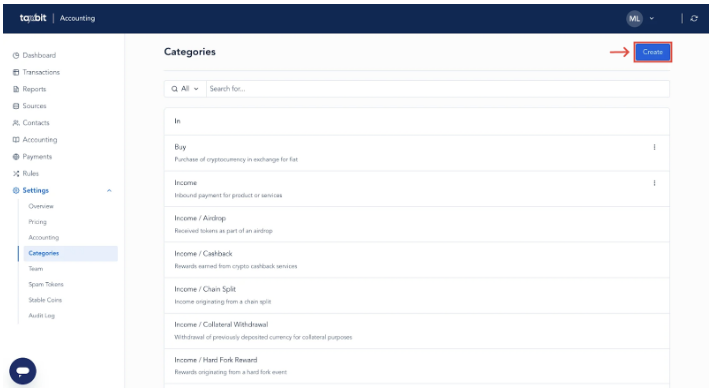
Step 2: From the “Parent Category” field, select the parent category that this custom category would fall under, enter the name of your custom category into the “Name” field, then select “Add” from the bottom right.
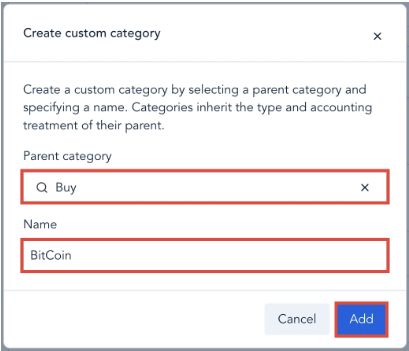
Once added, you will see your new custom category listed on the Categories page and you will be able to use it to categorize your transactions, in creating rules, as well as in creating detailed mappings based on category.
For more information on custom categories, please refer to this guide: Creating Custom Categories
Team Tab
From the “Team” tab, you can add or remove team members from your account, as well as edit their roles. To add a team member:
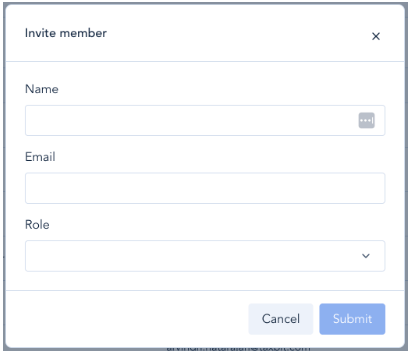
Step 1: Select “Add member” from the top right.
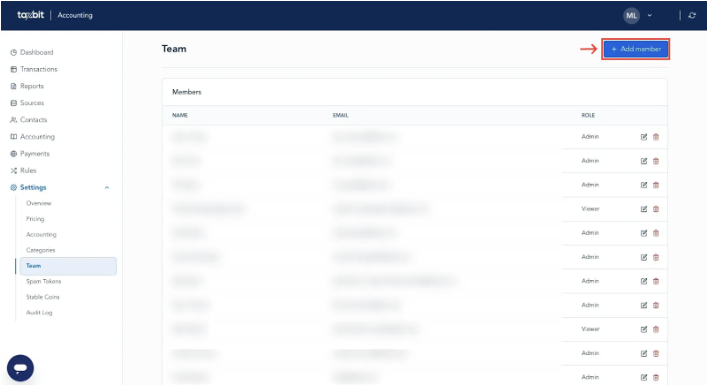
Step 2: Within the next window, enter the email address, name, and role for the team member you are adding, and select “Submit” at the bottom of this window. Depending on the role selected here, they will be able to view and edit the data within the account.
Adjusting Roles
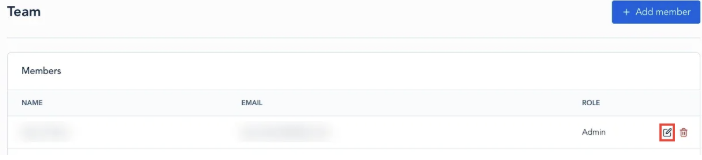
To adjust the role of a team member, select the “Edit” icon, and then select the new role you wish to assign to them.
Removing a Team Member
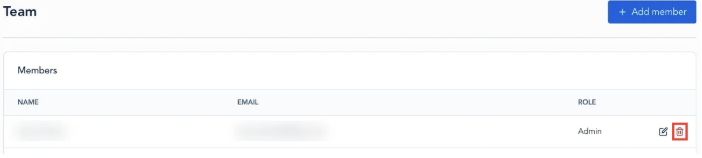
To remove a team member from your environment, select the three dots to the right of the team member you wish to remove, then select “Remove”.
Please refer to this guide for more information on the available roles and permissions, as well as how to log in to Taxbit via SSO, Username/Password, or SAML, and MFA set up: How to Add a New Team Member
Spam Tokens Tab
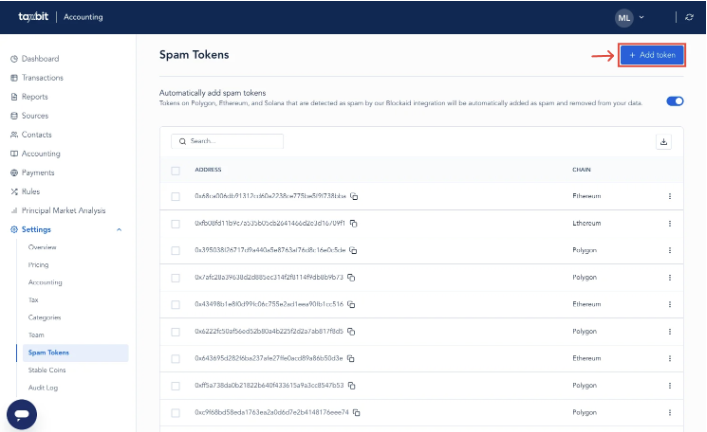
From the “Spam Tokens” tab, you will be able to manage spam/imposter tokens within your environment. To ensure that spam tokens are excluded from your transactions and reporting, you can enable the “Automatically add spam tokens” toggle from the top of the Spam Tokens tab. This will automatically flag spam tokens for you and add them to the spam tokens list on this tab.
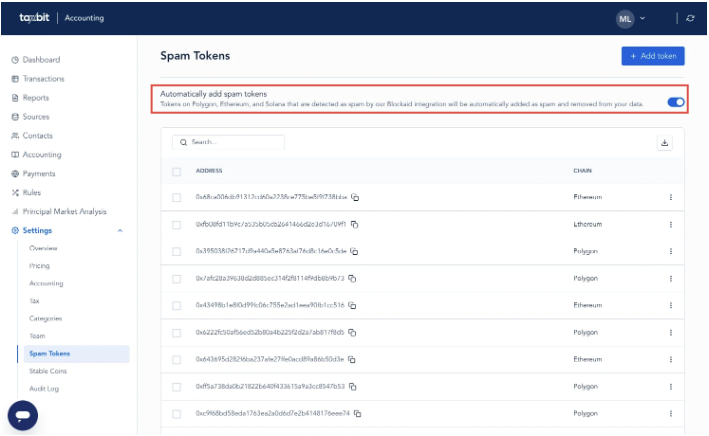
If any spam tokens are not being flagged automatically, you can manually add those to the spam tokens list by selecting “+Add token” from the top right of the page, and then pasting the contract address into the “Address” field and selecting the blockchain the token is listed on from the drop-down.
Removing Spam Tokens From the Spam Tokens List
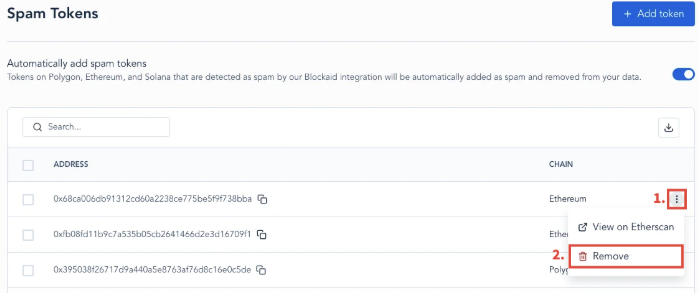
If there is ever an instance where you feel this token was marked as spam by mistake, and you would like to remove it from the spam tokens list, you can do so by 1) selecting the three dots on the right side of the token, and 2) then selecting “Remove”. Once removed from the list, and the system has reprocessed, the token will appear within your transactions and reports.
Stable Coins Tab
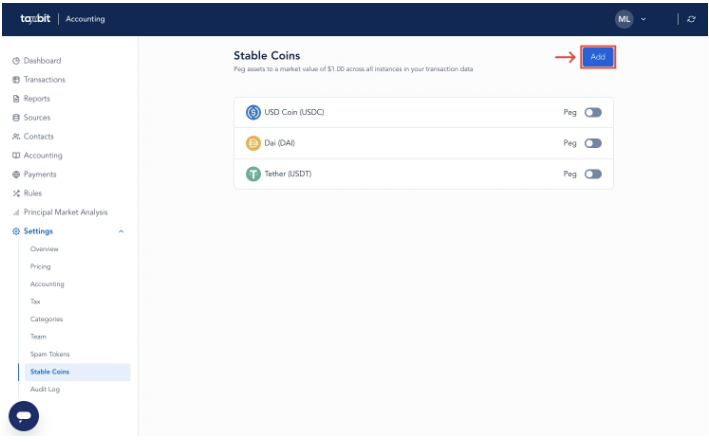
From the “Stable Coins” tab, you can choose specific tokens found in your transaction data to be pegged to the price of $1.00.
Adding Stable Coins
If you do not see your stablecoin listed, you can add it to the list by following these steps:
Step 1: From the Stable Coins tab, select the “Add stable coin” button from the top right.
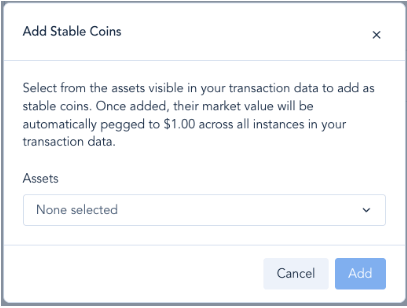
Please note: Only tokens that are ingested to your environment will appear in the token drop-down.
Step 2: Within the next window, select the stable coin from the drop-down, then select “Add”.
Once added, you will see the stablecoin listed on the Stable Coins tab, and you will then be able to toggle it to peg it to $1 USD.