
Contents
The Accounting Suite offers customization options to enhance data organization and reporting. These features include the ability to create custom categories, which can be leveraged to more granularly map on-chain activity to your General Ledger. Custom categories allow users to add further detail to transactions, enabling easier categorization and analysis. Additionally, you can add memos to transactions for further customization.
What are Custom Categories?
A custom category can be applied to any of the categories supported within the Accounting Suite, also known as the parent category. Once a custom category is created you can assign transactions to this category for an enhanced ability to annotate your workspace. You can create unique mappings to your Chart of Accounts and apply these updates at scale using Rules.
How to Create Custom Categories
To create a custom category, please follow the step-by-step process listed below:
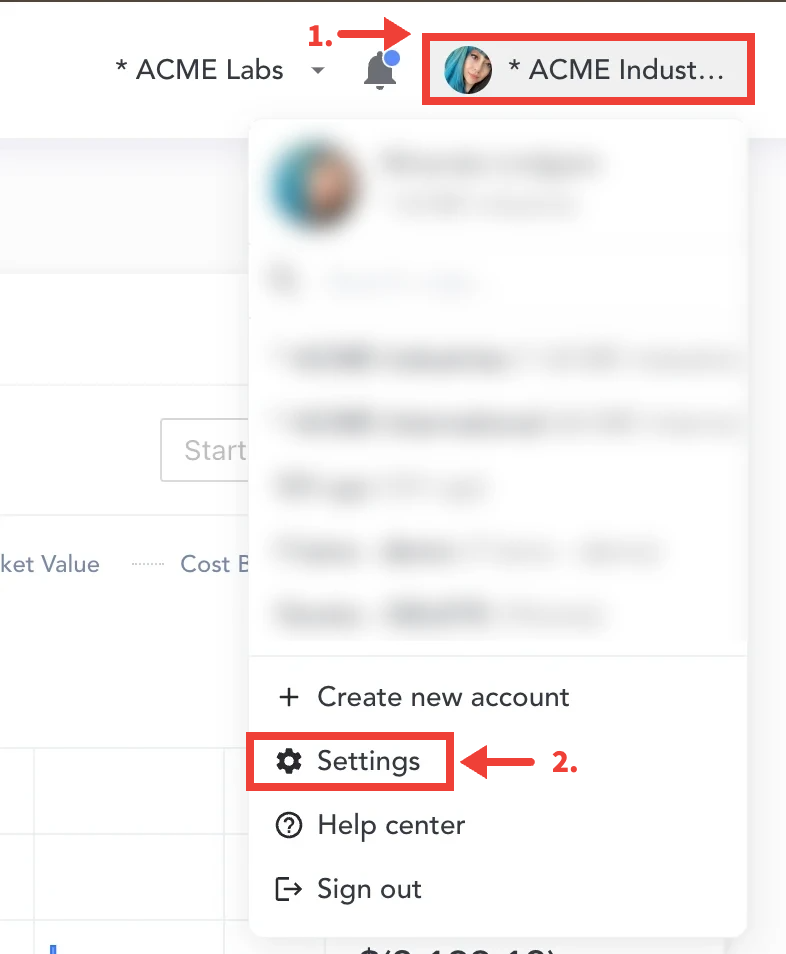
Step 1: Select the drop-down on the top right.
Step 2: Select “Settings” at the bottom of the drop-down.
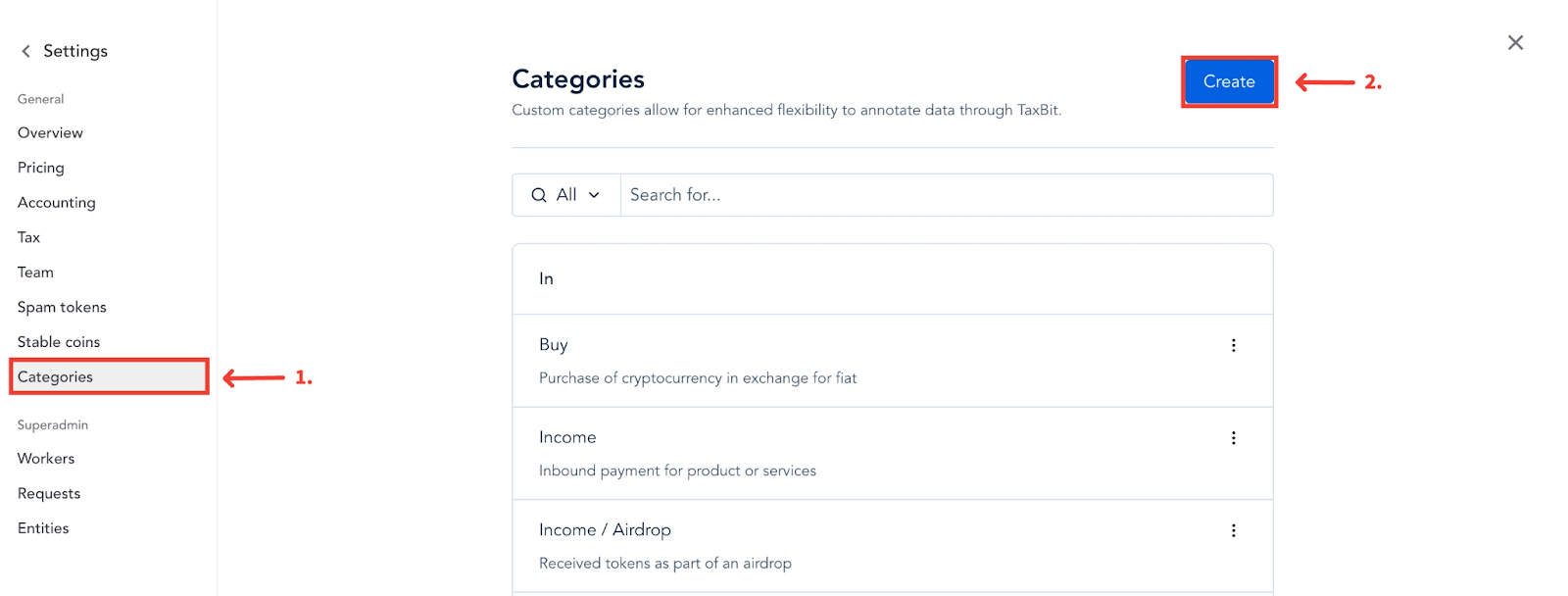
Step 3: Select “Category” from the menu on the left.
Step 4: Select “Create” from the top right.
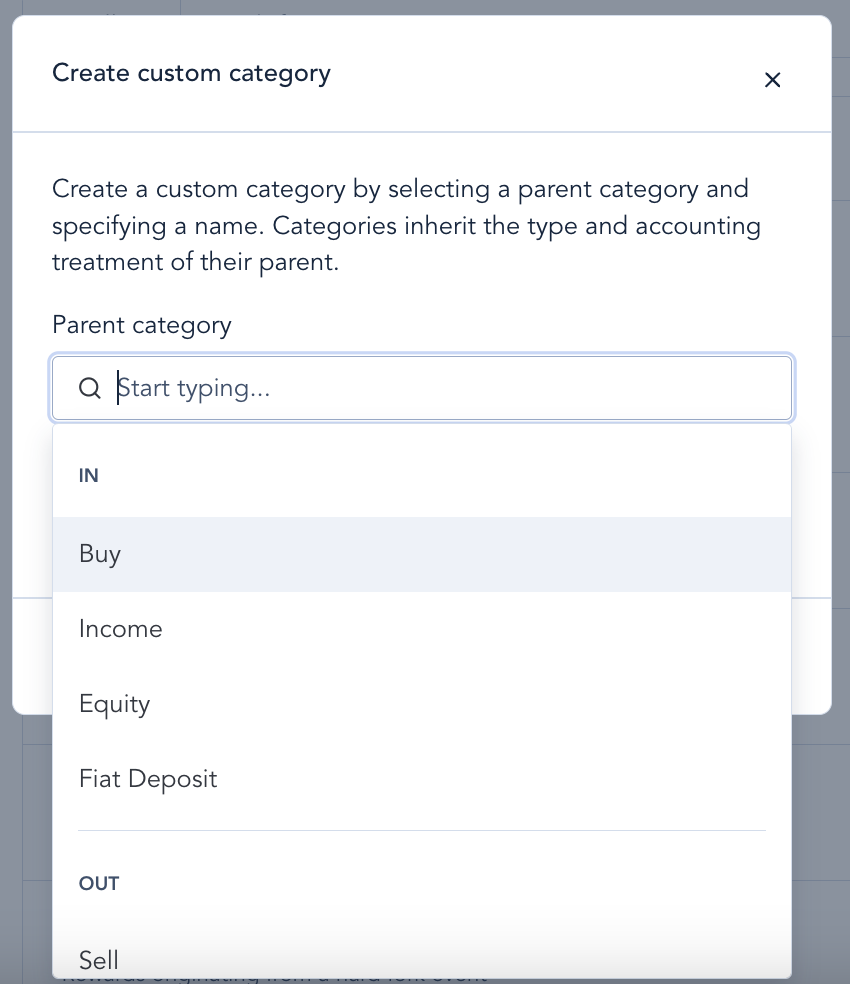
Step 5: Select or type in the parent category within the “Parent Category” field.
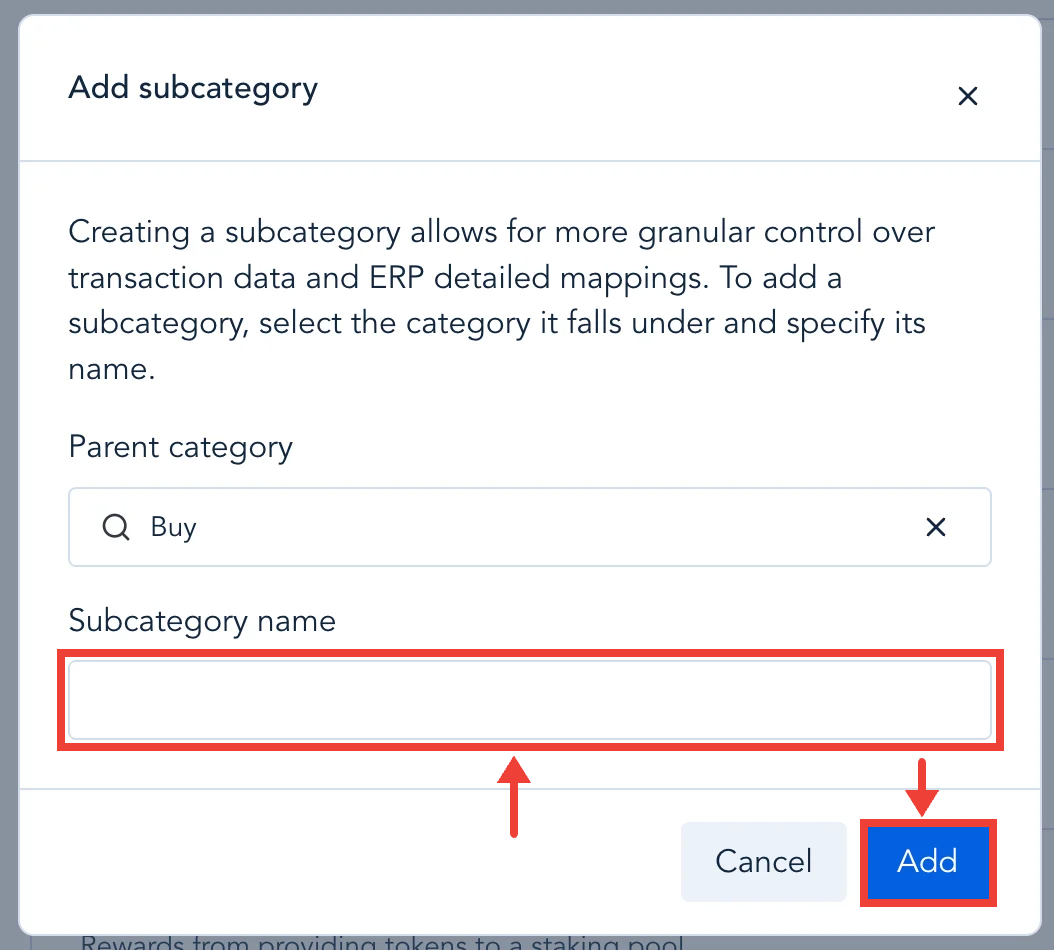
Step 6: Enter the name you’d like to give the custom category, then select “Add”.
Create a Custom Category Directly from the Parent Category
Alternatively, you can create a custom category directly from the parent category by following the steps below:
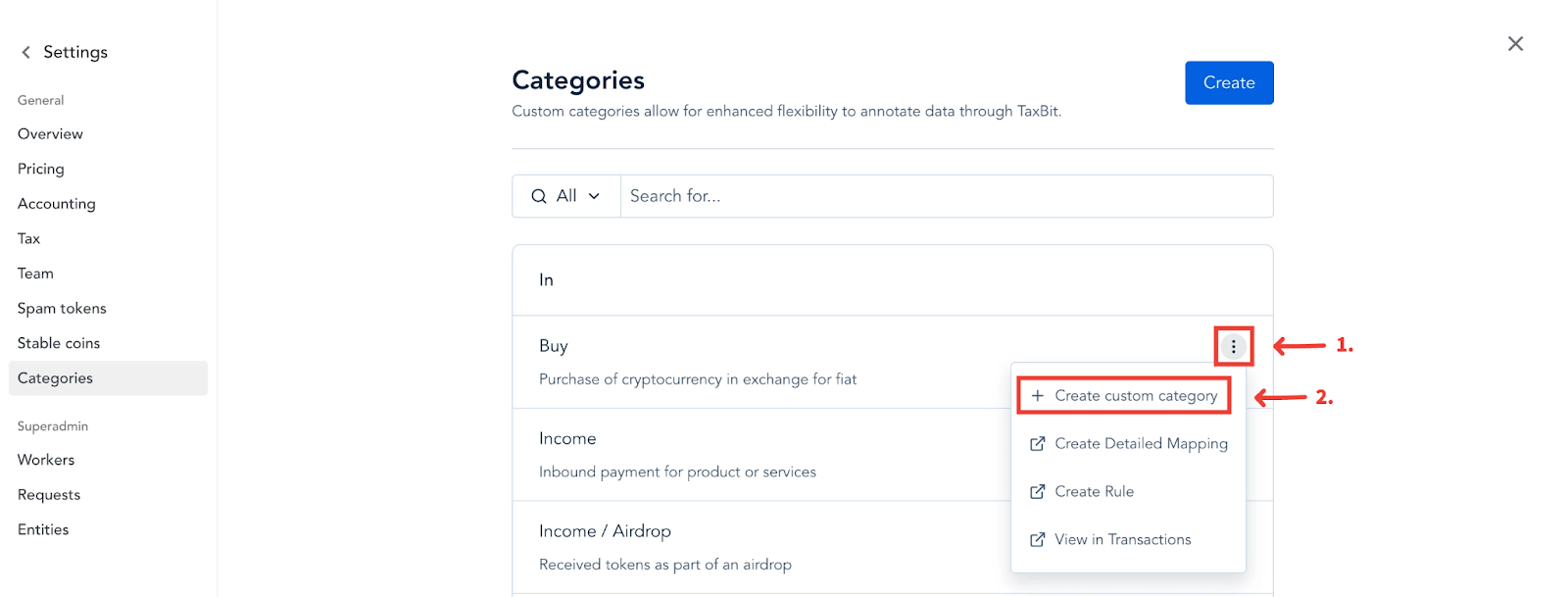
Step 1: Select the three dots to the right of the parent category you wish to create the new category under from the list, then select “Create custom category”.
Step 2: In the next window, enter the name you’d like to give the custom category, then select “Add”.
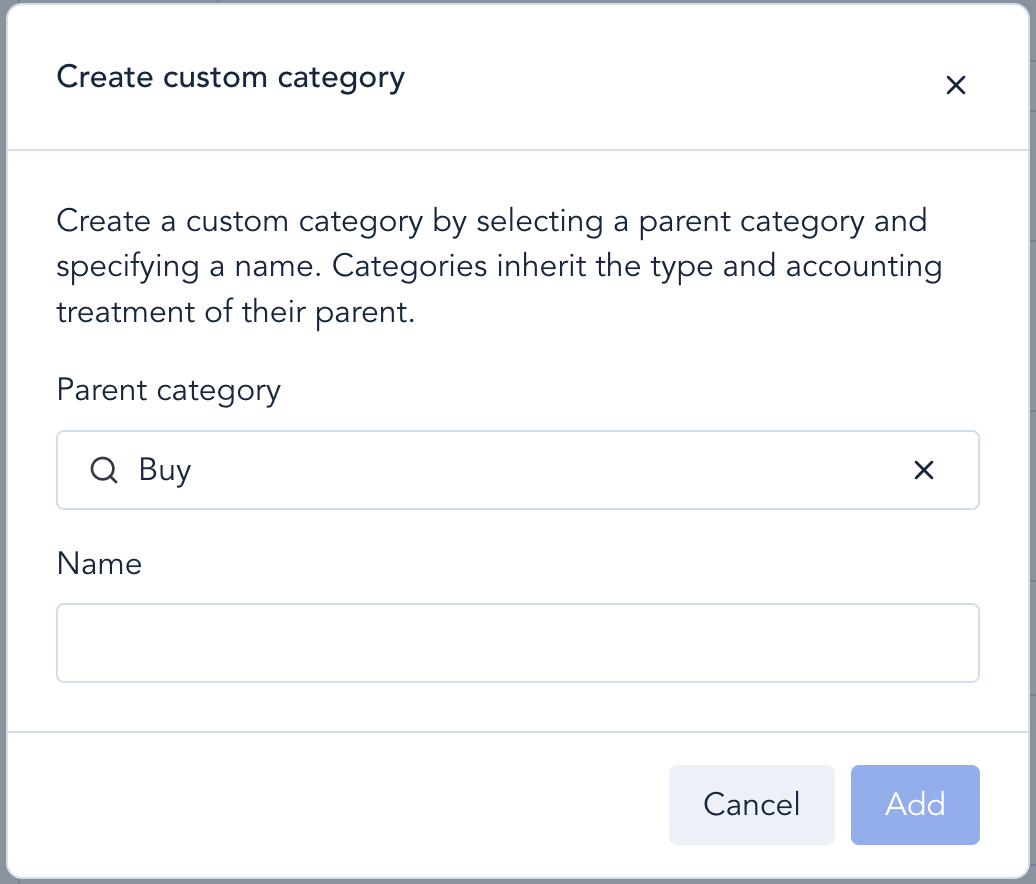
Once added the custom categories will be available for use in transactions and rules. You will also have the ability to use these custom categories when creating detailed mappings for your ERP chart of accounts.
Creating Detailed Mappings, Rules, and Viewing Transactions
Once you’ve created your custom category, you can select from the following options to create detailed mappings and rules for the custom category, and then you can view the transactions associated with this new category from the Transactions page:
Create Detailed Mapping
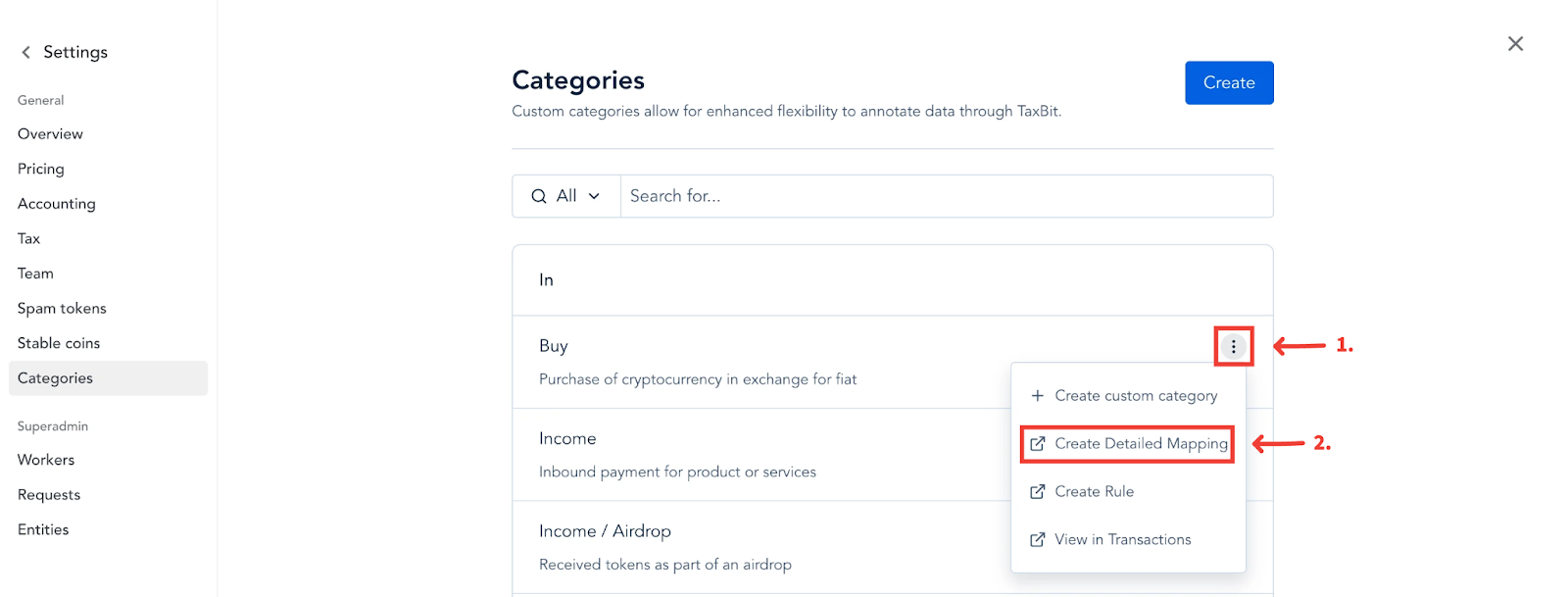
Step 1: (1) Select the three dots next to the custom category you just created, (2) then select “Create Detailed Mapping”. You’ll be redirected to the Accounting page, where you can then create detailed mappings for your chart of accounts.
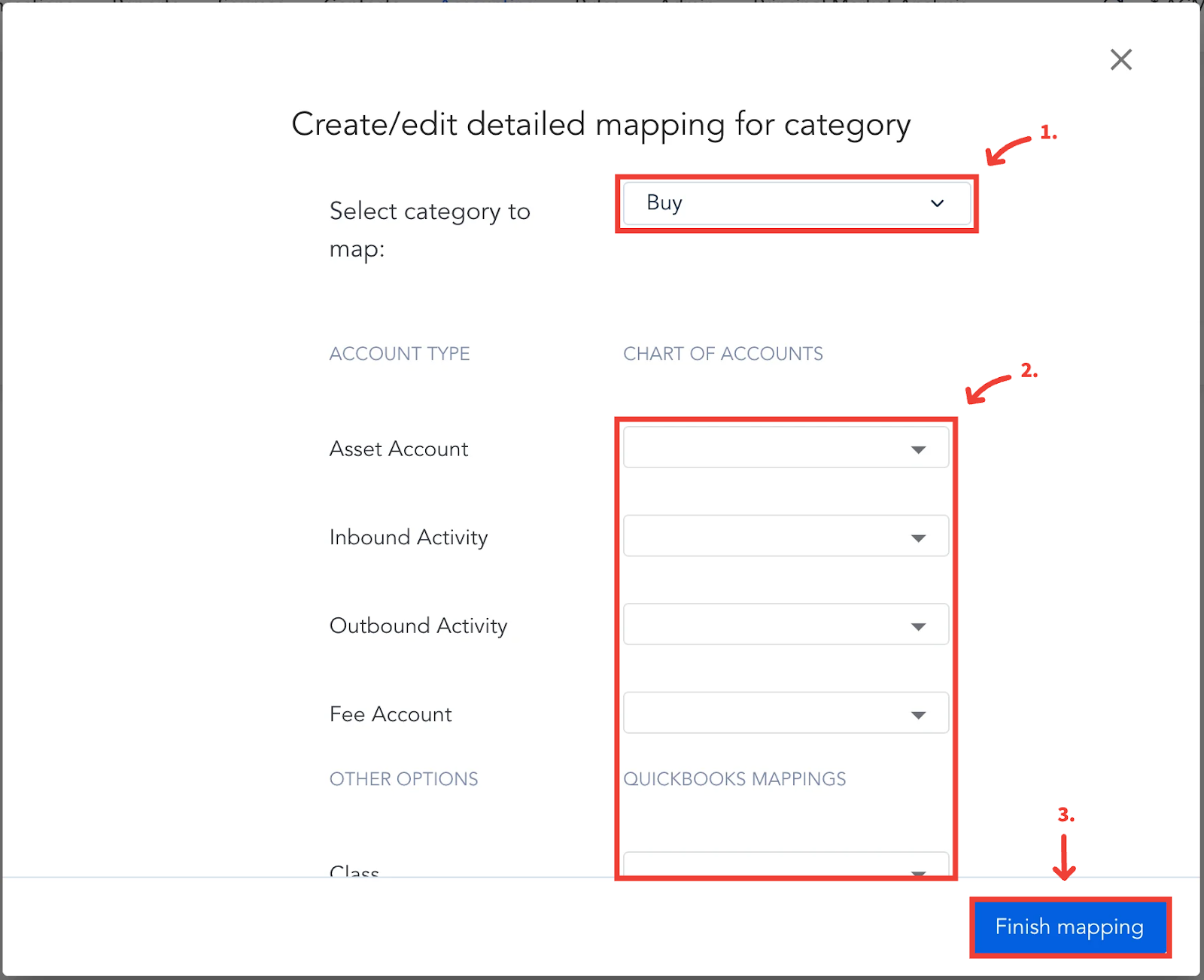
Step 2: (1) You’ll see that the category will already be populated within the “Select category to map” dropdown with the selected category. (2) Once you’ve populated the remaining fields, (3) select “Finish mapping”. Once you’ve saved your mapping, you’ll see this new mapping listed on the Detailed mappings page, displaying the name of your new custom category:
Create Rule
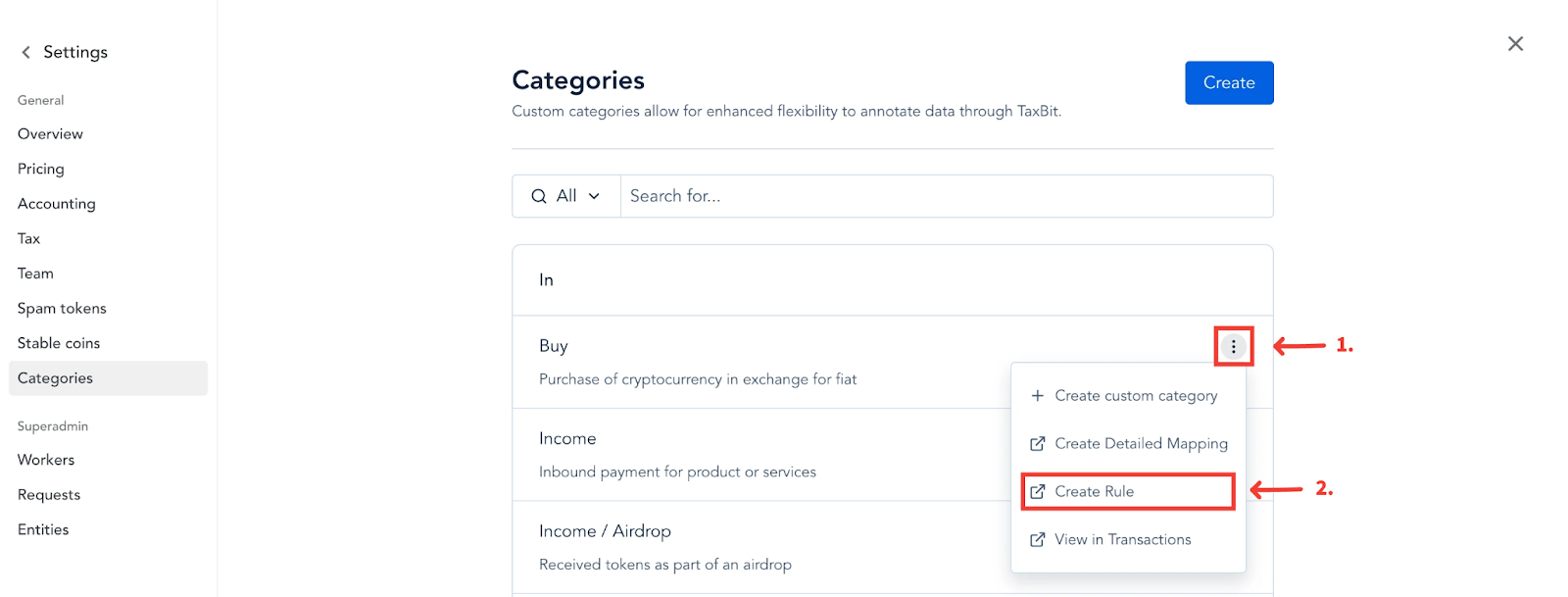
Step 1: (1) Select the three dots next to the custom category you just created, (2) then select “Create Rule”. You’ll be redirected to the Rules page, where you can then create a rule with your new category.
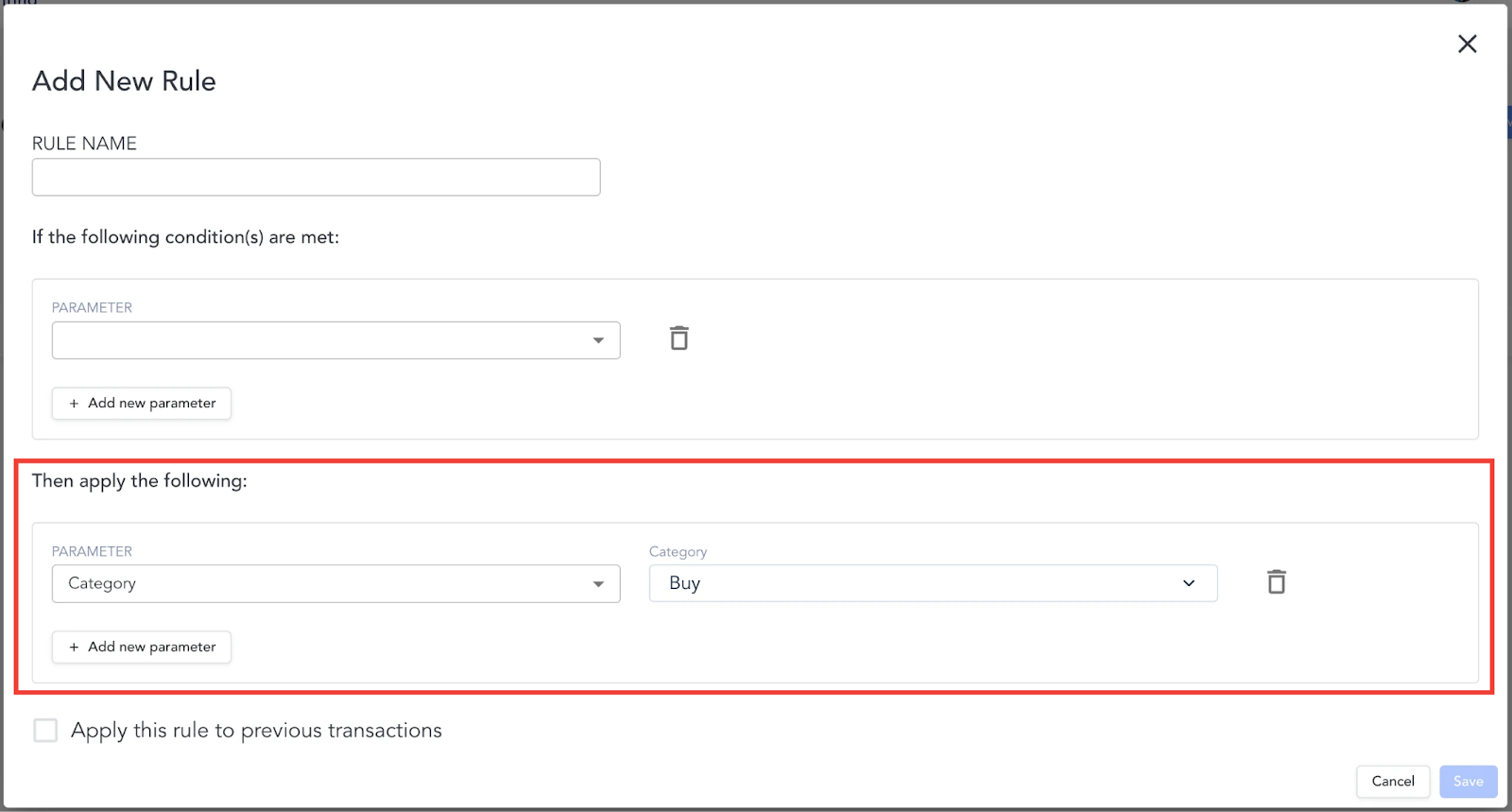
Step 2: You’ll see that the selected category is populated within the category parameter for the “then” statement of the rule. Once you’ve populated your “if” statement for the rule, select “Save” on the bottom right, and you’ll see this new rule for the custom category you’ve created listed within the Rules page.
View in Transactions
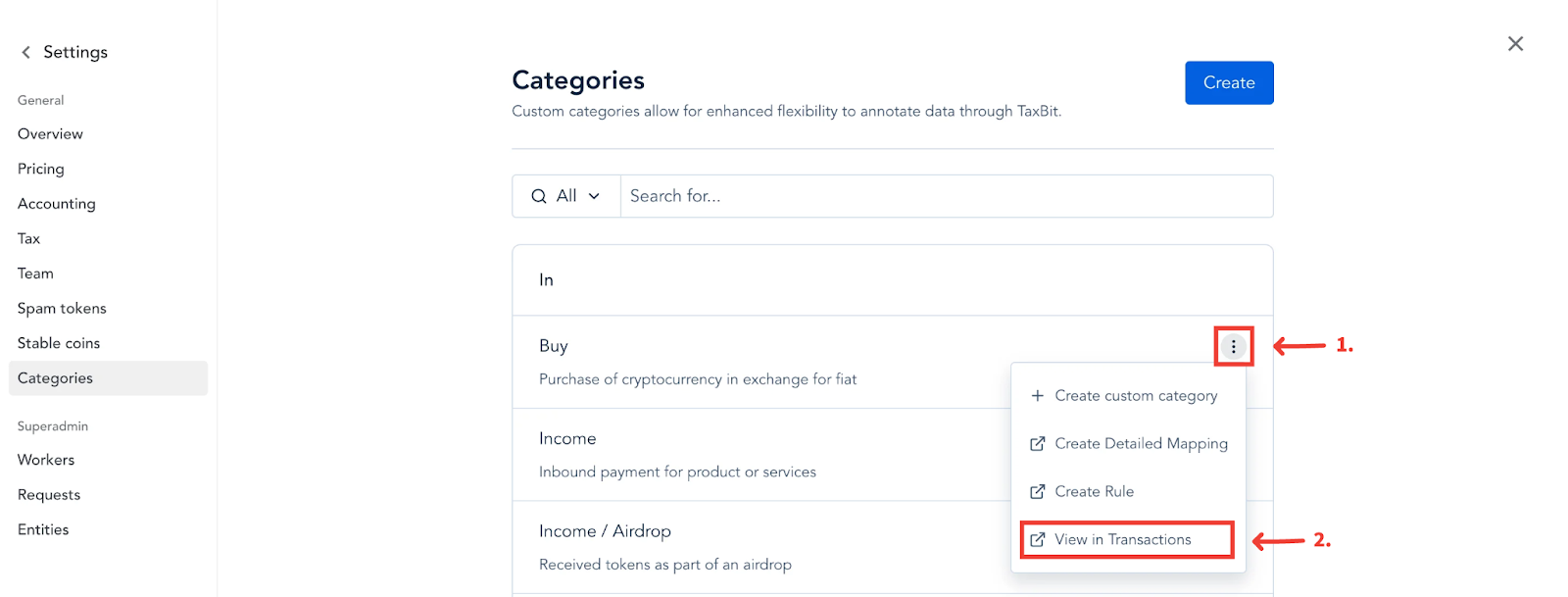
Step 1: (1) Select the three dots next to the custom category you just created, (2) then select “View in Transactions”. You’ll be redirected to the Transactions page, where any transactions labeled with the selected category will be automatically filtered and displayed.
Using Memos for Customization
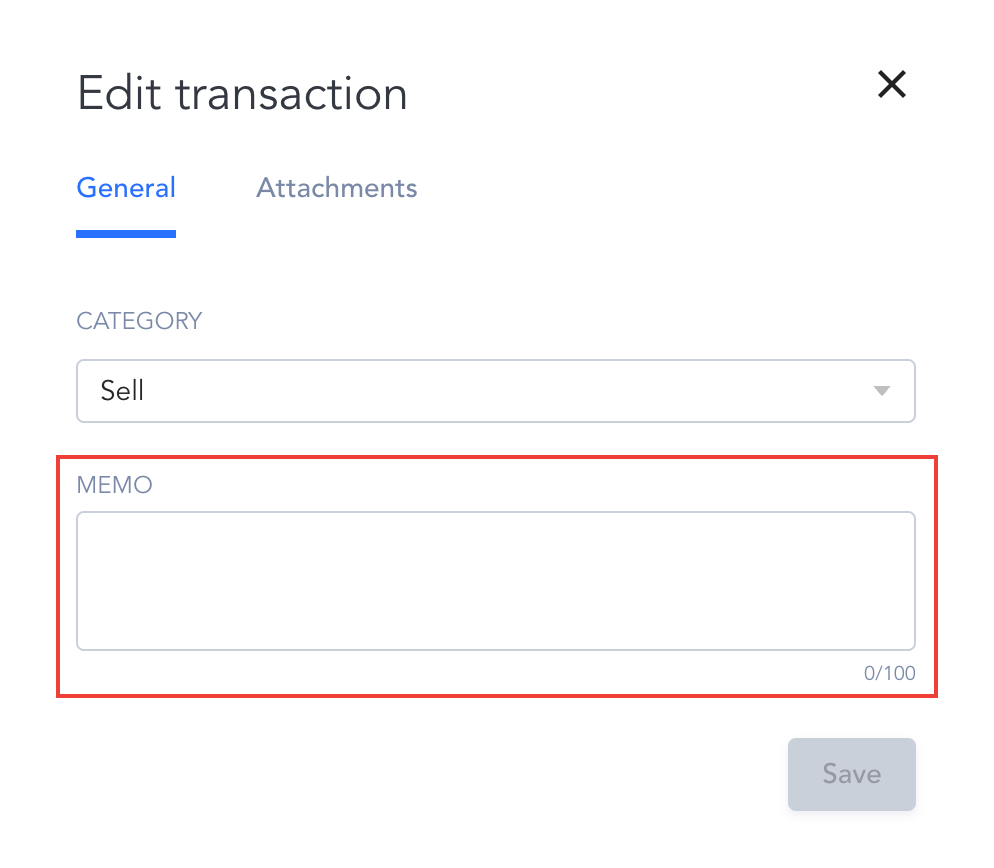
Additionally, users can add memos to transactions for further customization. Memos can be added during rule creation or by editing/bulk editing the memo within transactions from the Transactions page. Memos provide additional context or information related to a transaction, enhancing data organization and searchability.
For more information on adding rules and editing transactions, please refer to the following guides:
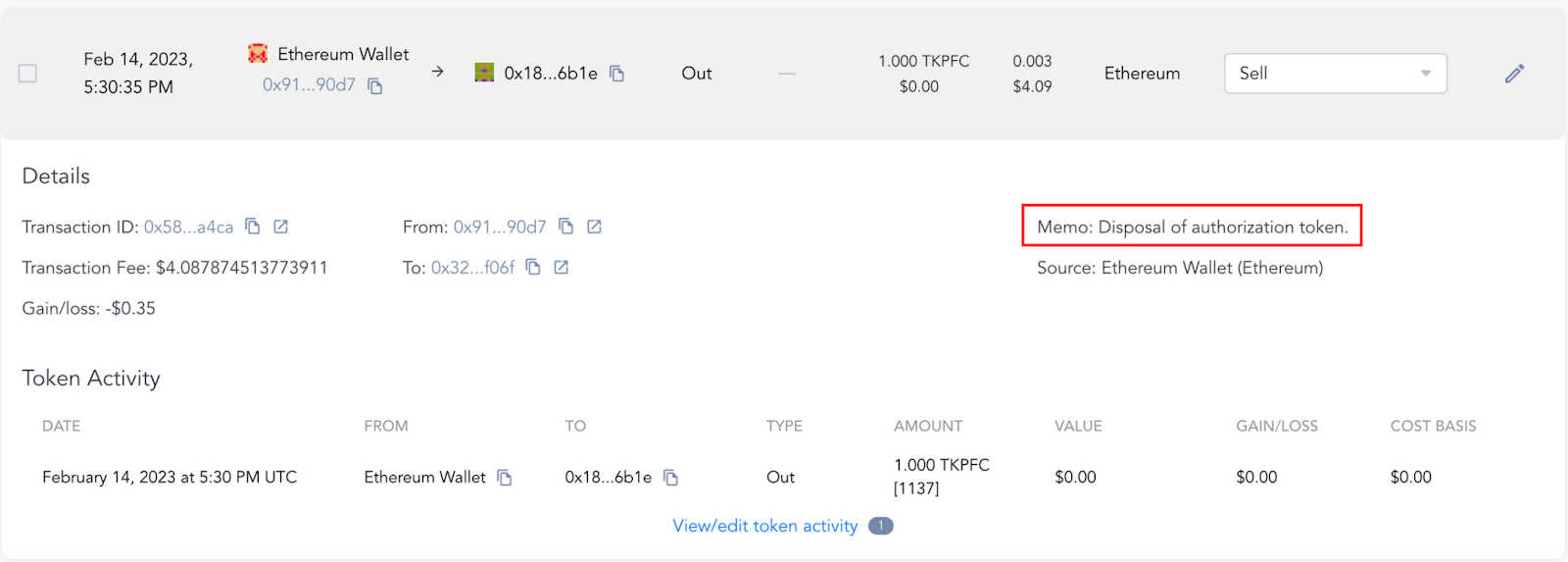
Once the Memo is added, you’ll be able to view it in the transaction detail window by selecting the specific transaction the Memo was added to.
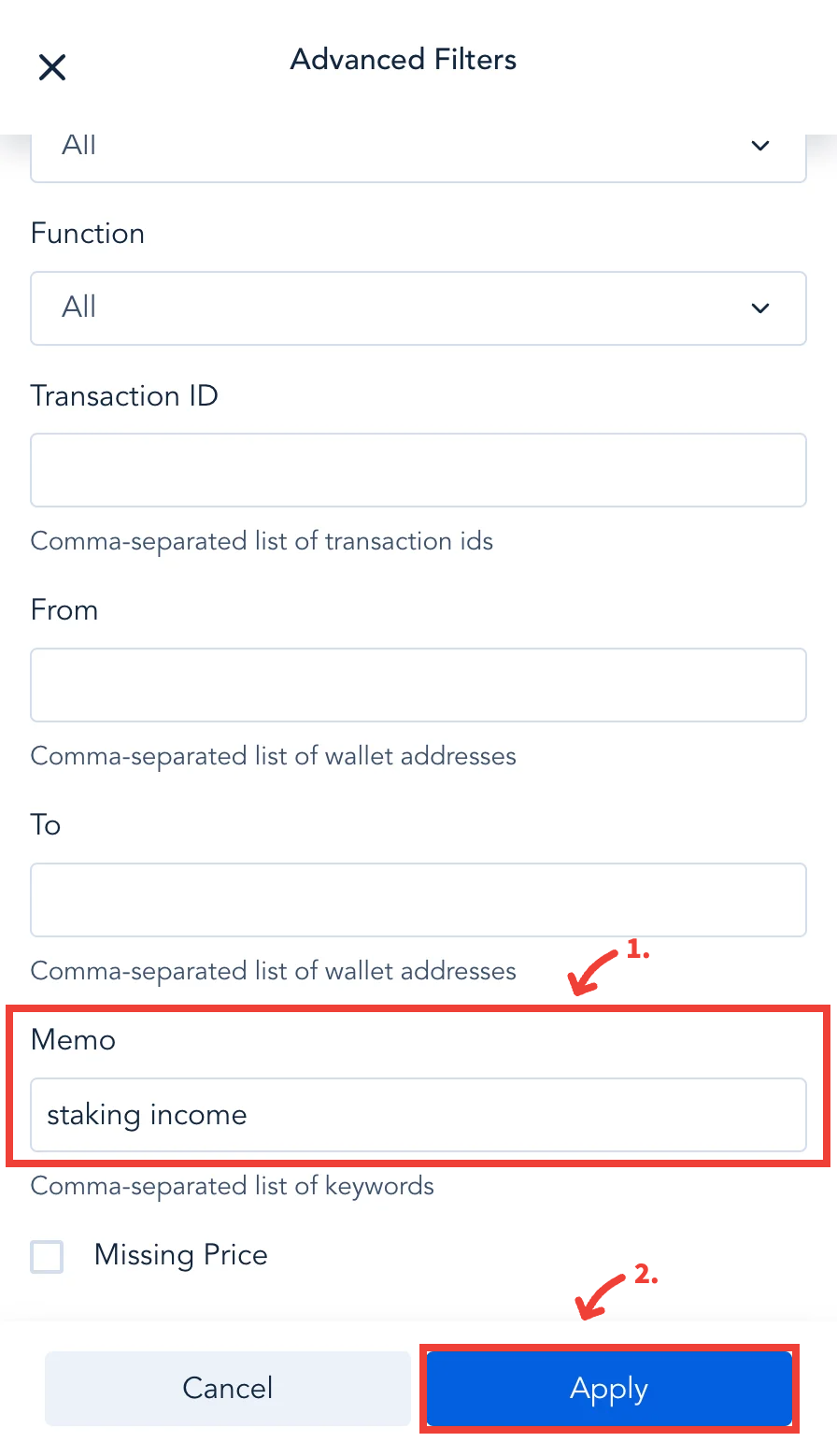
To locate transactions with specific memos, you can use the "Advanced" filter located on the Transactions page. By typing a keyword from the memo in the "Memo" section and selecting "Apply". Any relevant transactions associated with that memo keyword will then be displayed on the Transactions page.
Please note: When adding memos, it's essential to ensure consistency to facilitate easier retrieval when needed. For instance, using similar keywords for memos with similar intentions across multiple transactions improves searchability.
In summary, the Accounting Suite's custom categories and memo features empower users to customize and organize their data, enabling more effective account management, reporting, and analysis.
For a demonstration of creating and using custom categories, please watch this video: