In this guide, you will find information on how pricing is ingested within the Taxbit Accounting Suite, as well as the different pricing methodologies that are currently available.
Contents
How is pricing retrieved?
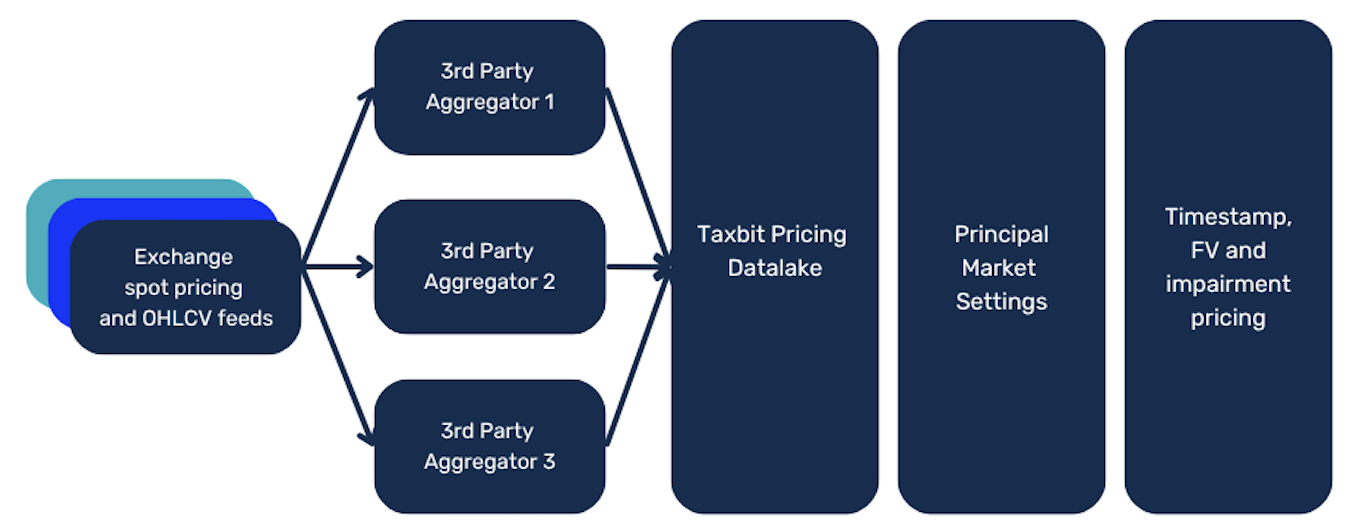
The Taxbit Accounting Suite utilizes a third-party pricing feed to assign a market value to all digital asset transactions, based on the transaction timestamp, pricing method, and the principal market and fallback market chosen to retrieve pricing. If there is a preferred principal market or fallback market pricing provider that you wish to use for your pricing, please reach out to our team, and we will ensure all transaction data is priced appropriately. A relevant time range for that principal market or fallback market can also be assigned.
Please note: The pricing feeds cover all major crypto assets; however, certain low-volume assets or NFTs may require manual pricing input. Please see the section, What if an Asset has Missing Price?, for more information.
Available Pricing Methods
Timestamp Pricing
By default, all assets are priced based on the timestamp of their associated transaction. Under this method, the system uses point-in-time methodology to establish the cost basis and proceeds.
Daily Average Pricing (Same Day)
The Daily average pricing method uses the average price of an asset over the course of a full day. It's calculated by averaging the high, low, and close prices throughout 24 hours.
Please note: Under the Daily Average Pricing (same day) method, depending on the time of the transaction, we will not have pricing available until the following day after your data has been re-processed and the full day’s average pricing has been calculated.
Daily Average Pricing (Previous Day)
The Previous Day Average pricing method uses the average price of an asset over the course of the previous 24-hour period based on the timestamp of the transaction. It's calculated by averaging the high, low, and close prices throughout 24 hours.
Beginning of Day (Same Day)
The Beginning of Day pricing method is the first price with the timestamp recorded closest to 0000 UTC on the day of the transaction.
Previous Beginning of Day (Previous Day)
Previous Beginning of Day pricing is similar to Beginning of Day pricing; however, it refers to the price of an asset at the start of the previous trading day.
Which Principal and Fallback Market Providers Are Currently Available within Taxbit?
As mentioned in a previous section, the principal market provider is the default provider that is used to establish transaction pricing, including cost basis and proceeds for the assets within your environment. If the principal market provider is unable to provide pricing for a particular asset, then the fallback market provider will be used. Both of the providers selected are also dependent on the pricing method being used within your environment.
The following providers may be selected as your default principal market and fallback market providers for your pricing needs:
- Best Price
- Please note: Best price is the preferred fallback provider, as it pulls from a list of providers (including market aggregators such as CoinGecko and CoinMarketCap) with a much broader range of pricing availability.
- Coinbase
- Gemini
- Kraken
Please note: If you don’t see a provider you specifically want to use, please contact your Customer Success Manager (CSM).
To update your pricing providers, please follow the steps outlined below:
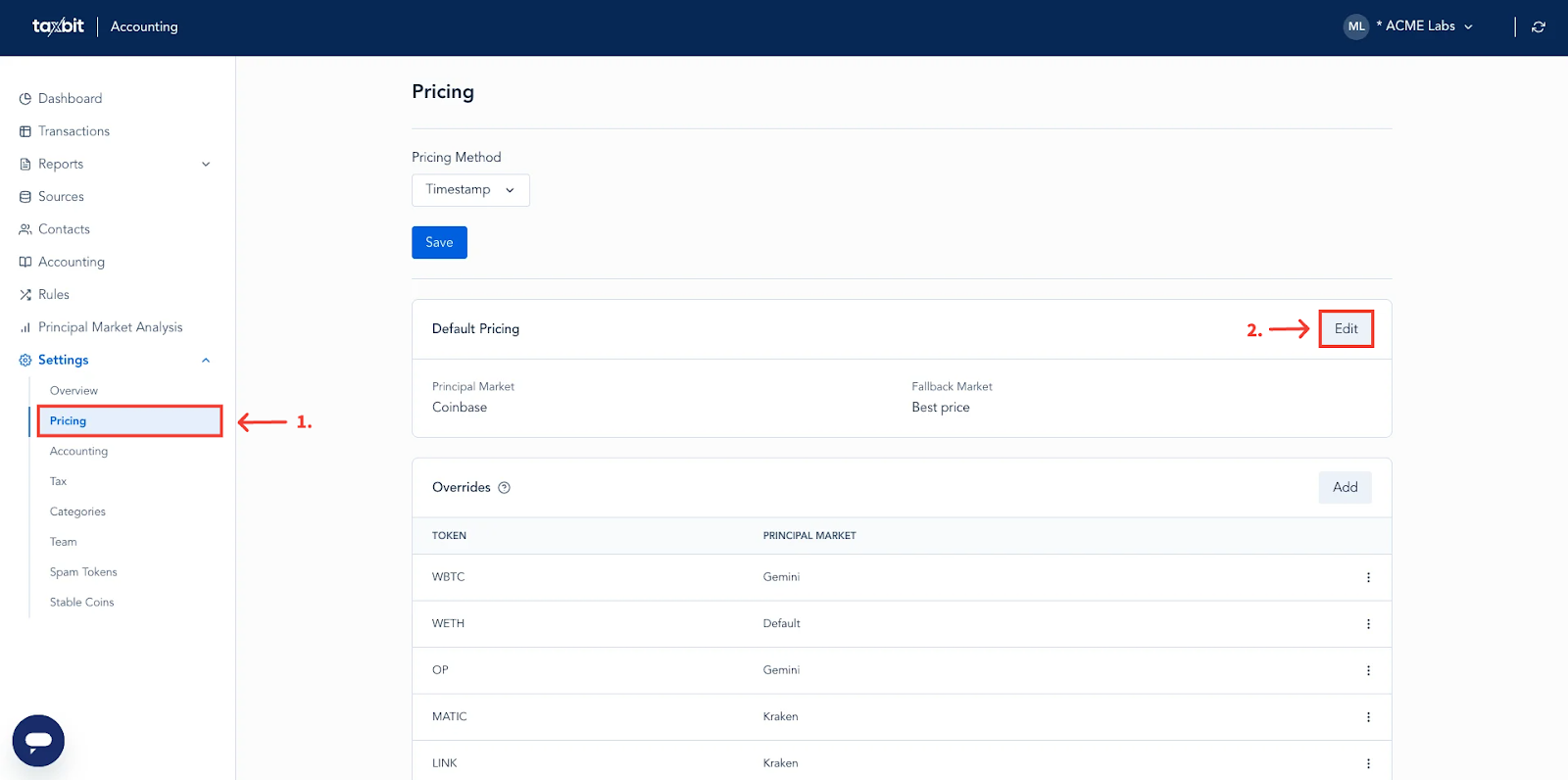
Step 1: From the Settings page, 1) select the “Pricing” tab, 2) then select “Edit” from the 3 dots on the top right.
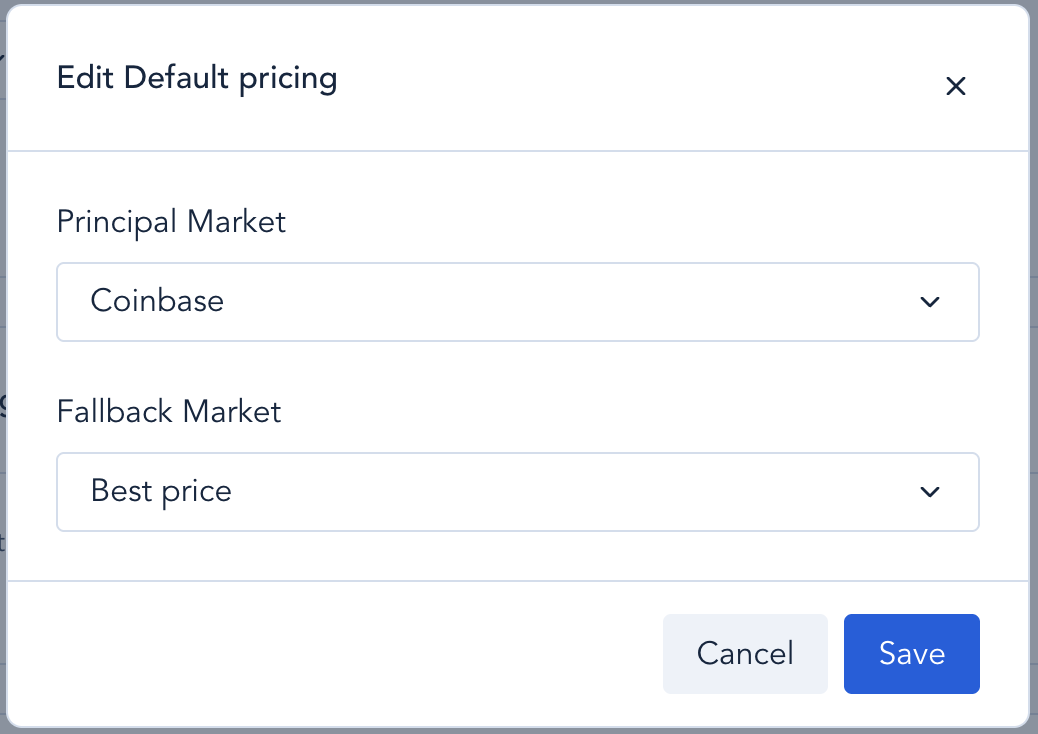
Step 2: Select your preferred default principal market and fallback market from their respective fields, and then click “Save” at the bottom.
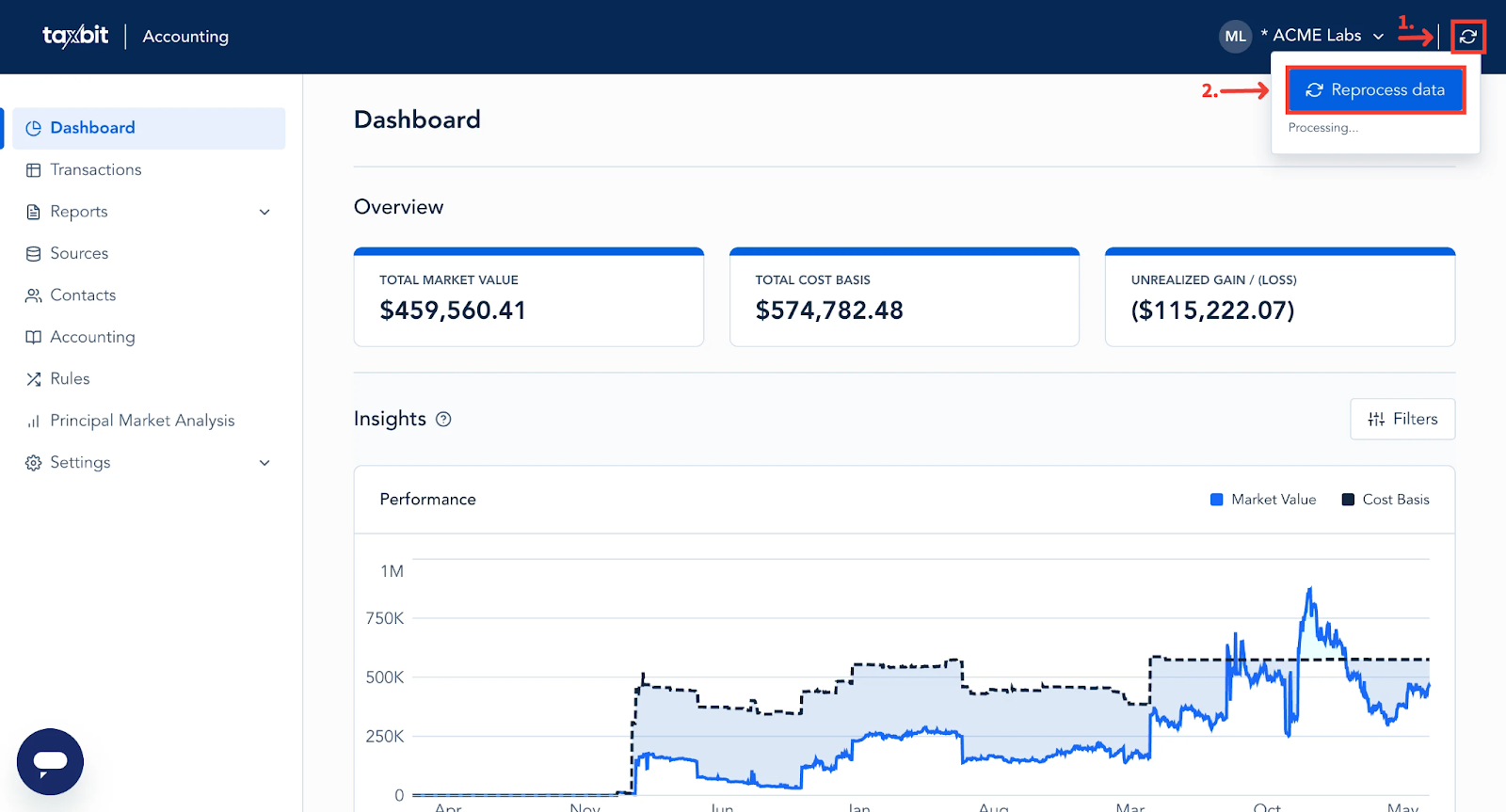
Please note: Once you reprocess your data, the updated pricing will reflect within transactions as well as reports. To reprocess your data, 1) select the “Reprocess Data” icon from the top right of the Transactions page, 2) then select the “Reprocess Data” button.
Adding Pricing Overrides for Individual Tokens
If there are any particular assets that you need to assign their pricing provider to, you can do so by following the steps outlined below:
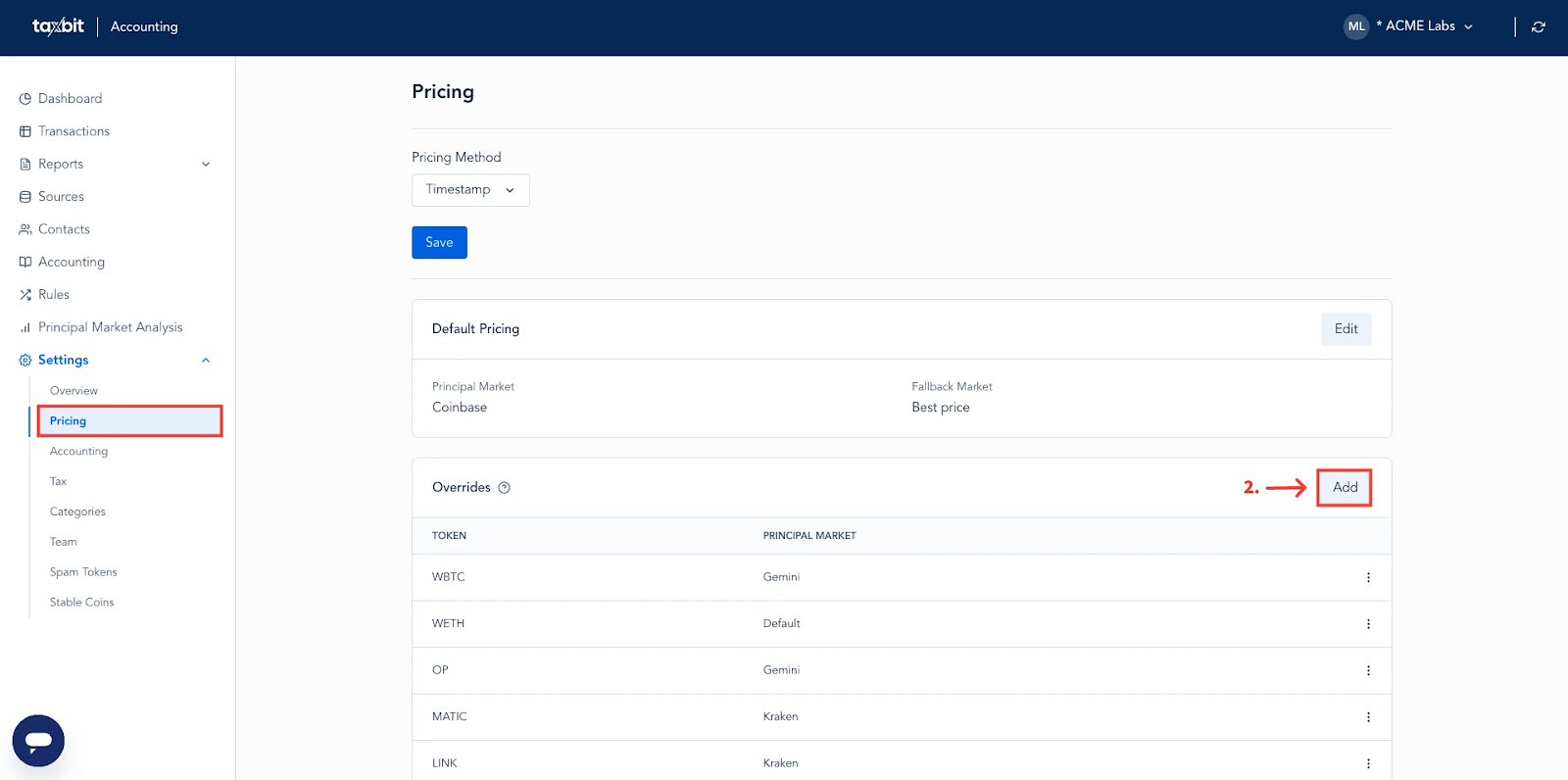
Step 1: From the Pricing page within Settings, scroll down to the Overrides section and then select “Add”.
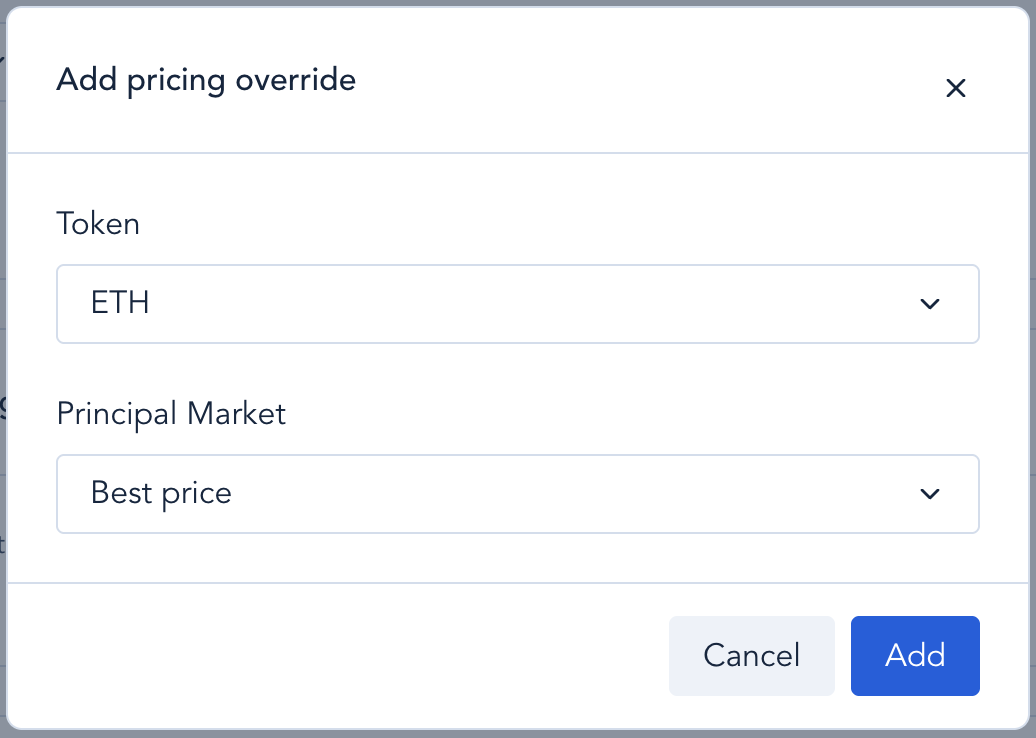
Step 2: Select the asset you want to override as well as the principal market you wish to use for it, then select “Add”.
Editing Overrides
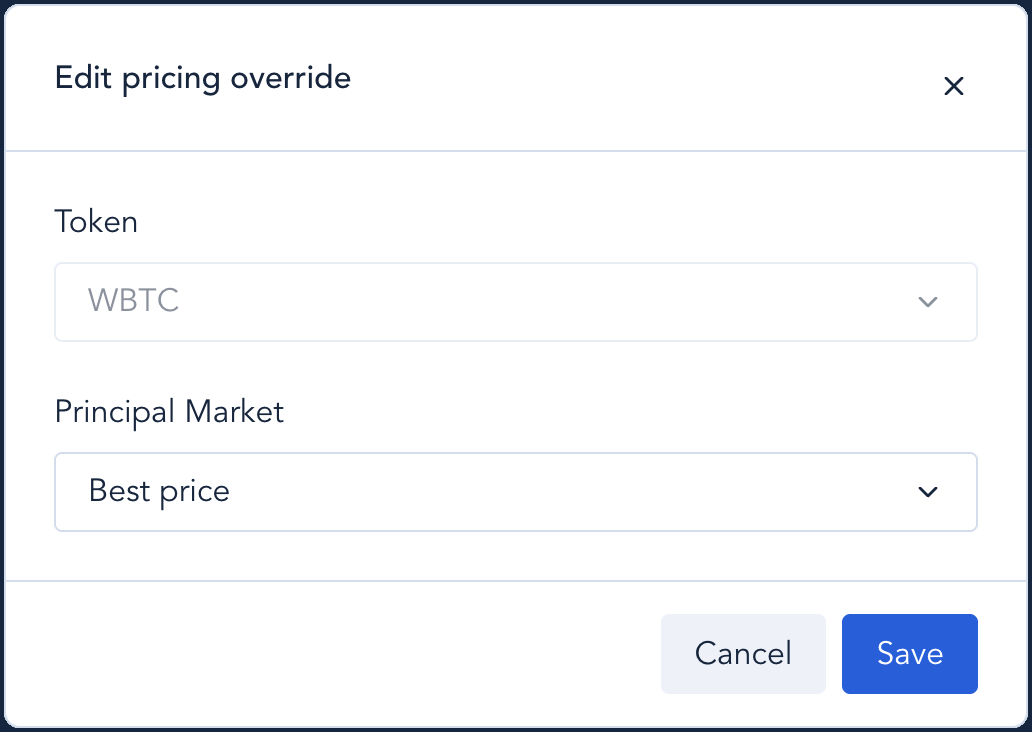
Step 1: To edit an override, 1) select the three dots to the right of the override you wish to edit, 2) then select “Edit”.
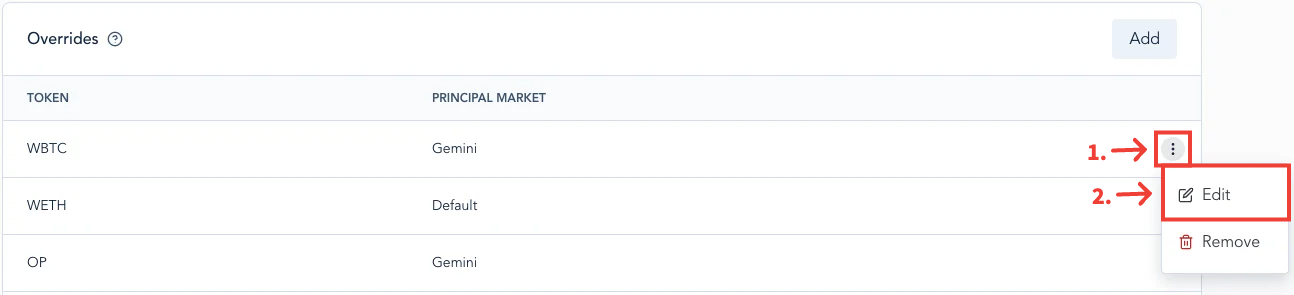
Step 2: From the next window, select the asset and the principal market you wish to use for the asset, then select “Save” on the bottom right.
Deleting Overrides
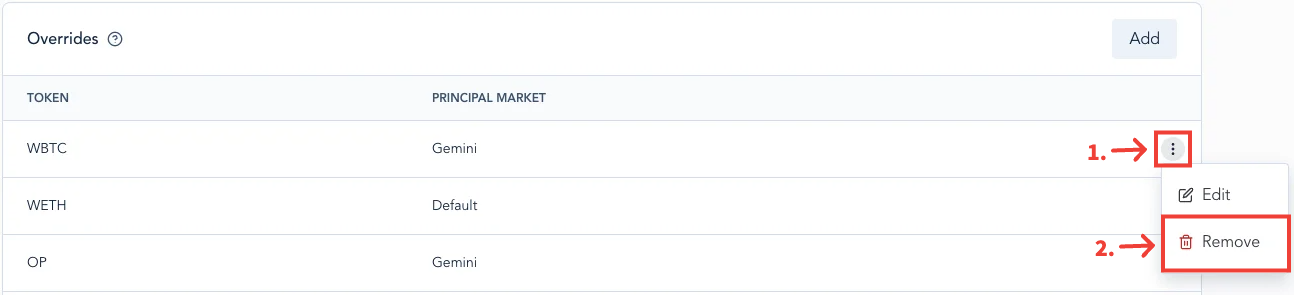
To delete an override, 1) select the three dots to the right of the override you wish to delete, 2) then select “Remove”.
Pricing Hierarchy
Pricing hierarchy refers to the order in which pricing would be pulled based on the data available for a transaction in the Accounting Suite. Please refer to the following sections on how pricing is expected to be pulled for each scenario:
Crypto Assets on Both Sides of the Transaction
If the transaction contains crypto assets on both sides of the transaction (e.g., trade BTC for ETH), then we would use the out asset to price the transaction for its journal entry, gain/loss calculation, setting cost basis on the lot received, etc.
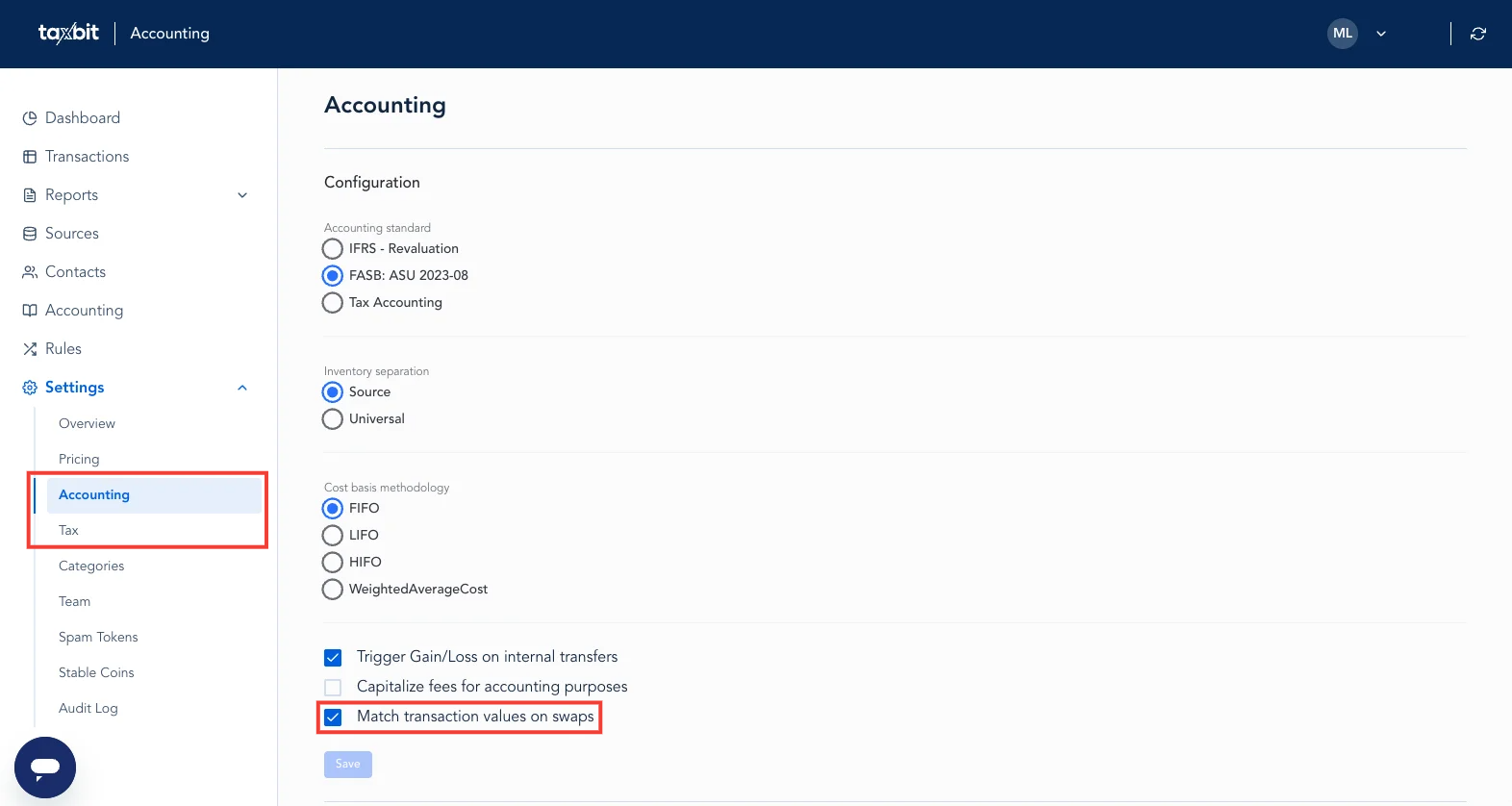
Please note: For this to work, the checkbox next to "Match transaction values on swaps" on the Accounting/Tax tabs within the Settings page will need to be checked. If not, the assets will be priced independently of one another.
Pricing on the Out Asset Unavailable
If the pricing on the out asset is not available (e.g. trade of BTC for ETH and the price for the BTC is not available or not available within a reasonable time frame) then we’d refer to the price of the In asset of the transaction, which would then be used for the journal entry, gain/loss calculation, setting cost basis on the lot received, etc.
Please note: This is only valid on one-to-one swaps, not on MIMO-type swaps.
Flexible Pricing
Taxbit’s Flexible Pricing tool is a powerful tool that gives you greater control over how transactions are priced at the individual transaction level, ensuring more precision and compliance in your accounting workflows.
What Does This Mean?
Flexible pricing allows for the following within the Accounting Suite:
Transaction-Level Pricing
Apply pricing methods like timestamp pricing or daily average pricing per transaction, rather than across your entire entity. This gives clients the flexibility to use various pricing methodologies for different types of transactions.
For example, a Bitcoin Miner could use timestamp pricing for mining rewards earned from their mining rigs and prior-day pricing for mining rewards earned via a mining pool. This flexibility enables better revenue recognition practices and alignment with accounting rules.
Enhanced Accuracy
Ensures proper valuation of mined assets from diverse mining pools and on-chain activities.
Better Audit-ability
The pricing method used for each transaction is explicitly logged for transparency and compliance.
How Do I Apply Flexible Pricing?
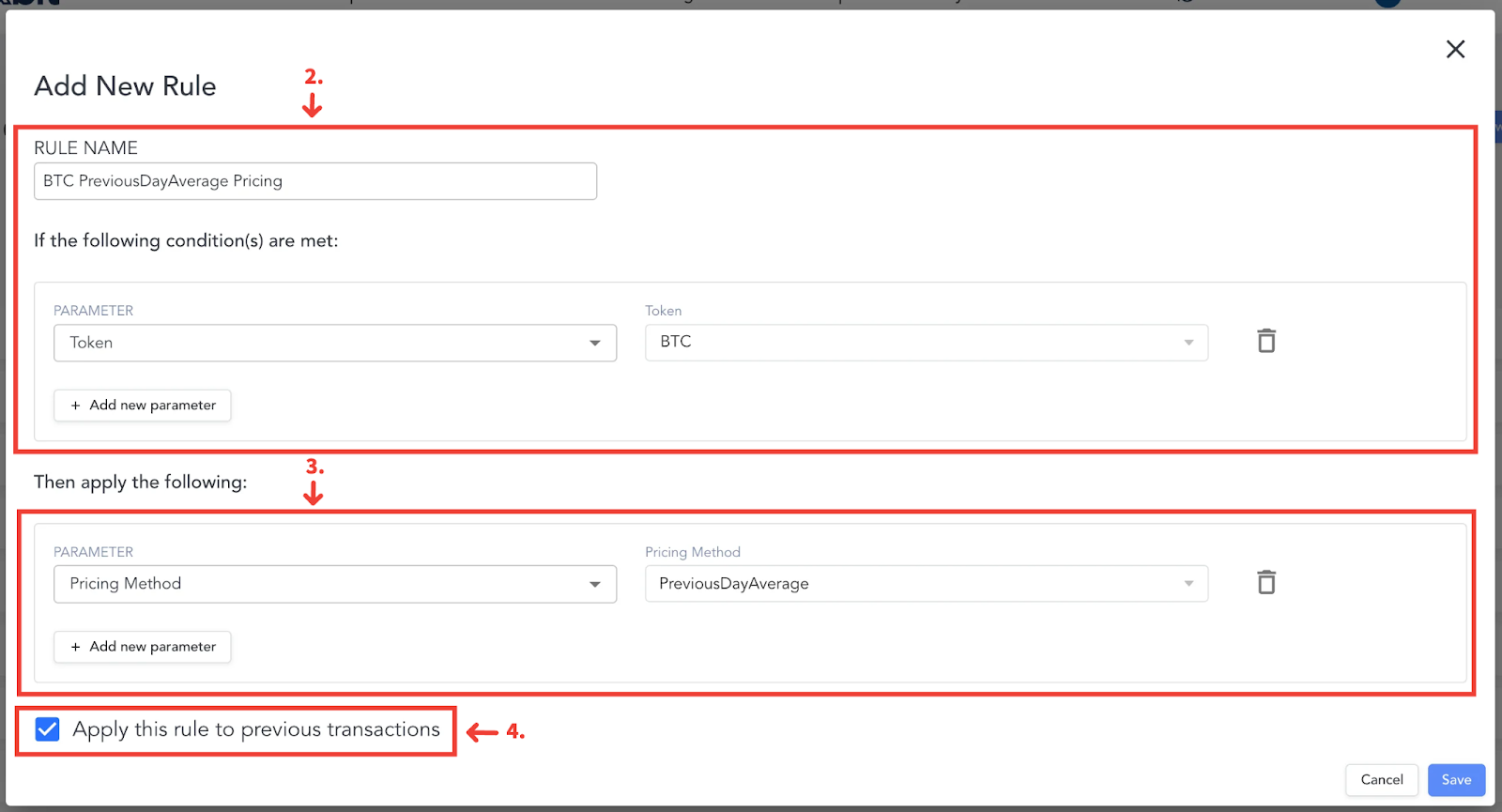
Flexible pricing can be applied to transactions by creating a rule(s) from the Rules page. Please refer to the steps outlined below:
Step 1: From the Rules page, select “+Add” from the top right.
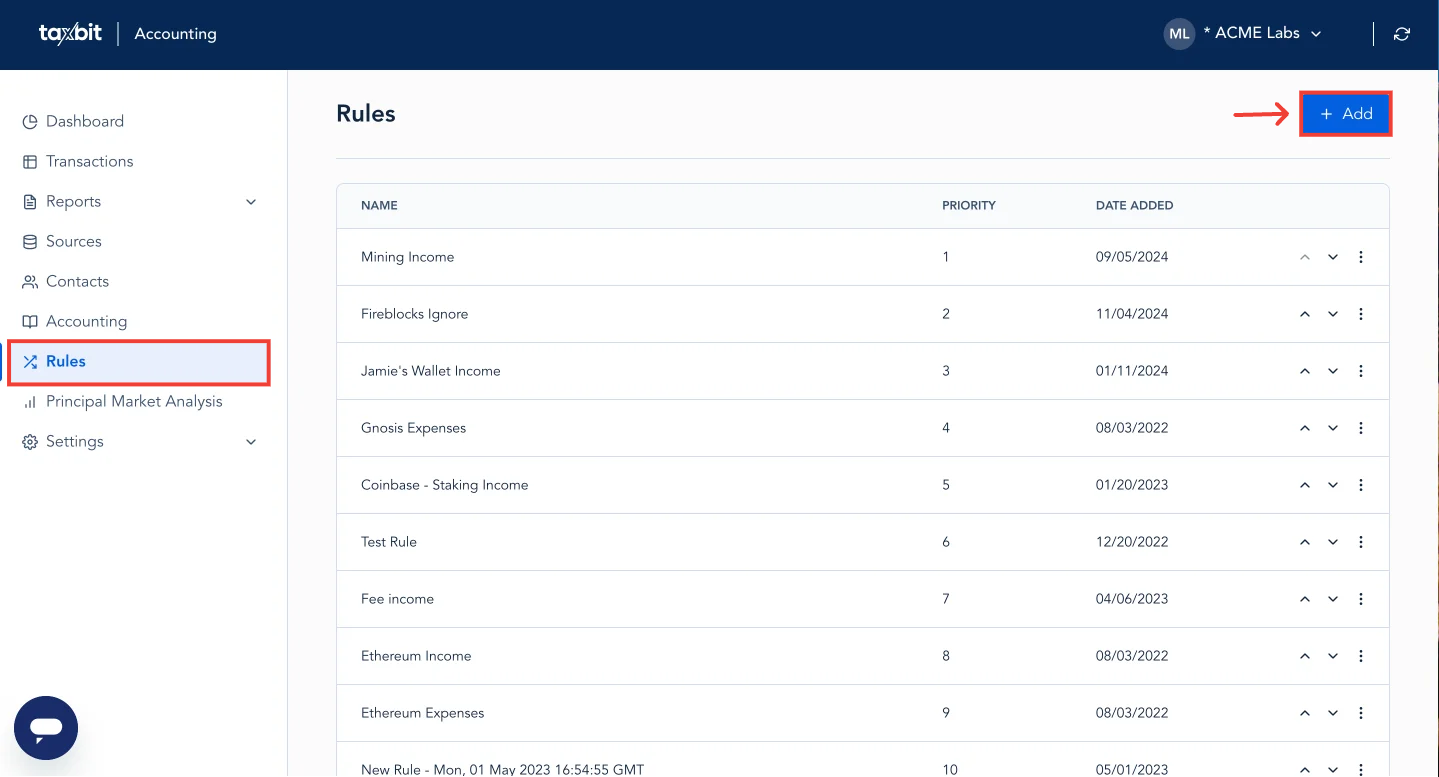
Step 2: Give your rule a name and then select the “If” parameters for the transactions that you wish to apply the flexible pricing to.
Step 3: From the “Then” parameter section, select “Pricing Method” from the drop-down, and then select the pricing method you wish to apply to each of the transactions that meet the “If” parameters.
Step 4: Select “Apply this rule to previous transactions”, then select “Save” from the bottom right.
What if an Asset has Missing Price?
You can easily identify any transactions with missing price by checking the “Missing Price” box within the “Advanced Filter” on the Transactions page and then by selecting “Apply”. This will allow you to view any transactions that have a missing price within the system.
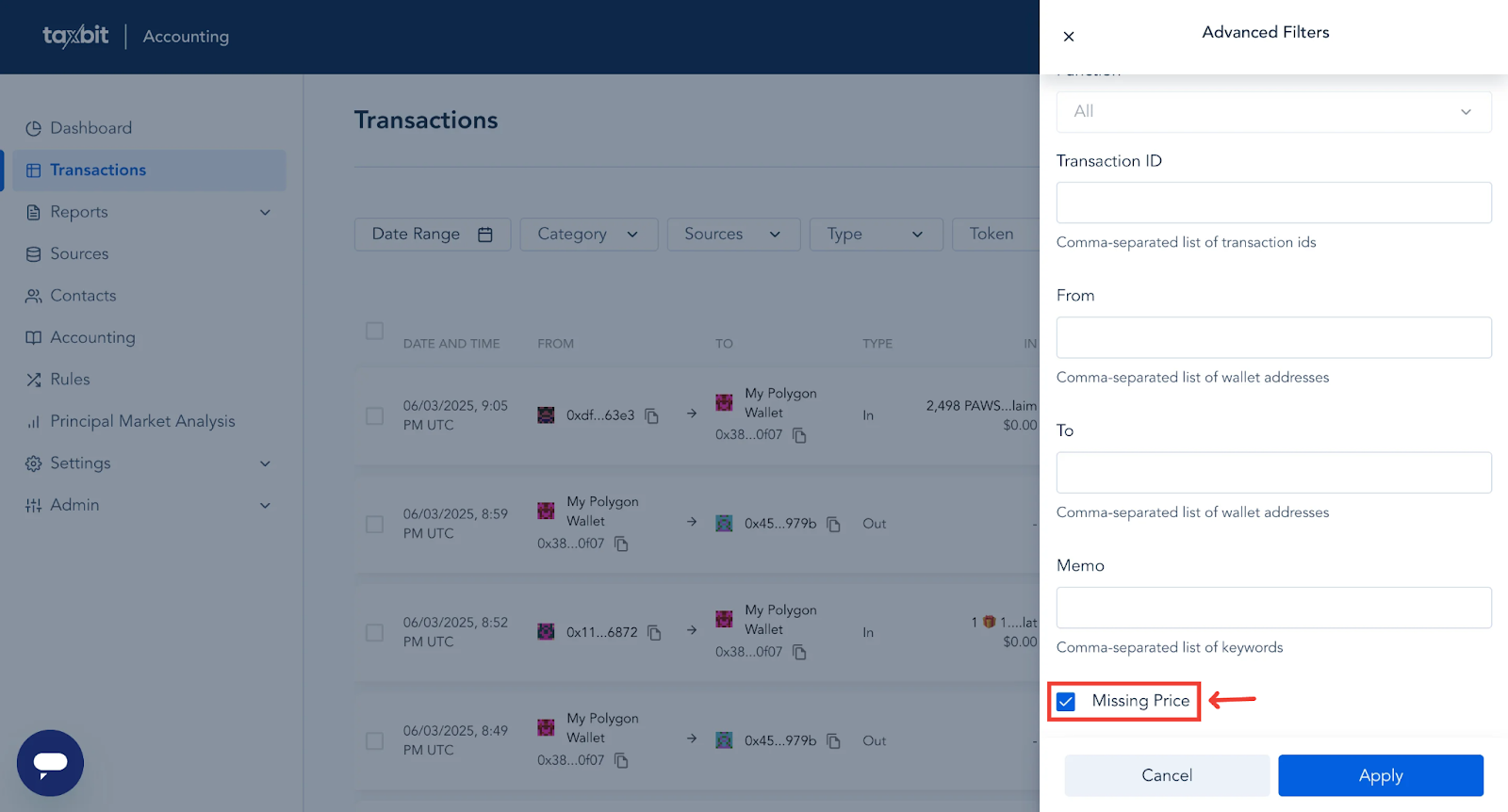
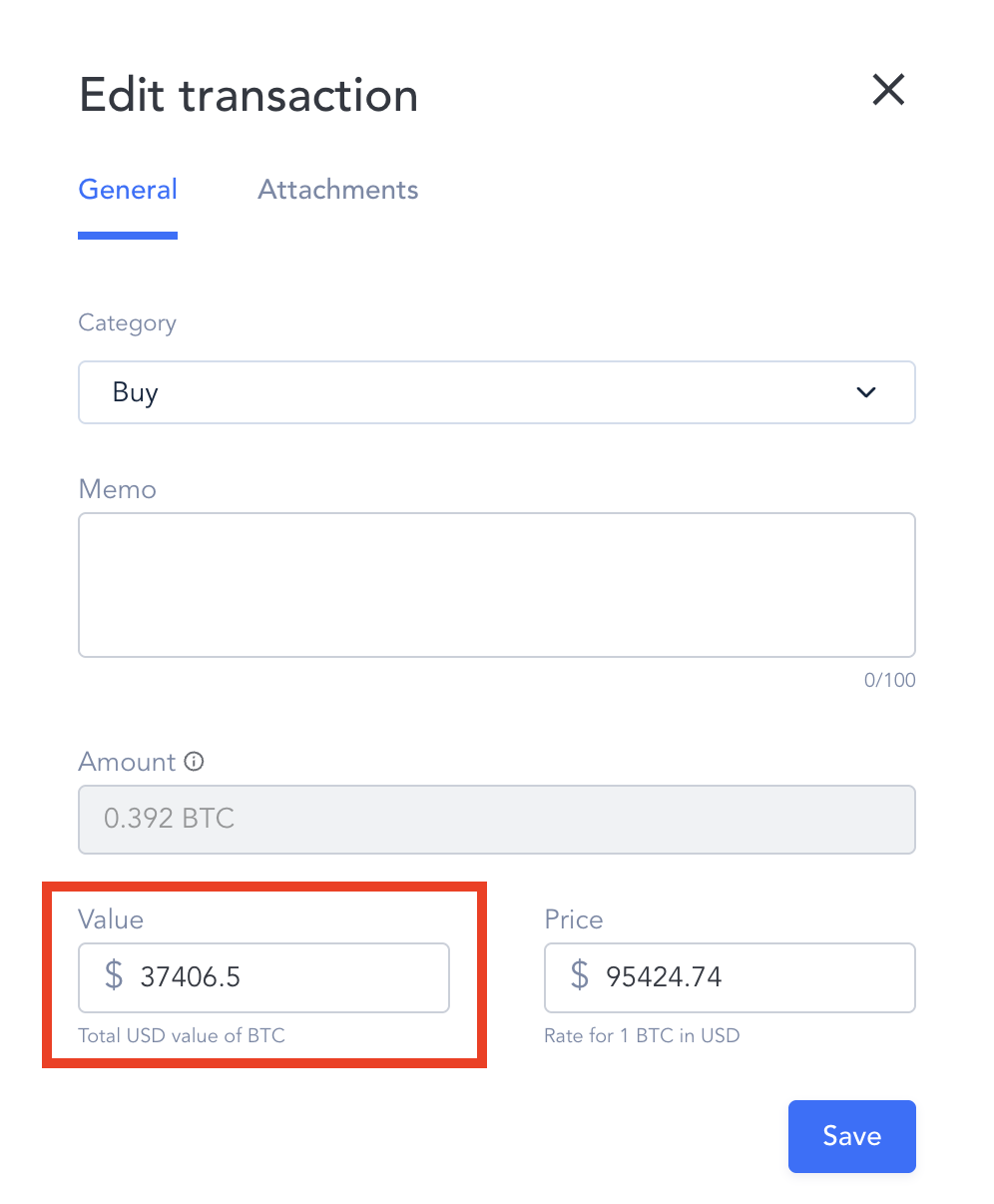
If you notice an asset with a missing price, please reach out to our team so that we can investigate further. However, if pricing is immediately needed, then you can manually edit the price of the asset by selecting the edit icon to the right of the transaction, then entering the USD value you wish to update to within the “Value” field, which represents the USD value for the total amount of the asset within that transaction. The “Price” field represents the total USD value for 1 unit of that particular asset.
Please note: Once a manual price has been added, you will need to reprocess the data for the updated pricing to reflect throughout your environment, calculations, and reports.
For the below example, the total value for 0.392 BTC at the time of this transaction is equal to $37,406.50, which reflects within the “Value” field, and the total USD value for 1 BTC at the time of this transaction is equal to $95,424.74. If you update the USD value in the “Value” field, the “Price” value will update automatically and vice versa.