
Please refer to the steps outlined below for information on how to generate tax forms within the Taxbit Dashboard. There are two methods for generating forms:
- Bulk Form Generation
- Specific Account Generation
In both of the methods for generating forms described below, forms will only ever be generated for eligible accounts with complete data. If a form has already been generated for an account, a new form would only be generated to the extent that there has been a change that needs to be updated.
Please note: You have the option to review the draft version of the forms by first downloading the QA Package. Please review the following guide for additional information: QA Package
Please note: Form generation uses the current account and filer information available when generation is triggered. Please review and update these details, as needed, before generating forms or corrections to ensure the output reflects the correct information.
Bulk Form Generation
Step 1: Ensure that you have the proper form and year selected from the top right of the page.
Step 2: Filter to the necessary accounts.
Step 3: Once you are ready to generate forms, select "Generate Forms" from the top right of the page.
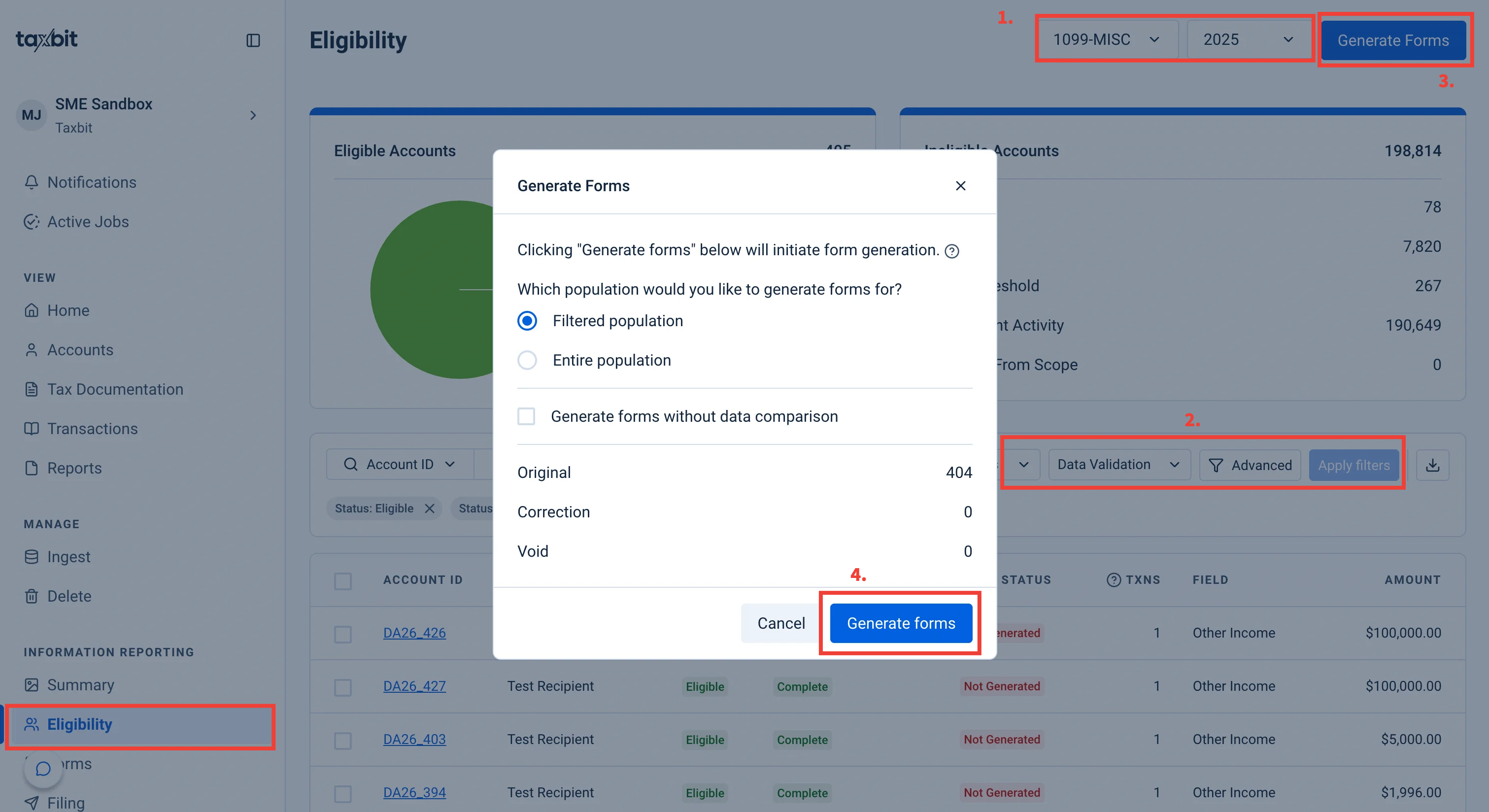
Step 4: Confirm the generation for either the Filtered population or the Entire population of accounts for the selected form and tax year, then select “Generate Forms” within the next window.
Step 5: Once the generation has started, you will see an active job listed within the Active Jobs tab to allow you to track the form generation.
Step 6: Once complete, the updated forms for each account will be available from the Forms page.
Specific Account Generation
To generate a form for a specific account(s), rather than the entire population, please follow the steps outlined below:
Step 1: Filter to the necessary account(s).
Step 2: Select the checkbox next to the account(s).
Step 3: Then select “Generate Forms” from the bottom of the page.
