
The Developer Settings page is where you can view and copy the credentials and configuration details your team needs to connect to Taxbit’s API programmatically. This includes your Organization ID and API credentials.
This page is designed for viewing and copying. The values shown here are provisioned by Taxbit for your organization. To request new credentials or change existing ones, please contact your Taxbit support contact.
Navigating to Developer Settings
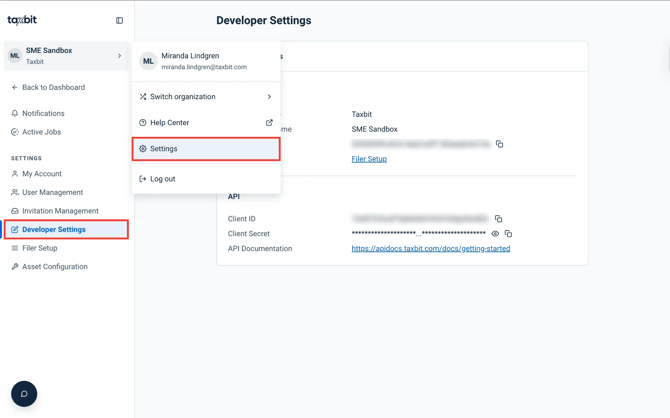
Step 1: Select your organization drop-down from the top left.
Step 2: Select "Settings".
Step 3: Select "Developer Settings" from the left.
Please note: Developer Settings is permission-controlled and requires “Developer” or “Tax Manager” access. If you do not see it in the Settings menu, your user role may not have access. Please reach out to your dedicated User Admin if you need it.
General Settings
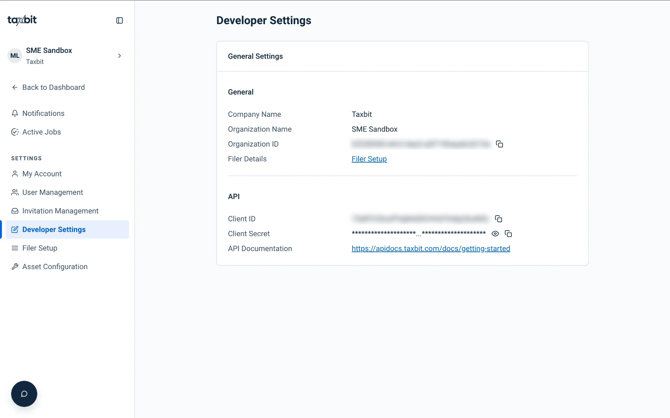
The General Settings card shows the core identifiers for your organization:
Company Name: Your organization's company name.
Organization Name: Your organization's name.
Organization ID: Your organization's unique ID, with a copy button. You will use this when working with Taxbit support or when configuring integrations.
Filer Details: Select "Filer Setup" to go to the Filer Setup page, where filer information is managed. Please refer to the following guide for additional information: Filer Setup
API
If your organization is set up to use the Taxbit API, this section displays your API credentials:
Client ID: Your API client ID, with a copy button.
Client Secret: Your API client secret. It is masked by default. Select the eye icon to reveal it and the copy button to copy it.
API Documentation: A link to our API documentation to help you get started.
Use your Client ID and Client Secret to authenticate your API requests.
Important Considerations
- This page is view-and-copy only.
- You cannot create, rotate, or delete credentials from this page. To request new or updated credentials, contact your Taxbit support contact.
- Revealing secrets: The Client Secret is masked for security. Use the eye icon to reveal a value before copying it.
- If a value was recently changed, refresh the page to make sure you are seeing the latest details.