
The Filer Setup tab is a section within the Taxbit Dashboard where users can manage and configure filer information required for tax form generation and filing. You can create a filer with just a name, but forms will not generate until the fields required for your specific regime or form type are completed. The Filer Setup tab is located within the Settings page and allows you to create and edit new Filers, including details such as:
- Name
- Address
- TIN (Tax Identification Number)
- Contact Details
- Regime-specific fields
Ensuring your Filer information is correct is critical for generating tax forms. For more information on exactly which fields each regime requires, please refer to this guide: Filer - Data Model
Once a Filer is created, they will be assigned a Filer ID, which can be found within the Dashboard. The Filer ID will only need to be used to the extent you have multiple filing entities. If you only have one filer, all accounts will automatically link to the default filer. To the extent that you have multiple filers, you’ll need to include the ID on the Account during ingestion to link them appropriately.
Please note: At this time, adding multiple filers in bulk is not supported directly from the Dashboard. They will need to be added one by one, or you can submit a support ticket with the details of each filer populated in the template attached at the bottom of this guide, and we can add the filers in bulk for you.
Adding a New Filer
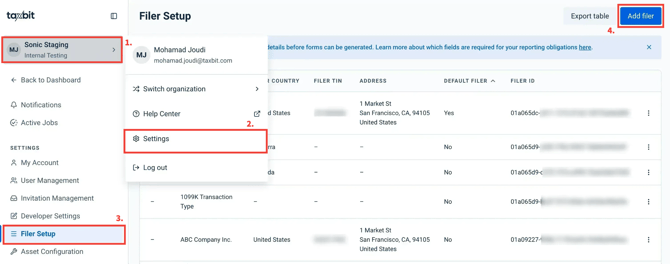
Step 1: Select your organization drop-down from the top left.
Step 2: Select “Settings”.
Step 3: Next, select “Filer Setup” from the left.
Step 4: Then, select “Add filer” from the top right.
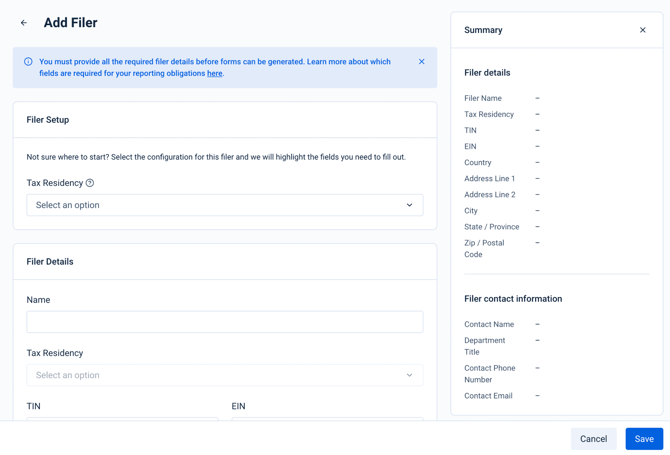
As you configure your filer, your selections appear in the Summary panel on the right, making it easy to review your information before saving.
Please note: Some fields are conditional and appear only when they apply to the selected reporting regime or form. Once set up, review the fields marked Required and complete them before attempting to generate forms. Missing required filer information can cause form generation to fail. See Filer - Data Model for the requirements that apply to each supported reporting workflow.
- In the Filer Setup section, select the filer’s Tax Residency.
- Select the Reporting Regimes and forms that apply to the filer. The available options and fields update based on the tax residency and reporting obligations you select. For US Information Reporting, select the applicable US forms.
- Complete the fields in the sections that appear, including Filer Details, Filer Contact Information, and any regime-specific sections. Fields marked Required must be completed before forms can be generated.
- To add a logo, upload an optional PNG or JPEG file smaller than 2 MB in the Logo section at the bottom, then select Save.
- Please note: The logo is typically displayed on 1099-B or 1099-DA forms.
- Select “Save”.
Other Available Actions
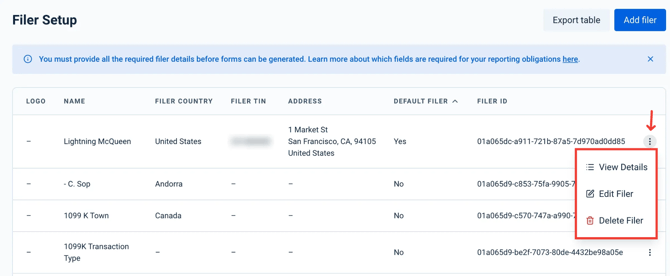
By selecting the three dots to the right of the filer, you can do the following:
Please note: Without proper filer information, form generation will fail. When filer details are incomplete, you may see the error message, "Invalid Filer. Update the Filer details in the Filer Setup", and forms cannot be generated until updated.
View Details
This will allow you to view the details currently reflected for this filer.
Edit Filer
Selecting this button takes you to the Edit Filer page, where you can edit any filer field.
To replace an existing logo, select Change logo, upload the replacement PNG or JPEG file, and select Save. If you select Change logo, you must upload a replacement or select Restore logo before saving. Logos cannot currently be removed without replacing them.
Delete Filer
Selecting this button will permanently delete the associated file after confirmation. This action can only be completed if there are no Accounts associated with the filer.