
Overview
Bulk filer ingestion allows you to create or update multiple filers in one organization by uploading a CSV file, instead of entering filers one at a time.
A filer is the legal entity whose information Taxbit uses for tax form generation and filing. When the bulk filer capability is enabled for your organization, you can manage multiple filers from the Ingest page. If you do not see this feature, it may not yet be enabled for your organization, or your user role may not have the required permissions of Tax Manager or Developer. Contact your Taxbit administrator or Customer Success Manager. For more information on Filer setup, please refer to the following guide: Filer Setup
Before You Begin
- Make sure you have access to the Filer template on the Ingest page.
- Download the Filers CSV template from the Ingest page. It is also attached to the bottom of this guide. Please refer to the following guide while formatting: Filers - CSV Ingestion Template Guide
- While formatting, keep the template headers unchanged. The template includes filer details, address and contact information, tax identifiers, and fields used by supported reporting workflows.
- Review the Filer - Data Model for information about the data required for your specific reporting workflows.
How to Create or Update Filers in Bulk
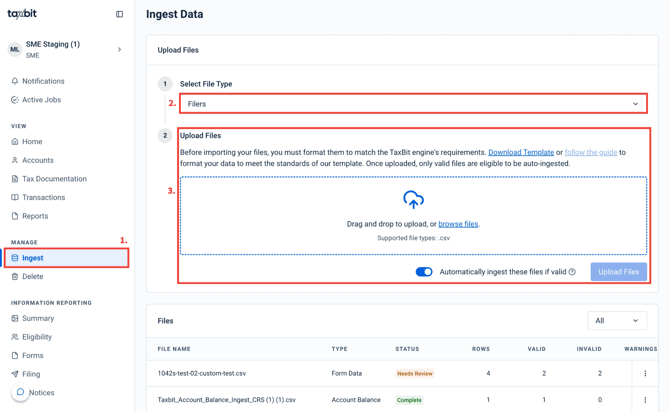
Step 1: In the Taxbit Dashboard, go to the “Ingest” page.
Step 2: Select the Filers template, and once downloaded, complete one row for each filer, and then save as a CSV.
Step 3: Upload the file and review the validation results.
Step 4: Review the file and approve/reject ingestion. Valid files will ingest automatically if the auto-ingest feature is enabled.
Step 5: Correct any rows with errors and upload the corrected data again.
For additional information on data ingestion or how to correct validation errors, please refer to the following guide: How to Ingest Data
Once the file has completed ingestion, successfully created or updated filers appear in the existing filer table on the Filer Setup page, along with their Taxbit-generated Filer IDs.
Please note: The filer logo also cannot be added or updated in bulk. Please update these values through the supported filer-management workflow.
Creating New Filers
To create a new filer:
Step 1: In the template, leave “filer_id” blank.
Step 2: Provide filer_name. This is the only required field for creating a filer.
Step 3: Add any other filer information you already have, such as address, tax identifiers, contact details, or regime-specific information.
Please note: A filer can be created with only a name, but additional information may be required before Taxbit can generate forms for the filer. Missing information may appear later as a validation issue during form generation or reporting and can be reviewed and corrected via editing the Filer in a bulk file upload following the process below or directly from the Filer Setup page.
Updating Existing Filers
To update an existing filer:
Step 1: Enter the existing Taxbit-generated Filer ID in “filer_id”.
Step 2: Include the filer information you want to update.
Step 3: Once the updated information is uploaded, it will reflect on the Filer Setup page for that filer.
Please note: Bulk updates cannot be used to change values that affect downstream calculations or eligibility. In particular:
- disposition_method cannot be changed through an update.
- form_1099_k_transaction_type cannot be changed after it has been set.
Please update these values through the supported filer-management workflow.
If you notice an updated row was rejected, please confirm the following:
- The “filer_id” belongs to an existing filer in the same organization.
- The row does not attempt to change “disposition_method” or an already-set “form_1099_k_transaction_type”.
- Country, state, tax identifier, and other provided values use the expected format.