
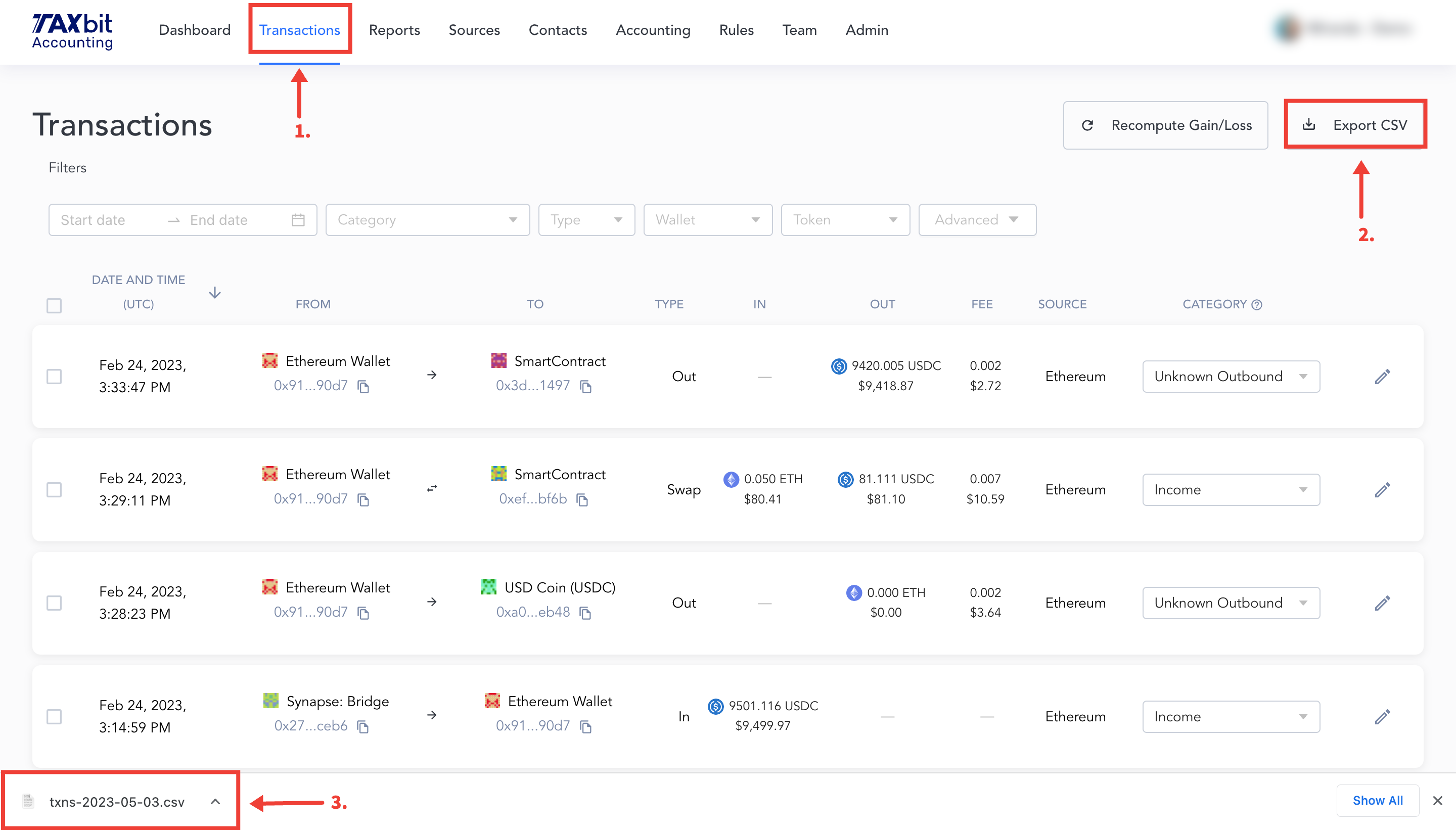
To export transactions, select the “Export CSV” button directly on the Transactions page. If no filters are applied, the export will generate a CSV of all transaction data to date. If filters are applied, the export will apply the filters to the transaction data in the CSV download. Once exported, you’ll see the file on the bottom left of your screen, which you can then open.
Please note: Certain chains support activity that includes smart contracts with secondary or nested transactions. These transactions are visible within the detailed drop-down for the main transactions on the Transactions page, and are explicitly broken out into multiple lines for the transactions export. The transactions export might appear to contain additional transactions, but it's simply a matter of CSV export presentation. If you are ever unsure, the transaction ID is a useful field to connect related transactions.
Additionally, it is important to note that failed transactions are included in the transactions query, but are not included in report calculations. Please see the “status” field, which indicates whether or not a transaction failed. There are a few reasons a transaction might fail and it is important to know that these transactions are not automatically filtered out for reconciliation purposes.
Data Fields
Source
The source field is the name of an exchange or wallet where a transaction took place. Please note: If a source is added through one of the Accounting Suite integrations (ETH wallet, Coinbase, etc.), the platform will pull in the “to” and the “from” source for each transaction. If the transaction was uploaded through a CSV file, the source will show up as “CSVImport”. Therefore, it is important to upload a “to” and a “from” source name to the CSV upload if that information is available.
Date
The date field is a standardized format of the exact date and time each transaction occurred. The data is formatted in the ISO 8601 standard date time format.
Transaction ID
This column represents the exchange transaction ID or blockchain hash of a transaction. The transaction ID is a useful data point for understanding what transactions are related. For example, “swap” transactions are split out into two rows, and the “transaction ID” identifies which “in” and “out” are associated.
To and From Name
This column represents the name of a source on the receiving and sending side of a transaction, regardless of whether or not it is a source that has been added to the sources tab. For CSV uploads, this information should be included if the user has the information available.
To and From Address
This column provides the wallet address on the receiving and sending sides of a transaction, regardless of whether or not the source has been added to the sources tab. For CSV uploads, this information should be included if the user has the information available. For example, if Coinbase has been added to the sources page and 1 ETH is received to that Coinbase account, the “from address” that the ETH was sent from will be captured here.
Type
This column represents the type of category for the transaction. There are currently 5 types that a transaction can fall under:
- Inbound (In)
- Outbound (Out)
- Internal
- Swap
- Ignore
Function
This column represents the function of a transaction as derived from the blockchain, and are attributes that can be used to segregate transaction data or used to set up rules. Some popular examples are listed below:
- transfer
- execute
- approve
- airdrop
- revokeRole
- safeMint
- safeTransferFrom
- setBurnAddress
- setName
- setTokenURI
Category
This column represents a transaction’s category, which is an editable field for all end users via a bulk edit on the Transactions page or in the form of “Rules” set up based on criteria input by the end user. Some examples are shown below:
- Buy
- Income
- Airdrop
- Sell
- Contractor
- Software & Web Services
- Fees
- Swap
Please refer to this article for additional information about the types and their available categories.
Memo
This column will show a memo that may have been added to the transaction. Memos are helpful in the organization and distinction of your transactions.
In Columns
The In columns are all in relation to currencies and their amounts that are traveling in an inbound direction.
- Currency In: This column specifies which currency was received in a transaction.
- Token ID In: This column specifies the Token ID for the specific asset in a transaction.
- Amount In: This column specifies the currency quantity that was received in a transaction.
- Amount In USD: This column specifies the price in USD of the Currency In and Amount In columns.
Out Columns
The Out columns are all in relation to currencies and their amounts that are traveling in an outbound direction.
- Currency Out: This column specifies which currency was given up in a transaction.
- Token ID Out: This column specifies the Token ID for the specific asset in a transaction.
- Amount Out: This column specifies the currency quantity that was given up in a transaction.
- Amount Out USD: This column specifies the price in USD of the Currency Out and Amount Out columns.
Fee Columns
- Fee Currency: This column specifies which fee currency was disposed of in a transaction.
- Fees: This column specifies the fee quantity that was disposed of in a transaction.
- Fees USD: This column specifies the price in USD of the Fee Currency and Fees column for the date of the transaction.
Miscellaneous Columns
- Total Costs USD: This column shows the total cost of executing the transaction in USD.
- Status: This column indicates a "failed" or "success" transaction. The failed transactions are ignored but are included in the export for visibility.