
In this guide, you'll find details surrounding common reasons CSVs fail to import and how to resolve them.
How Do I Import My CSV?
To import your CSV file, select the “Add Sources” button on the Sources page, then scroll to the ‘Other Supported’ section of the list of integrations. Please refer to the following guide for further guidance on how to format and import your CSV: How to Import a CSV File
Common CSV Formatting Errors
If you notice that your CSV will not successfully import, or some transactions did not import from your CSV, there are a few common formatting errors that you can check for to help ensure the CSV is properly formatted before attempting to re-import:
Incorrect or Missing ‘timestamp’ Formatting
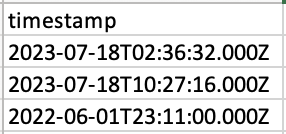
The ‘timestamp’ column is required to be formatted in the ISO 8601 standard date time format for the CSV to successfully import. The values populated into this column must match the following format:
1999-12-31T13:37:46.732Z - YYYY-MM-DDTHH:MM:SS.mmmZ
The above date and time would be the equivalent December 31st 1999 at 13:37, 46 seconds, and 732 milliseconds UTC (coordinated universal time).
Here are a few examples of what the values in this column are expected to look like in the proper format:
Uncapitalized Categories, Sources, or Asset Tickers
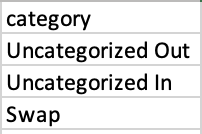
Any values listed under the ‘categories’ and ‘source_name’ columns should be capitalized. See example below:
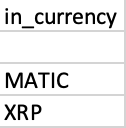
Asset tickers listed in the ‘in_currency’, ‘in_currency_fiat’, ‘out_currency’, ‘out_currency_fiat’, ‘fee_currency’, and ‘fee_currency_fiat’ columns should be listed in all caps. See example below:
Mis-labeled Categories
There are specific categories that can be utilized within the TaxBit Accounting Suite. A list of categories that are supported within the application can be found in this guide: What Categories Can I Use?
Only the categories listed in the guide above can be uploaded. If you are unsure of which categories to use, more information about categories can be found in the following guide: How do Categories and Types Affect My Transactions?
Missing, Mis-labeled, or Mis-spelled Headers
The headers of the CSV are crucial for a successful import, as each header must match the headers in our template exactly and must also be spelled and listed in the same order. Each header must be included, even if you do not have any data for a particular header. The headers that should be included at the top of the CSV are:
timestamp, txid, source_name, from_wallet_address, to_wallet_address, category, in_currency, in_amount, in_currency_fiat, in_amount_fiat, out_currency, out_amount, out_currency_fiat, out_amount_fiat, fee_currency, fee, fee_currency_fiat, fee_fiat, memo, status
If your CSV is failing to import, please check the headers of the CSV and ensure they match the headers listed, exactly.
Missing Values in Required Columns
The following columns must be populated for the file to upload
- timestamp
- source_name
- category
- For lots acquired (Buy or Income, for example): in_currency and in_amount
- For lots disposed of (Sell or Expense, for example): out_currency and out_amount
Depending on the type of transaction, if it’s an In, Out, Swap, Internal Transfer, or an Ignore, each of these columns will need to be filled out. The In amount/currency or Out amount/currency columns will need to be filled in depending on the direction of the transaction, i.e. a Buy would be considered an In type and both the ‘in_amount’ and ‘in_currency’ columns would need to be populated with a value for the transaction to import successfully.
Incorrect file type
If your file is not importing successfully, please ensure it is saved as a CSV and not a .numbers, .xlsx, etc. CSV is the only format that the tool can ingest today.