
In this guide, you will find information on each of the features within the Dashboard of the Taxbit Accounting Suite.
Contents
What is the Dashboard?
The Dashboard page of the Taxbit Accounting Suite displays a live summary of all digital asset holdings. The Dashboard provides quick insights into inventory balance by token and source, cost basis, market value, and allocation.
Overview Section
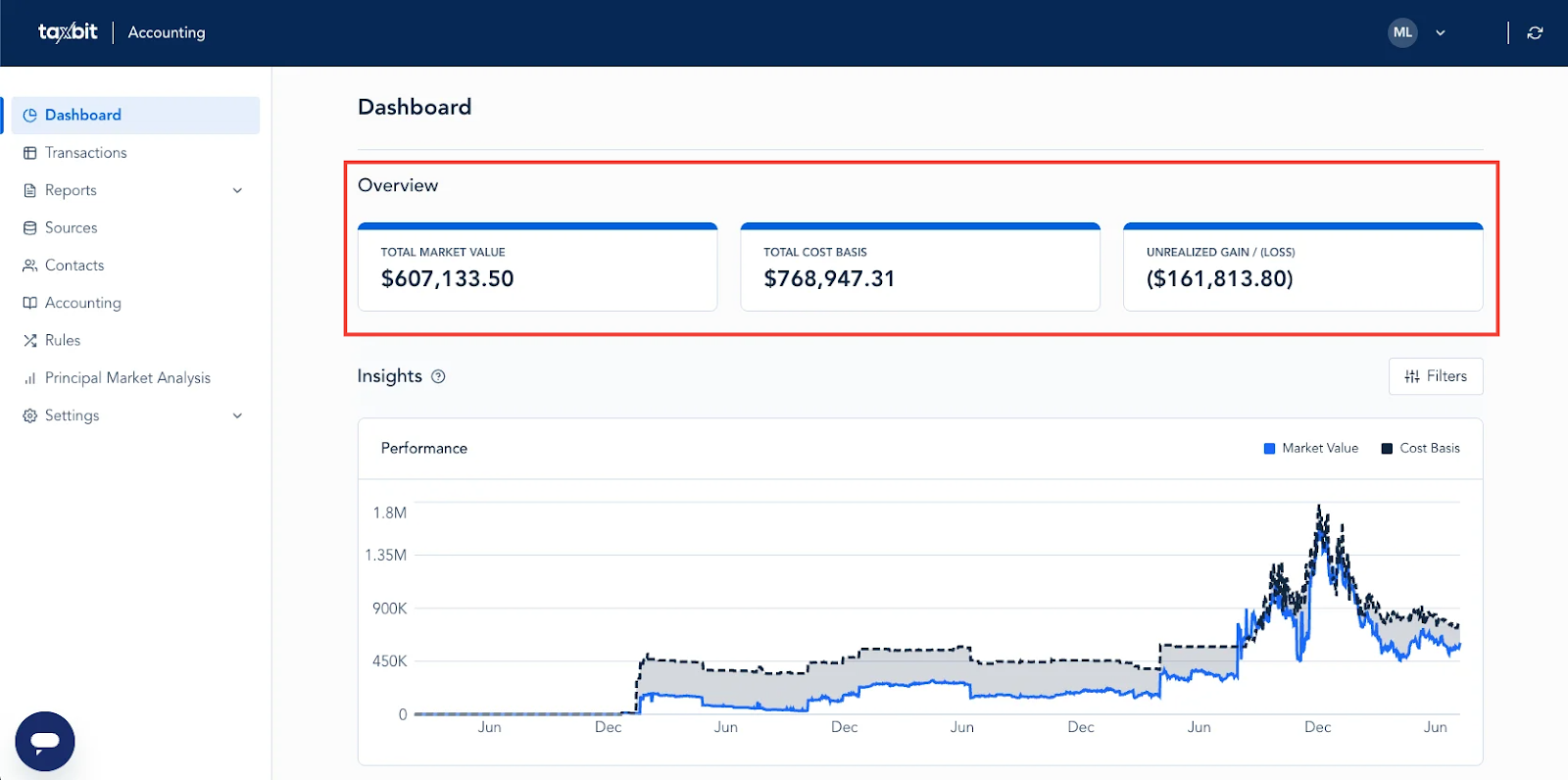
The Dashboard's Overview Section provides a comprehensive, high-level summary of your investment portfolio, designed for quick and insightful analysis. At the forefront, you'll find the Total Market Value, which represents the current aggregate worth of all assets held within your portfolio. This figure dynamically updates to reflect the value of the data ingested into your environment. The Total Cost Basis is also displayed. This crucial metric outlines the original price paid for your held assets. Finally, the Unrealized Gain/Loss offers a critical perspective on your portfolio's performance. This figure highlights the theoretical gain or loss you could realize if you were to sell all your assets at their current market value.
Insights Section
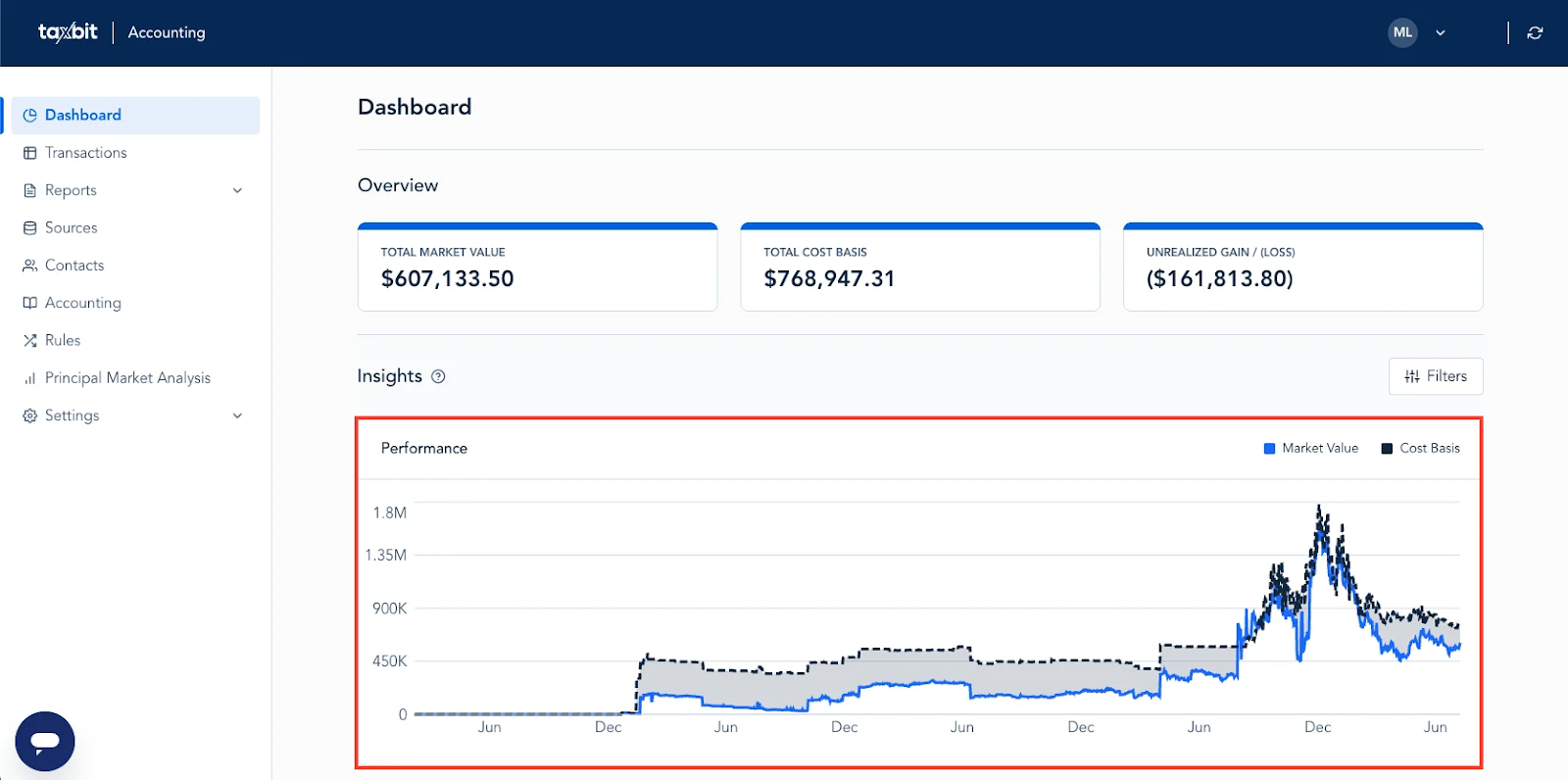
The Insights section of the Dashboard displays a graph, enabling you to view the fluctuation of both your Total Market Value (blue) as well as Total Cost Basis (black) in the span of a maximum of a 12-month period, by default.
Assets and Allocation
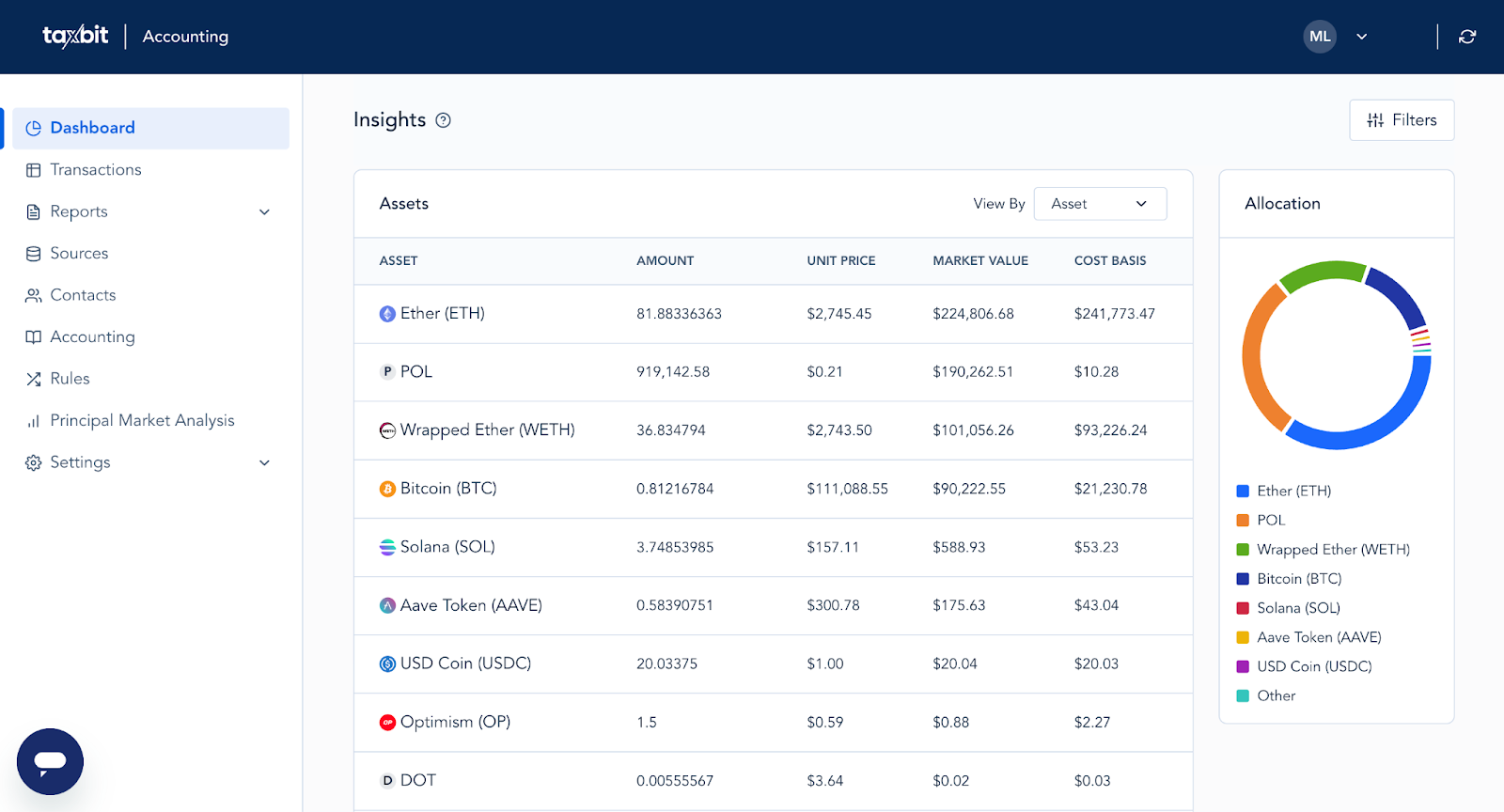
Near the bottom of the Dashboard, you will see sections for Assets as well as Allocation. Within the Assets section, you can review each asset within your portfolio as well as its allocated balance, unit price (for 1 unit of that asset), market value, and cost basis. The Allocation section displays a chart of the top 7 assets within your portfolio, and the rest of the assets are reflected as “Other”.
Source Drop-Down
You can drill down further to view the amount, price, market value, and cost basis of that asset within its associated source. To do this, 1) select the “View By” drop-down on the top right of the “Assets” table, and then 2) select “Source” from the drop-down.
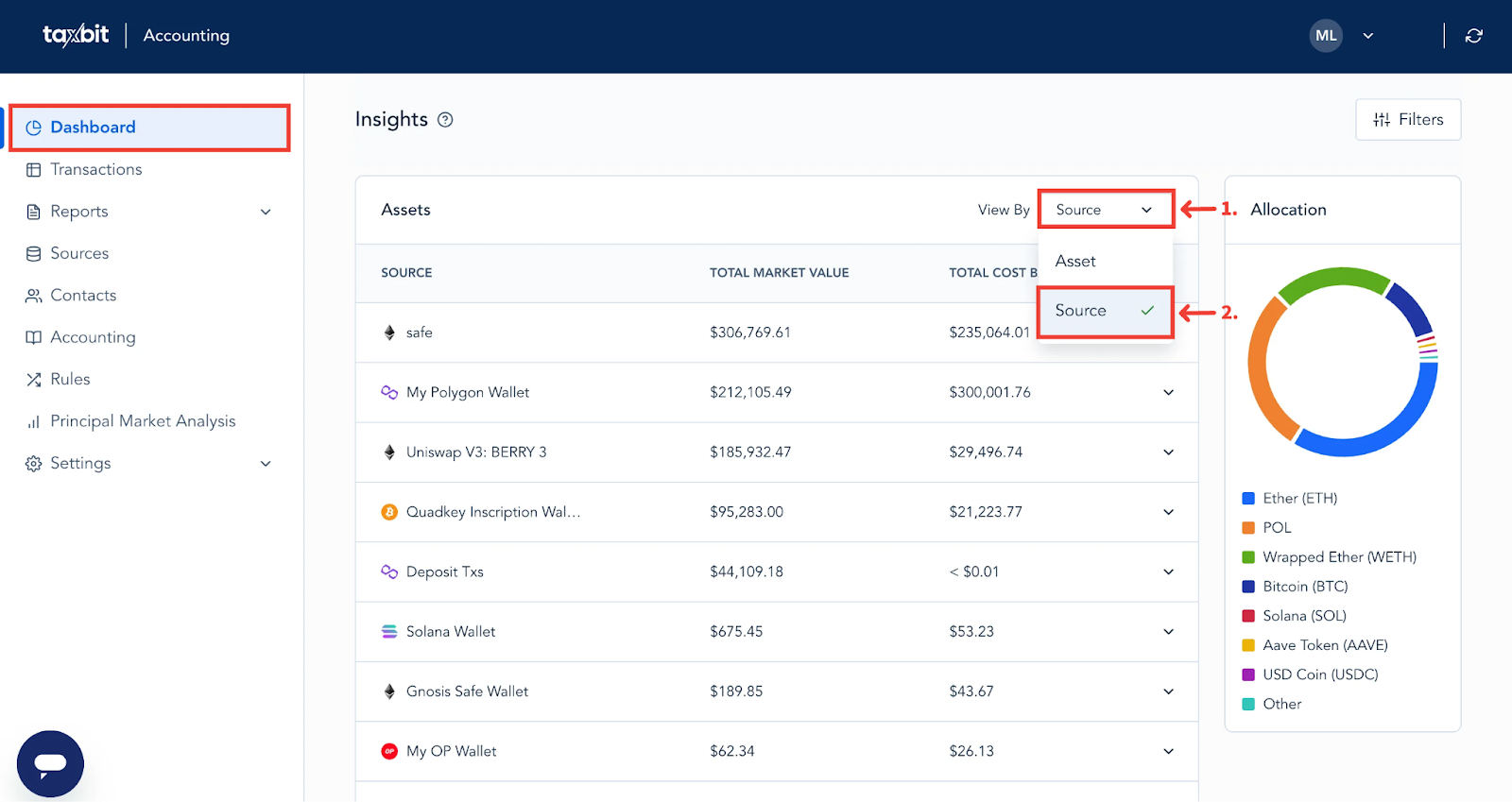
From here, you can select the arrow on the right side of the source to view the details of each asset from that particular source at a glance, such as the amount, price, market value, and cost basis of that asset within that particular source.
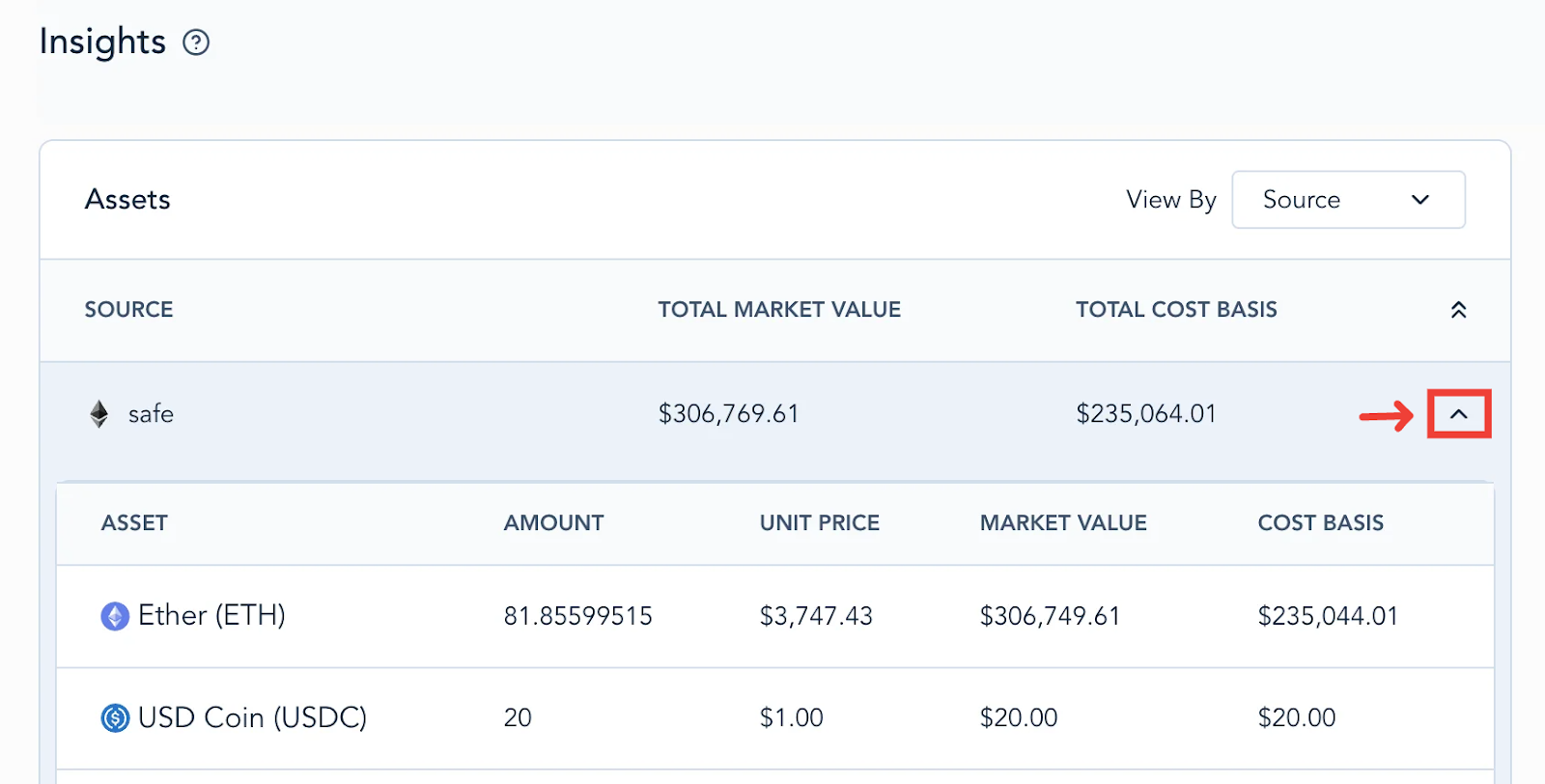
Please refer to the recording linked below for a demonstration of the Source Drop-Down:
Filtering in the Dashboard
To use filters within the Dashboard, select “Filters” from the right side of the Insights section.
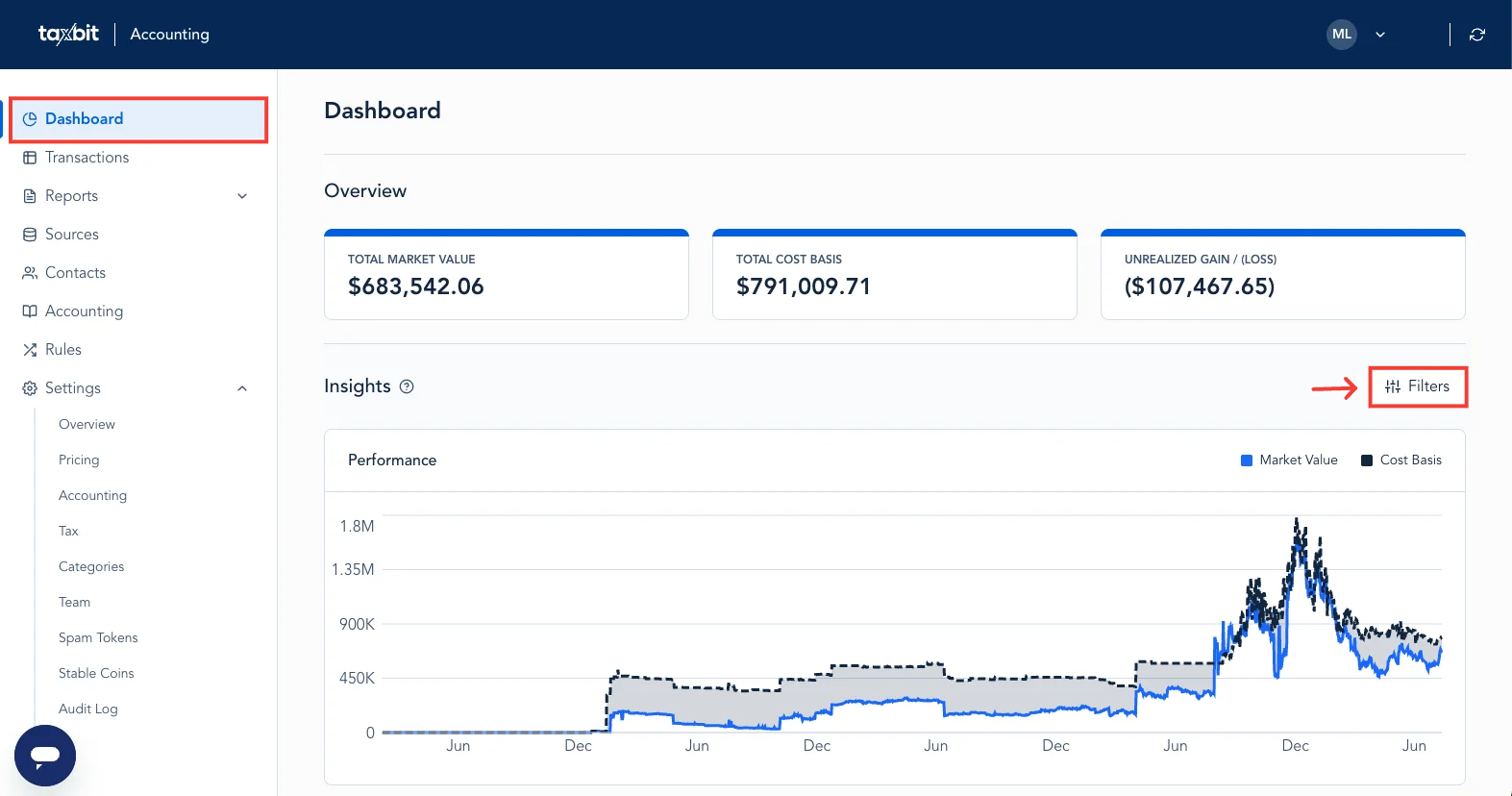
You can filter to the following within the Dashboard, and the filtered data will display accordingly:
- Date Range
- Sources
- Source Tags
- For more information on Source Tagging, please refer to the following guide: Source Tagging
- Assets