
In this guide, you will find information on Source Tagging within the Taxbit Accounting Suite.
Contents
- What is Source Tagging?
- How to Apply Source Tags
- Removing Source Tags From a Source
- Filtering with Source Tags
What is Source Tagging?
Source Tagging is a powerful feature that enables users to label and categorize wallet addresses with custom tags, making it easier to track, organize, and analyze activity within their environment. By assigning descriptive tags to specific wallets, such as “Payroll,” “Treasury,” “Vendor A,” or “Bridge Deposit”, users can quickly identify the role or purpose of each address. This eliminates guesswork, reduces manual cross-referencing, and adds valuable context to the ingested data.
With Source Tagging, customers gain greater control and visibility over their wallet interactions. The ability to apply multiple custom tags per wallet improves filterability on both the Dashboard, Transactions, and Reports pages, allowing users to slice data based on tags that are meaningful to their operations. Whether you're monitoring internal fund flows, flagging high-risk counterparties, or segmenting transaction histories by function, Source Tagging enables more precise, actionable insights—ultimately streamlining compliance, auditing, and reporting workflows.
How to Apply Source Tags
Please note: Source tags can currently only be added to integrated exchanges or wallets. They are currently not supported for tagging sources from CSV files; however, the "memo" column within the CSV template can be used to manually add memos, tags, or special notes to associated transactions.
Adding Tags via Editing Sources
Please follow the steps outlined below to apply source tags:
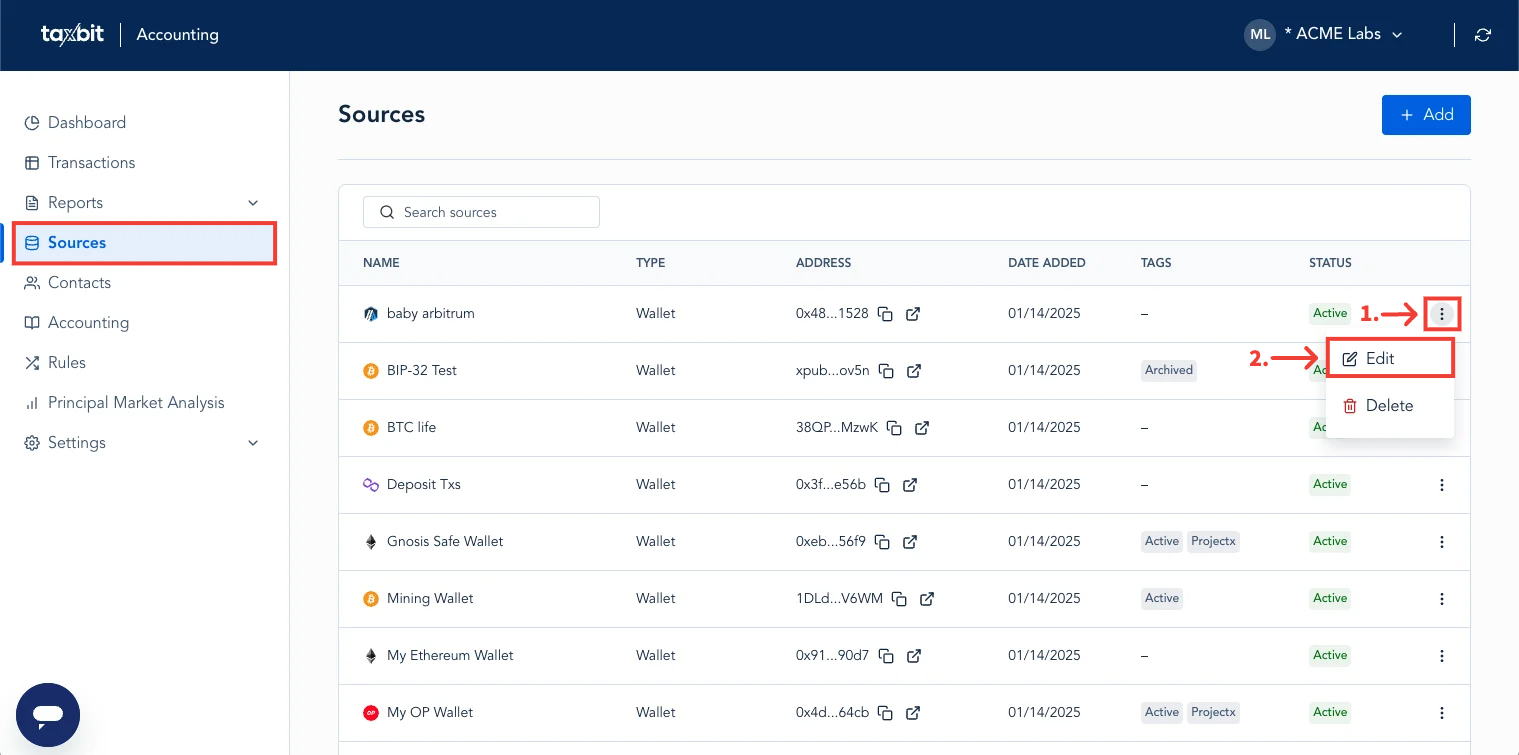
Step 1: Head to the “Sources ” page.
Step 2: Next to the Source you wish to add the tag(s) to, 1) select the three dots on the right side, 2) then select the “Edit” button.
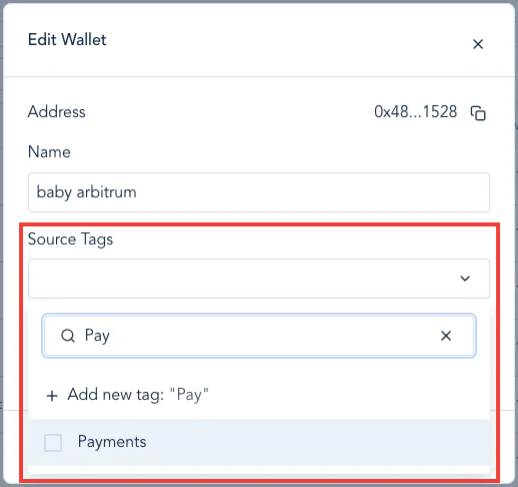
Step 3: Select the drop-down under “Source Tags” and begin typing the name you wish to give the tag, or if you’ve already created a tag, select it from the existing list.
Please note: There is a 30-character limit for tag names.
Step 4: Select “Save” from the bottom right.
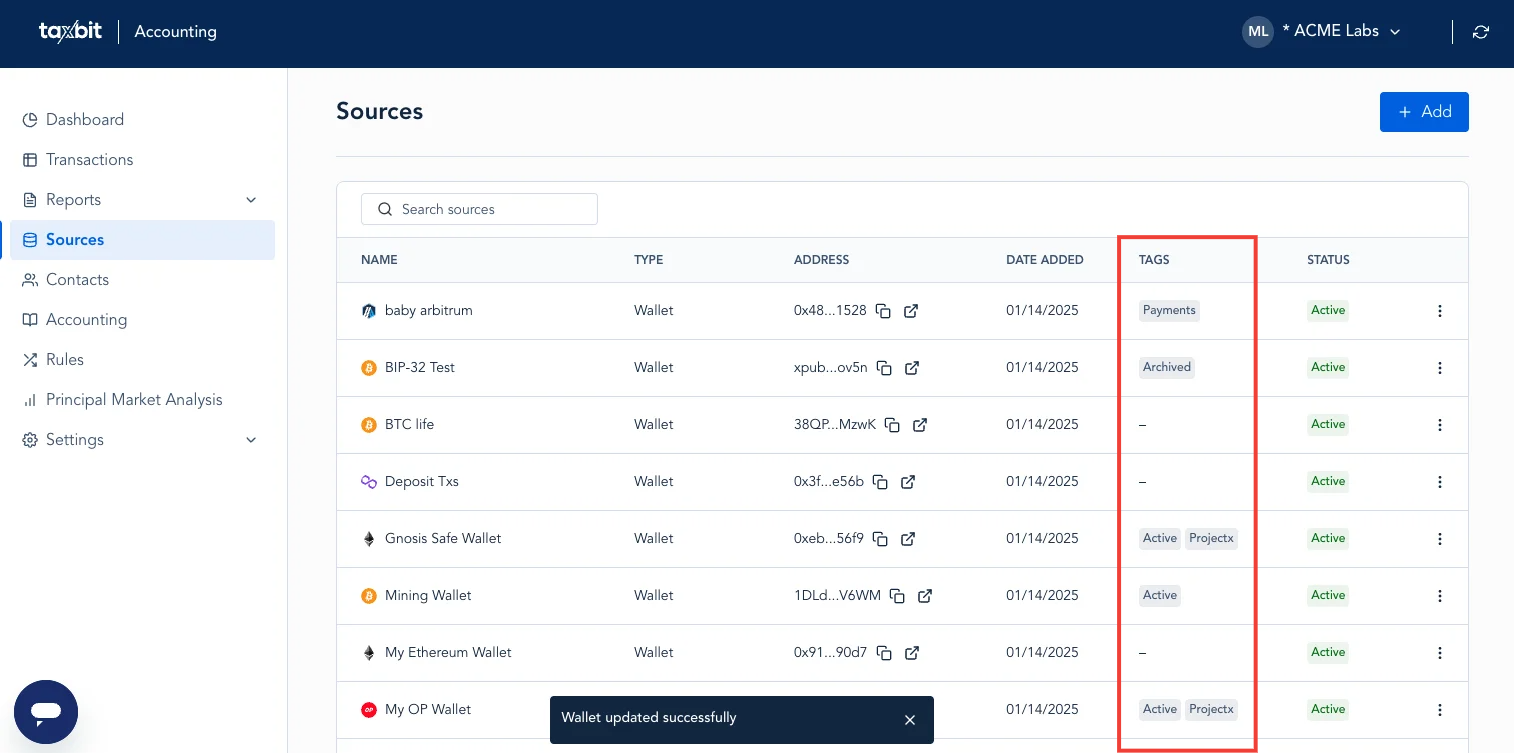
Once saved, you will see the tag appear to the right of the source under the “Tags” column as well as the message “Wallet Updated Successfully” at the bottom.
Removing Source Tags From a Source
To remove a source tag, follow the steps outlined below:
Step 1: From the Sources page, 1) select the three dots next to the source you wish to edit, 2) then select the “Edit” button.
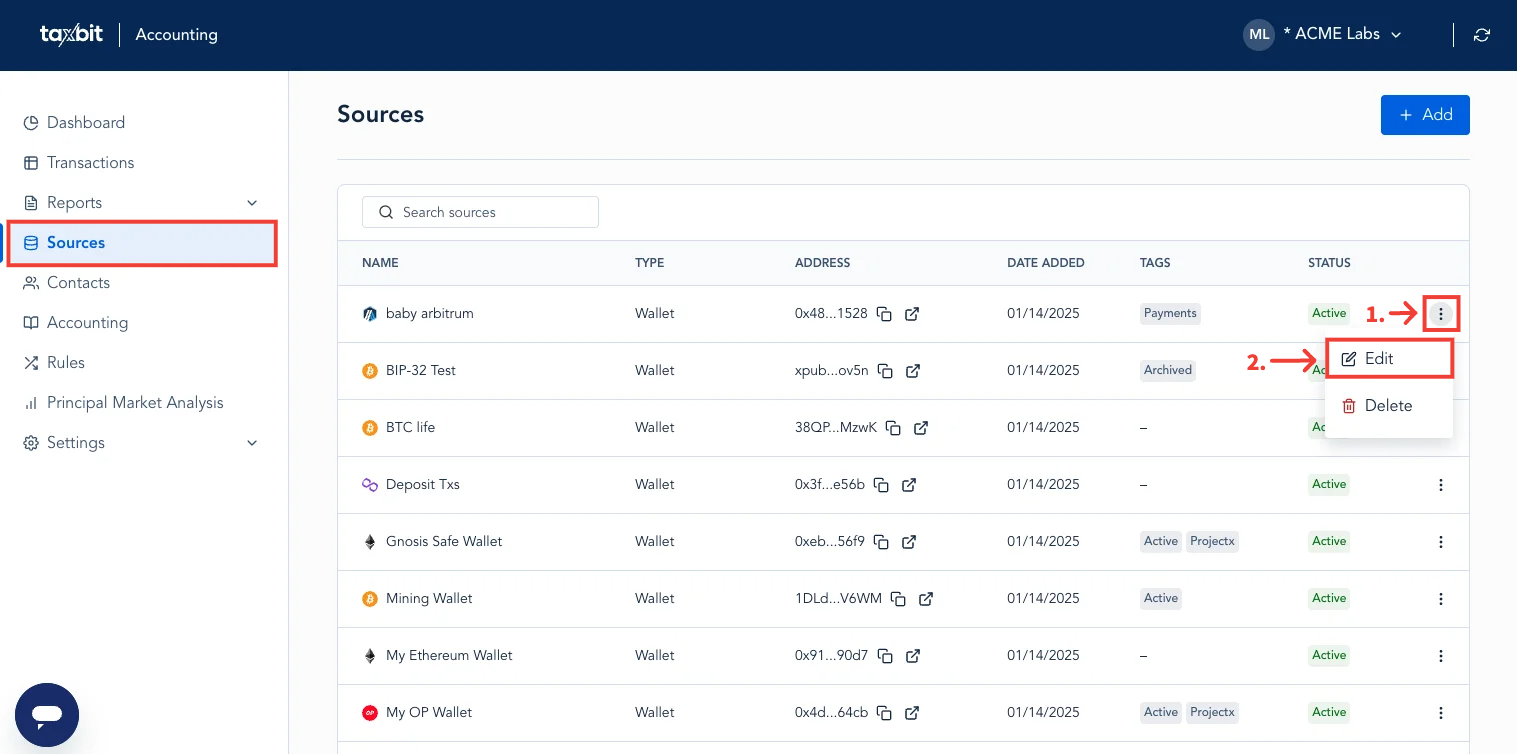
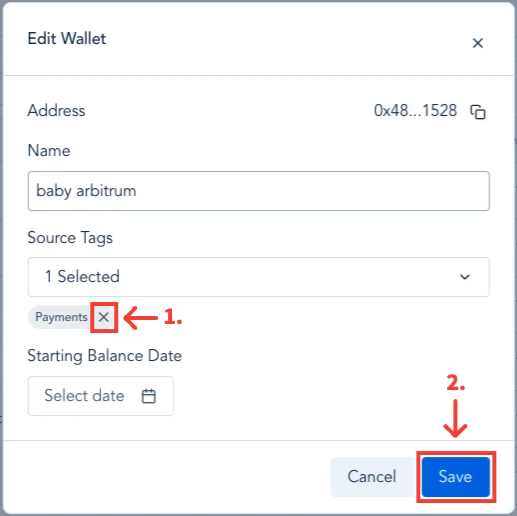
Step 2: Below the “Source Tags” field, 1) select the “x” next to the source tag you wish to remove from the associated source, 2) then select “Save” from the bottom.
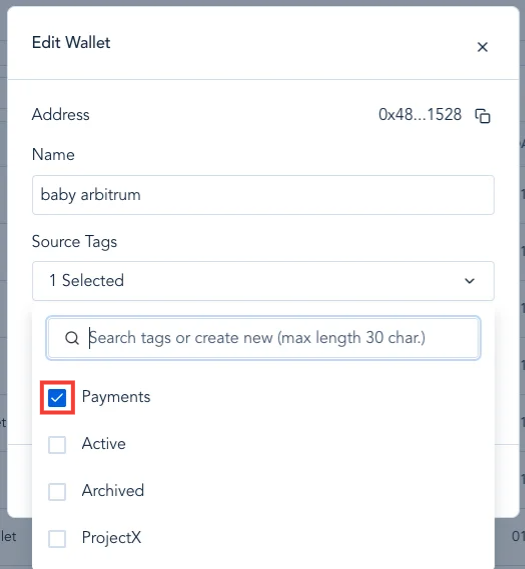
Please note: A separate option is to select the “Source Tags” drop-down, and then uncheck the box next to the source tag you wish to remove from that source.
As long as at least one source has the tag attached to it, the tag will remain. If a tag is removed from all sources, then it will remove the tag completely.
Filtering with Source Tags
Once you have added a source tag to a wallet or exchange, you can filter based on those tags to help analyze data within the Dashboard, Transactions, Sources, and Reports pages. Please see the information below for reference on how you can filter with source tags on each page:
Dashboard
To filter by source tags on the Dashboard, please follow the steps outlined below:
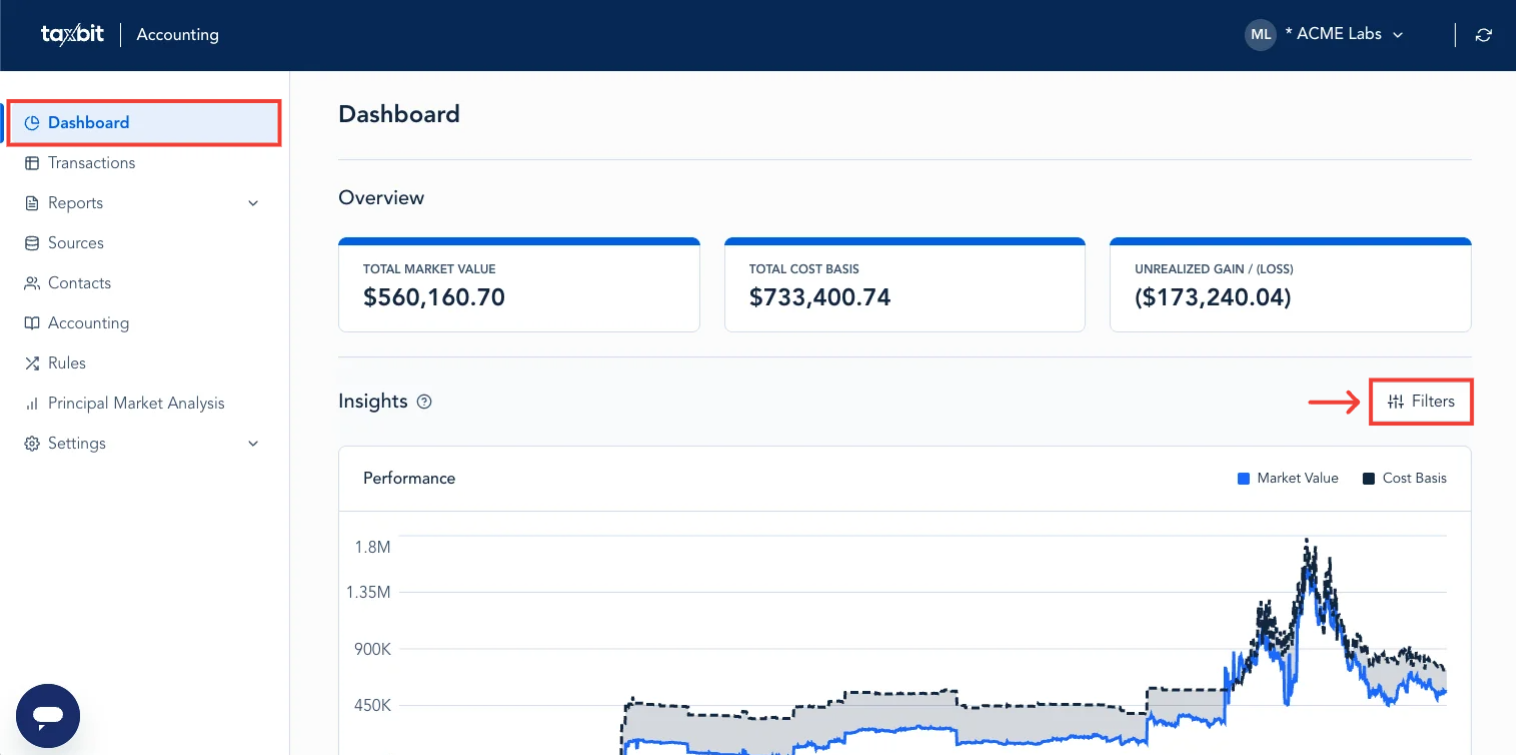
Step 1: From the Dashboard , select “Filters” from the right.
Step 2: Select the “Source Tags” drop-down and select the tag(s) you wish to review, then select “Apply” from the bottom.
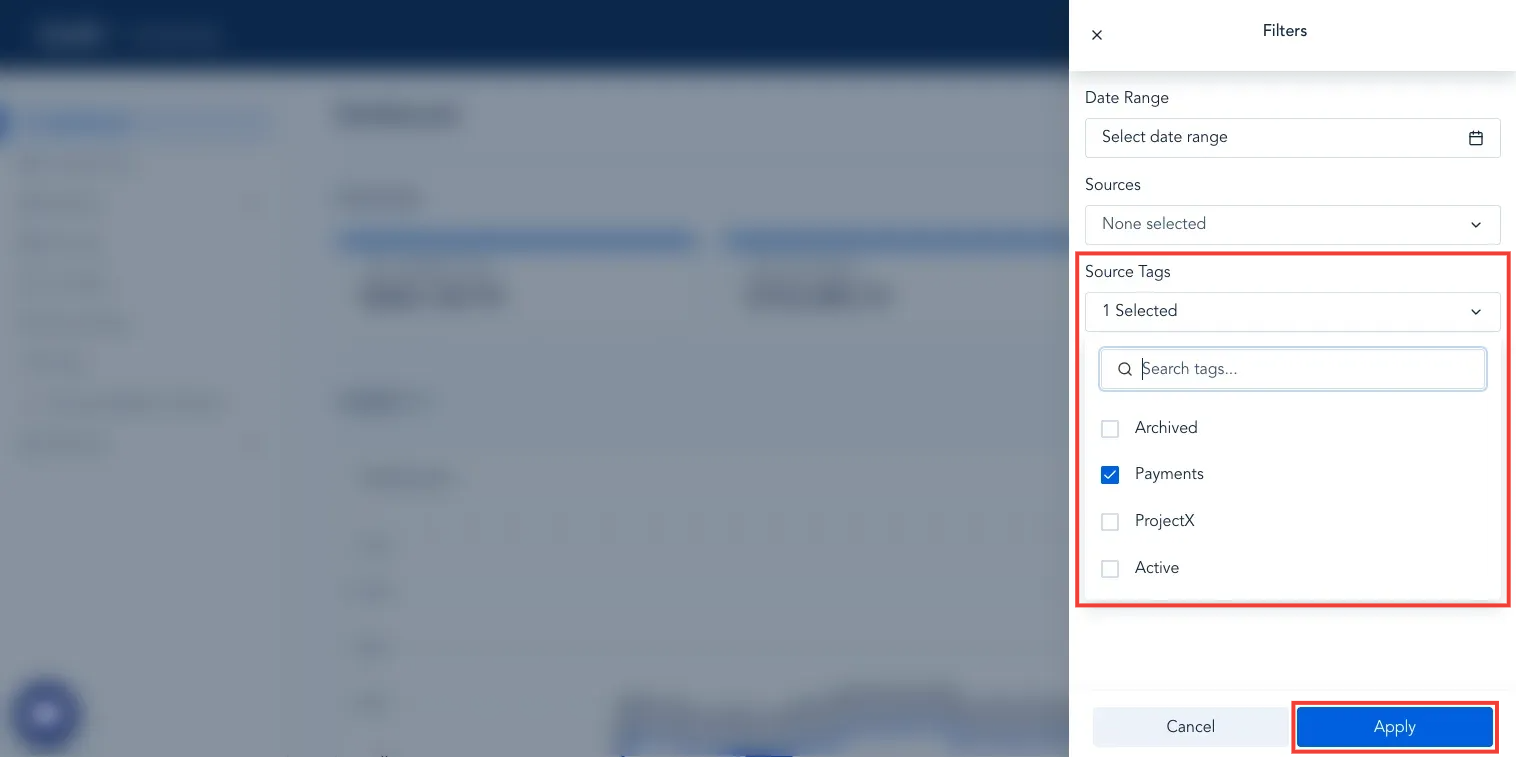
Once you have selected the tag(s) to review, the data from any sources associated with that tag will reflect on the Dashboard.
Sources Drop-Down
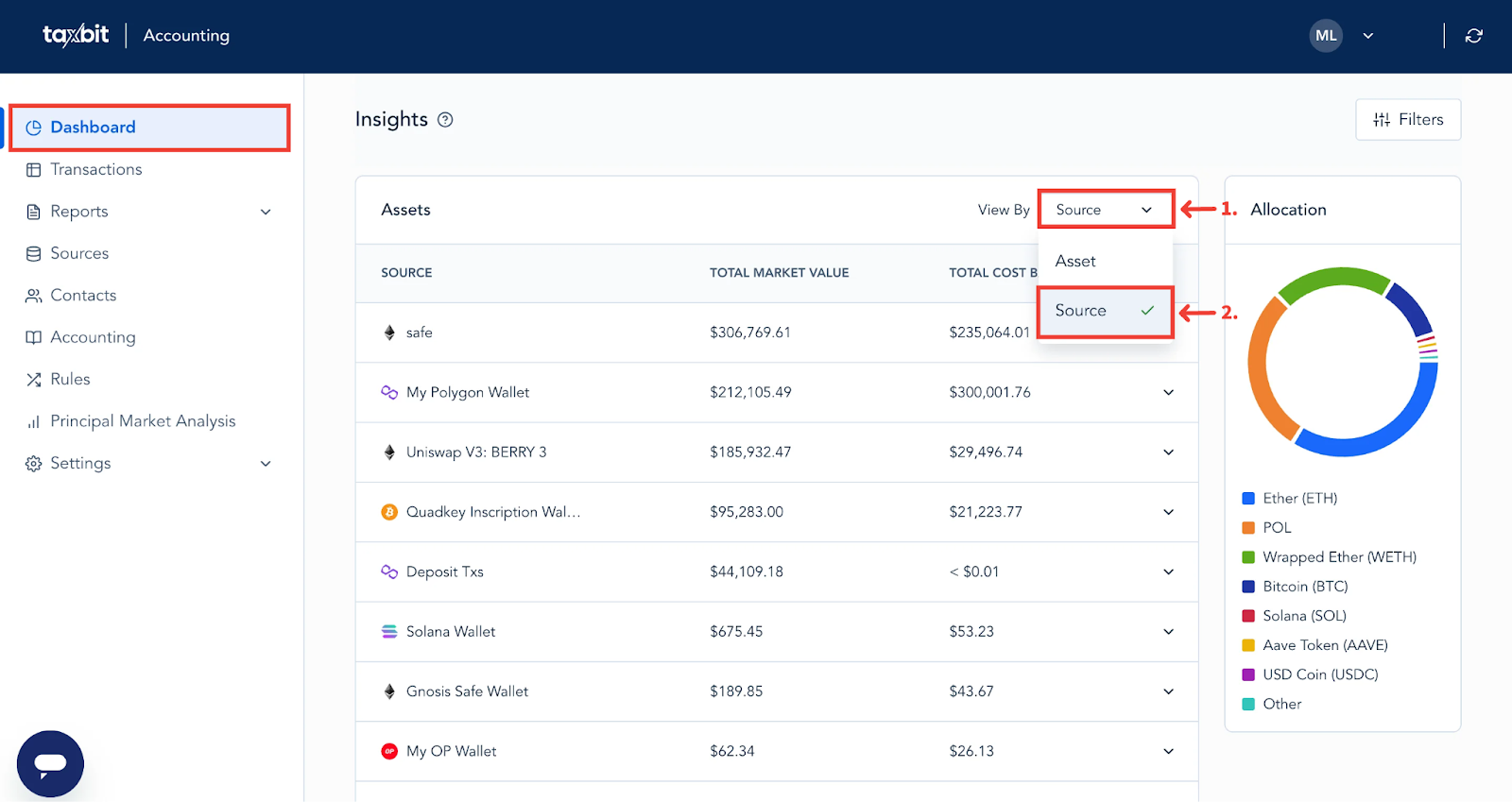
If you want to drill down further and view the associated sources and assets with that tag, you can do so from the “Assets” table located at the bottom of the Dashboard. While you can view the assets and their associated balances, there is also the option to view the associated assets/balances along with the sources they belong to. To do this, 1) select the “View By” drop-down on the top right of the “Assets” table, and then 2) select “Source” from the drop-down.
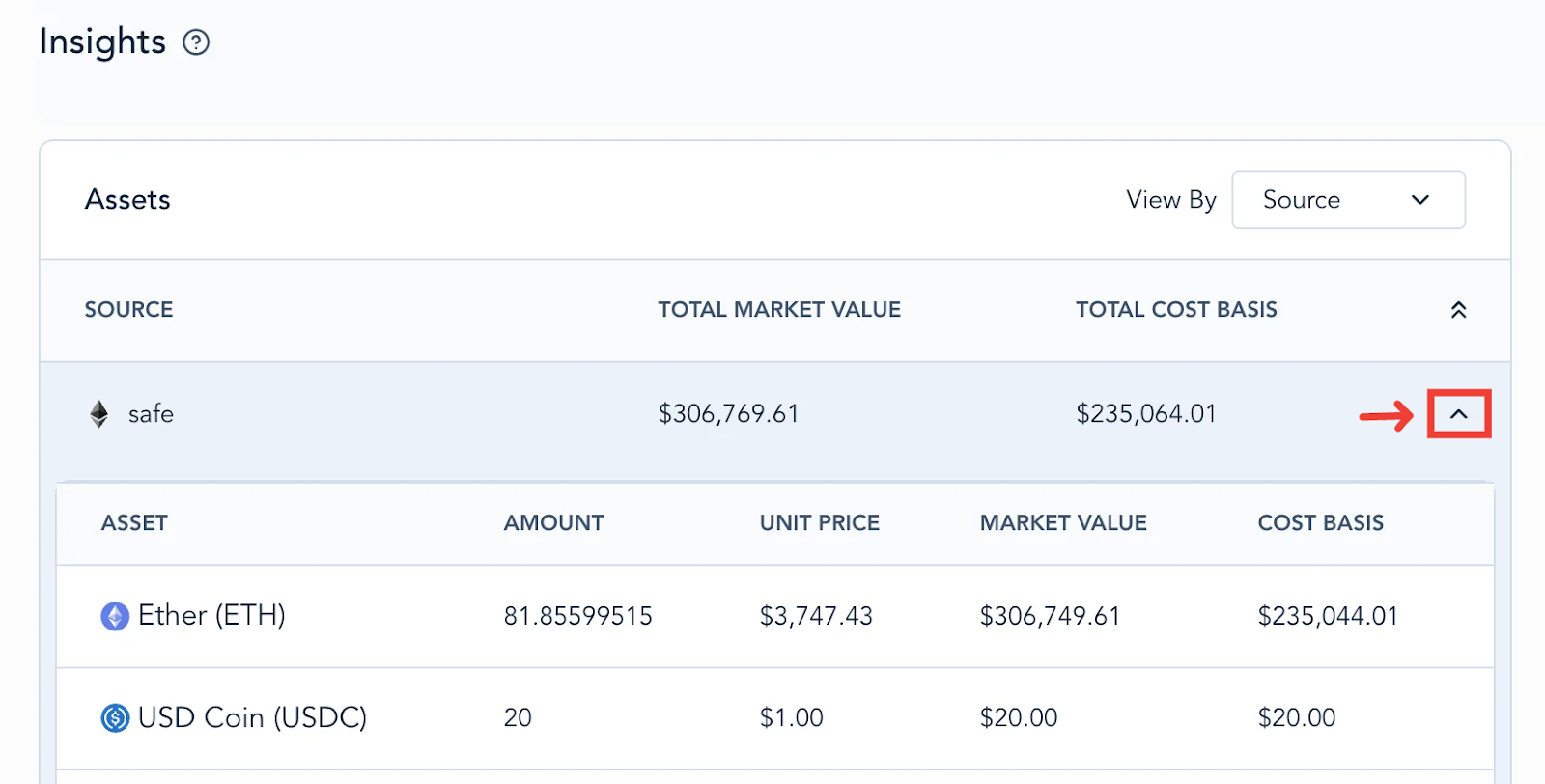
From here, you can select the arrow on the right side of the source to then view each asset from that particular source at a glance, such as with the amount, price, market value, and cost basis of that asset within that particular source.
Transactions
To filter by source tags on the Transactions page, please follow the steps outlined below:
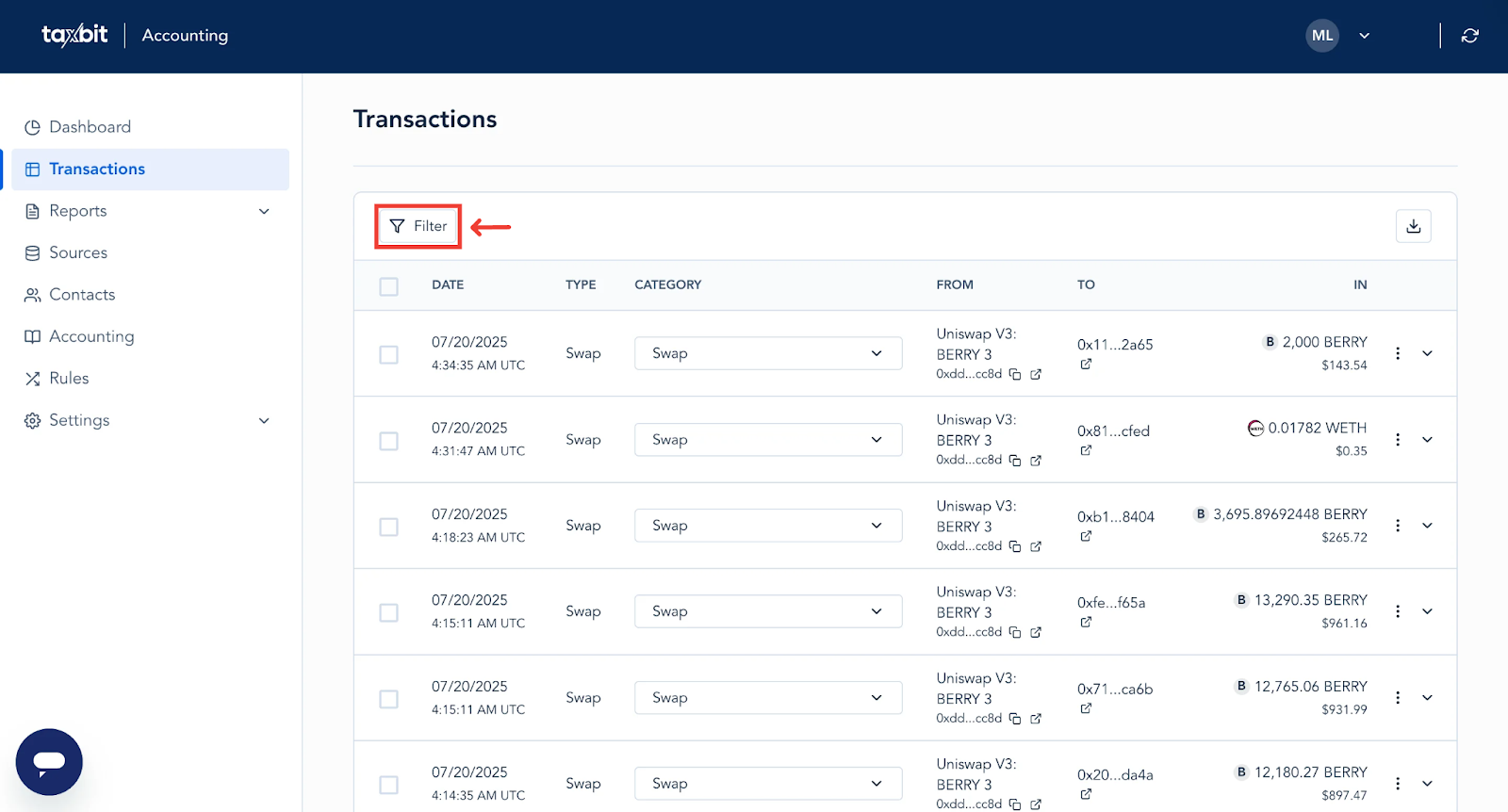
Step 1: From the Transactions page, select “Filters” from the top.
Step 2: From the “Advanced” section, 1) select the tag(s) you wish to view from the “Source Tag” drop-down, then 2) select “Apply” from the bottom.
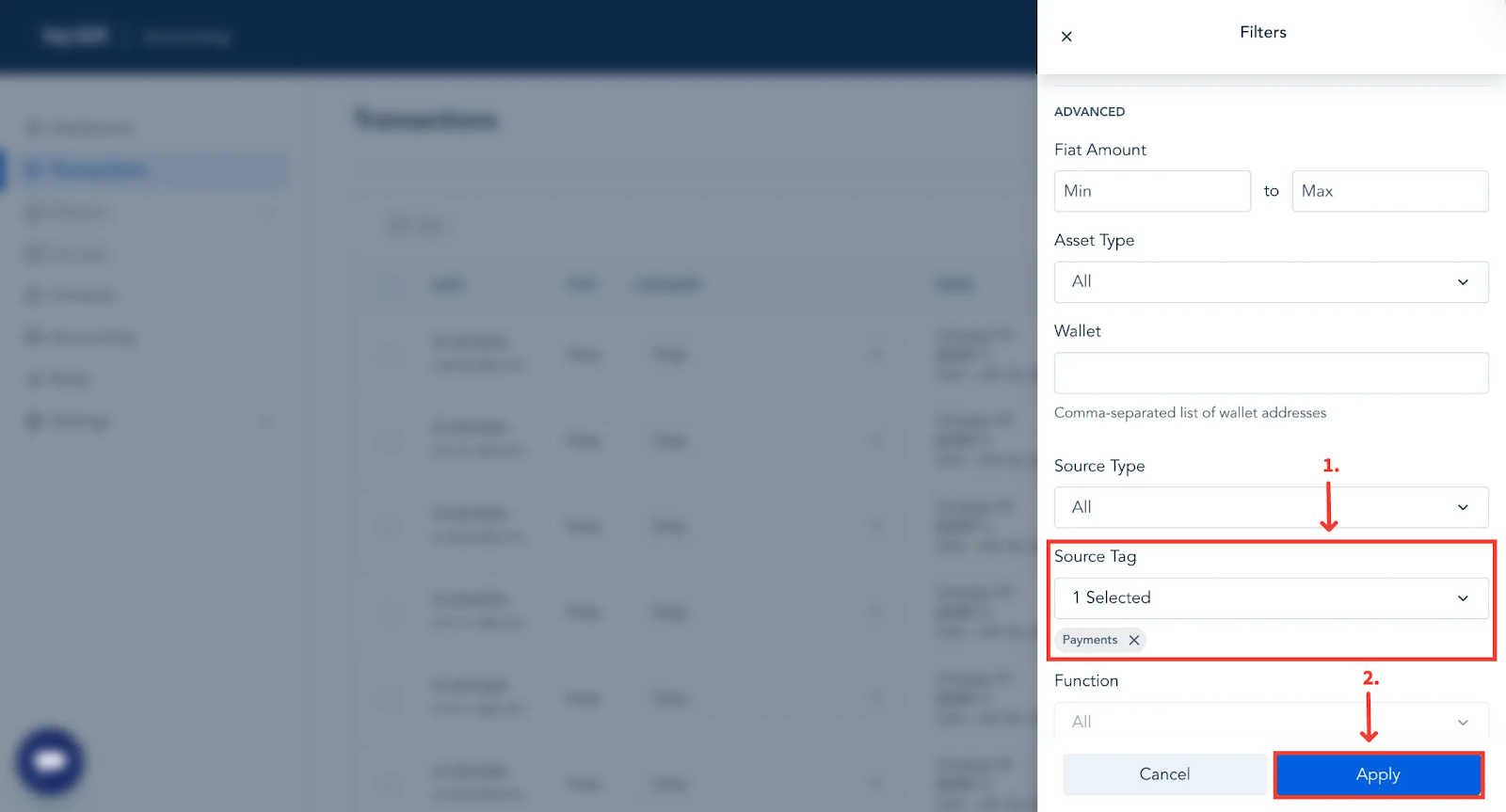
Once selected, any transactions from the wallets or exchanges associated with that tag will now reflect on the Transactions page.
Please note: If you have a Source Tag filter applied and filter to a source not associated with that tag via the “Sources” filter, the results of the sources associated with the tag will continue to display in addition to the sources associated with the applied Source filter.
Sources
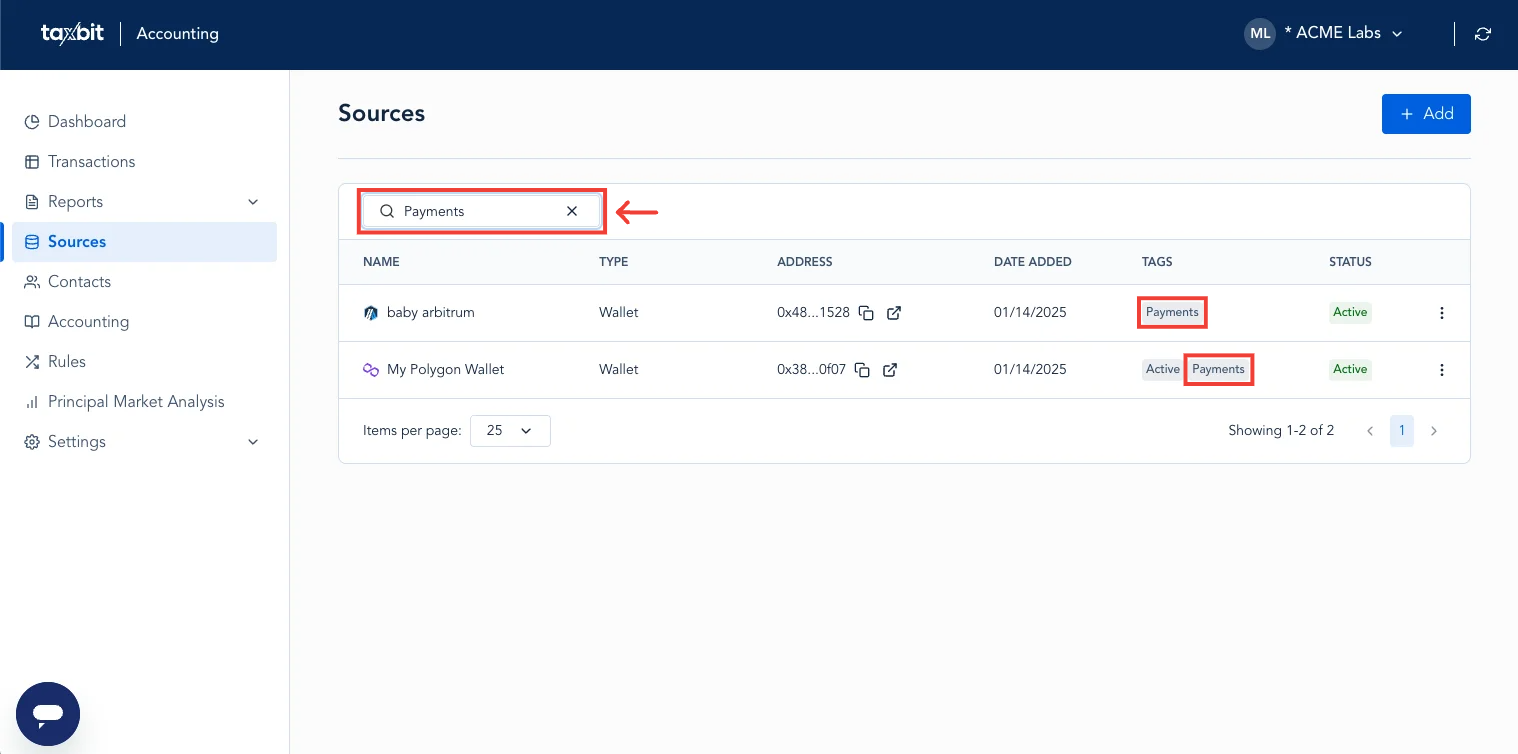
You can easily locate different sources associated with a certain tag by searching that tag’s name in the search bar located at the top of the Sources page:
Reports
To filter by source tags within Reports, please follow the steps outlined below:
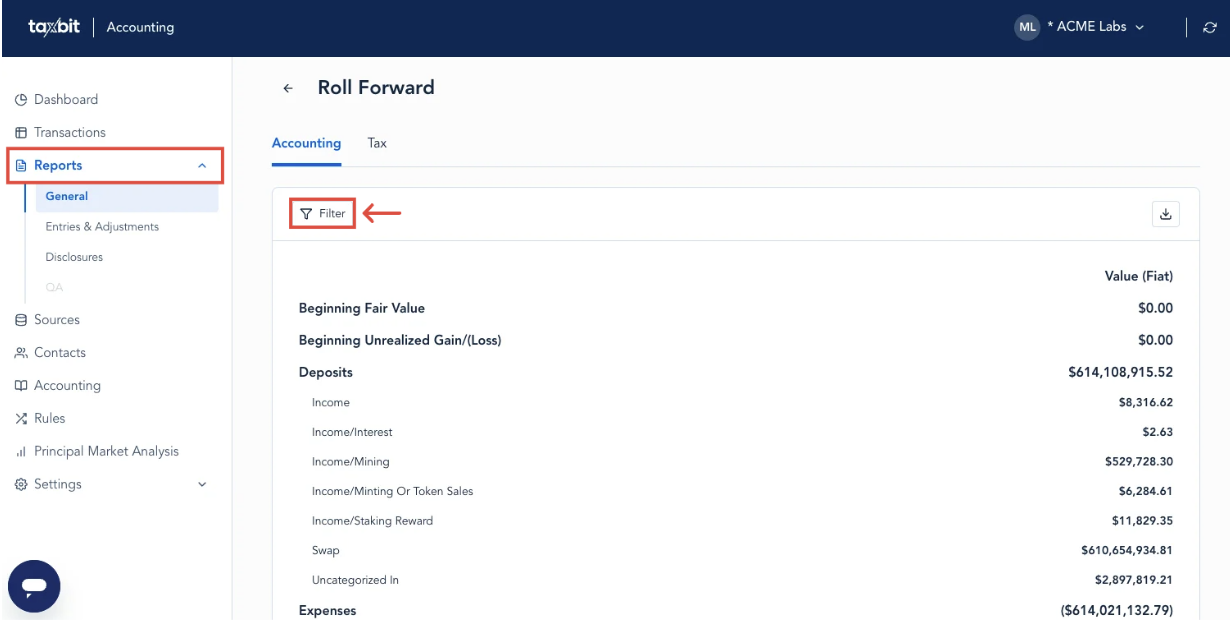
Step 1: Select the report you wish to view, then select the “Filter” icon from the top.
Step 2: Select the “Source Tags” drop-down, and then select the tag(s) you wish to view.
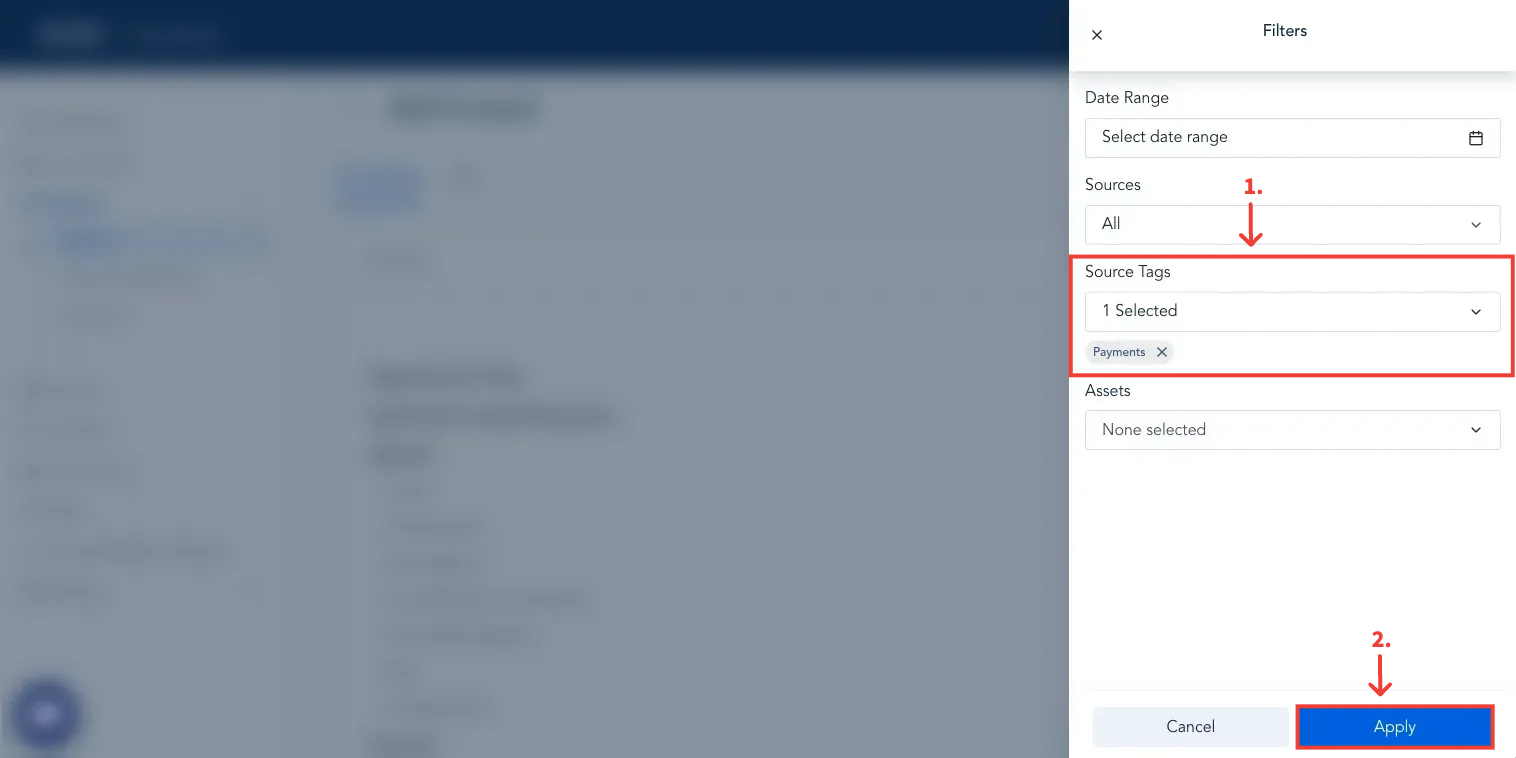
Once filtered, only data from the sources associated with the selected tag(s) will be displayed within the report.