Contents
What is Universal ERP?
Currently, the ERPs that Taxbit supports direct integrations for are QuickBooks, NetSuite, Sage, and Xero. With Taxbit’s Universal ERP support, you will have the ability to use the Taxbit Accounting Suite for your organization’s bookkeeping, even if your ERP does not currently have direct integration support. When using Universal ERP, you will have the ability to import your Chart of Accounts and then export your Journal Entries, which can then be imported directly into your ERP for your records and bookkeeping needs.
How to Use Universal ERP
Importing Chart of Accounts
The first step is importing your chart of accounts to the Taxbit Accounting Suite. Please follow the steps outlined below:
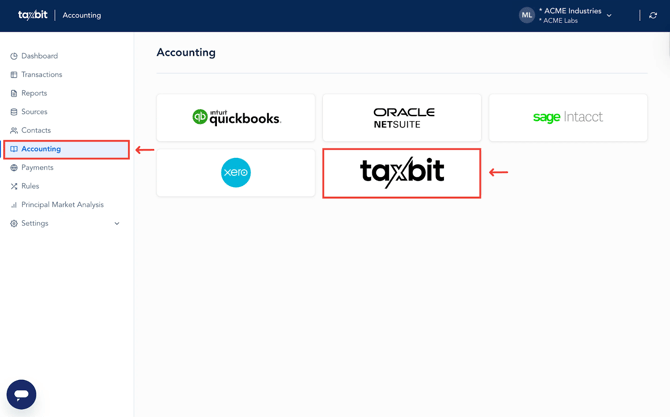
Step 1: From the Accounting page, select the “taxbit” tile.
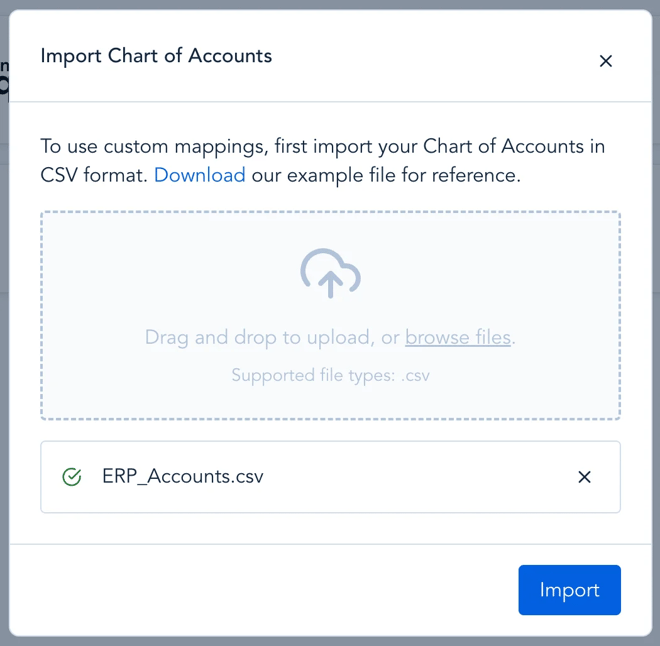
Step 2: Download the template by selecting the “Download” link from the top, and then update the file to include the Account Names and Account IDs that you will be using, upload the file, and then select “Import”.
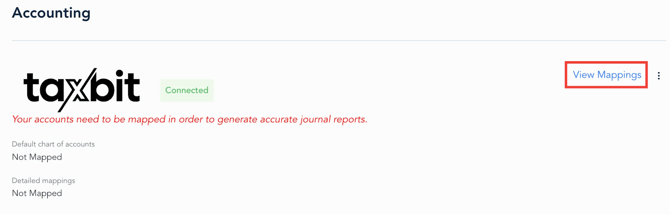
Step 3: Shortly after importing your file, you should see that Taxbit is integrated on the Accounting page, and then you can move on to map your default and detailed chart of accounts by selecting “View Mappings” from the top right.
Step 4: To select your Default Chart of Accounts, select “Edit” from the top right of the “Chart of Accounts” tab.
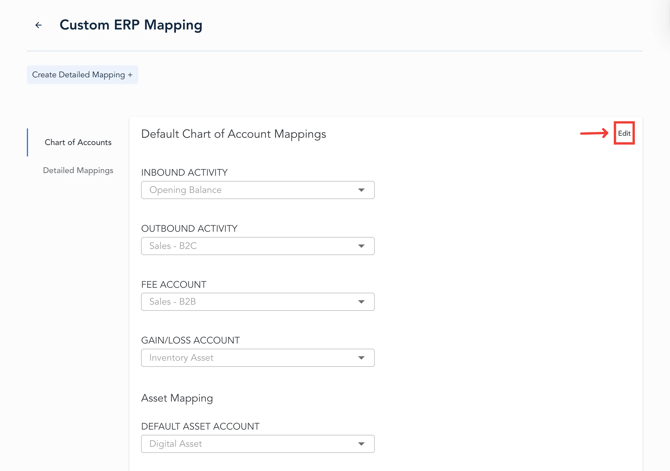
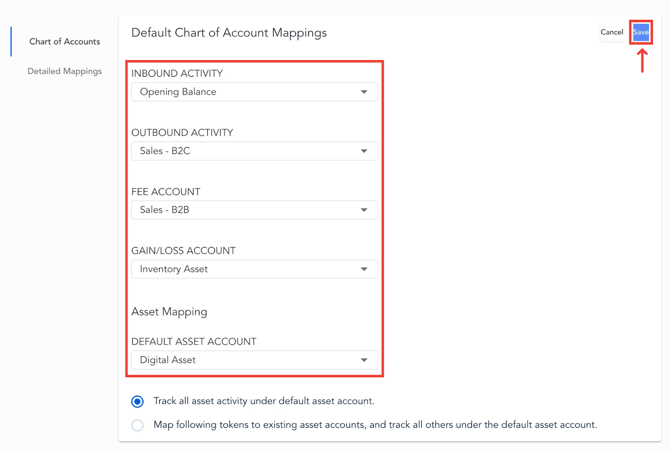
Step 5: Next, select your “Core 4” default chart of accounts as well as the default asset account that you wish to map to for the associated asset activity, and select “Save” from the top right.
Please note: All imported accounts will be available in all drop-down options.
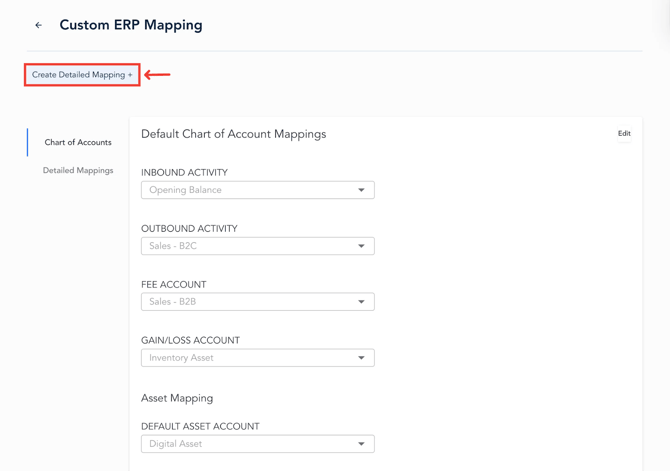
Step 6: It is also recommended to select your Detailed Mappings based on either a wallet or a specific category. Detailed Mappings will overwrite the default chart of account mappings, so this is helpful if you have specific activity that needs to sync to a particular G/L account instead of the default account that was mapped. To do this, select the “Create detailed mapping+” button from the top left.
Creating Rules before completing a detailed mapping is also helpful to ensure particular transactions are automatically categorized, as needed. If not, the default category that is automatically applied is Uncategorized In, Uncategorized Out, or Internal Transfer, depending on the direction/type of the transaction. The categories applied can then be used to create a detailed mapping based on the category of the transaction(s). For more information on Rules, please refer to this guide: Navigating the Rules Page
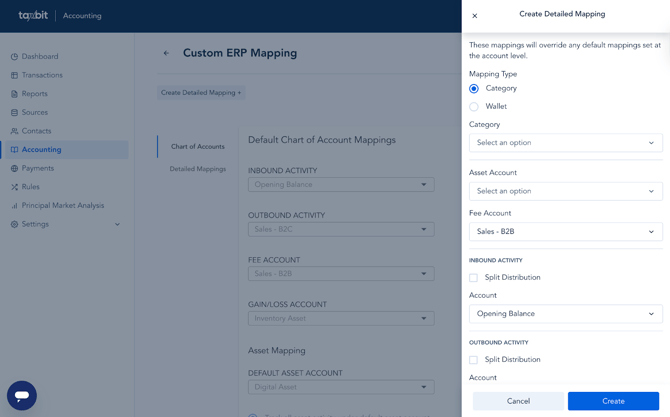
You also have the option to split the distribution of a journal entry to multiple accounts with detailed mappings, as needed. For more information on this, please refer to this guide: Split Journaling
Reviewing and Exporting Journal Entries
Once you have completed your chart of account mappings and the data has been reprocessed, you can then review the chart of accounts within your transactions and reports to ensure they are reflecting as expected, as well as export your journal entries to be imported to your organization's dedicated ERP system.
Journal Entry - Detailed Report
To review each of your Journal Entries at once, download the Journal Entry - Detailed report via the Reports page. From here, you can review the details for each Journal entry, such as the associated journal ID, event (i.e. Period End Adjustment vs. Transaction.), the account ID, account, asset, asset amount, and associated debits and credits. This report can also be downloaded and then used to import your entries to your designated ERP system.
Reviewing the Chart of Accounts for Individual Transactions
To review the associated chart of accounts for particular transactions, please follow the steps outlined below:
Step 1: From the “Transactions ” page, filter to the transaction(s) you wish to review.
Step 2: Expand the transaction by selecting the arrow on the right side of the transaction.
Step 3: Select the “Chart of Accounts” tab.
Step 4: From here, you can see which Chart of Accounts are associated with this particular transaction.
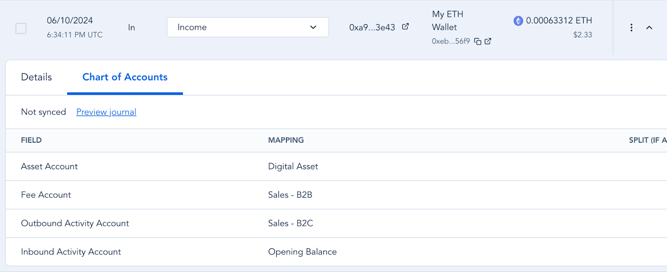
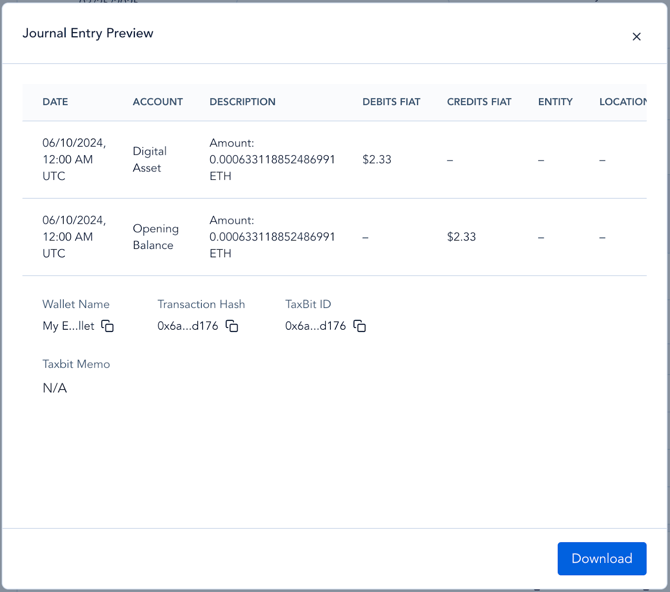
Step 5: Select the “Preview journal” link. In this modal, you can review how the journal entry would reflect for this particular transaction and the amounts that are being debited/credited to each account. You can also select “Download” at the bottom of the modal to download a CSV of this entry which can then be imported into your ERP system.
Bulk Preview Journal Entries on the Transactions Page
If you would like to review the entries for multiple transactions at a time from the Transactions page, instead of individually, please follow the steps outlined below:
Step 1: Filter to the transactions you wish to review and then select the “Select all” link from the top of the page.
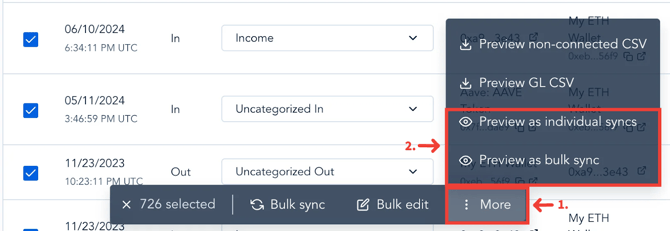
Step 2: Then, 1) select “More” from the bottom, and 2) choose from the following, which can also be exported:
- Preview as individual syncs
- Will show you a preview of the journal entries for each individual filtered transaction.
- Preview as bulk sync
- Will show you a preview of one aggregate journal entry for all filtered transactions.