In this article, we outline what the different product features are related to ERP syncing directly from the TaxBit Accounting Suite.
What is the Sync Status?
“Sync Status” is a field/filter located on the Transactions page, which only appears once you have connected to your ERP through the “Accounting” page in the tool. It indicates whether or not an individual transaction has been synced to your ERP, such as QuickBooks or NetSuite.
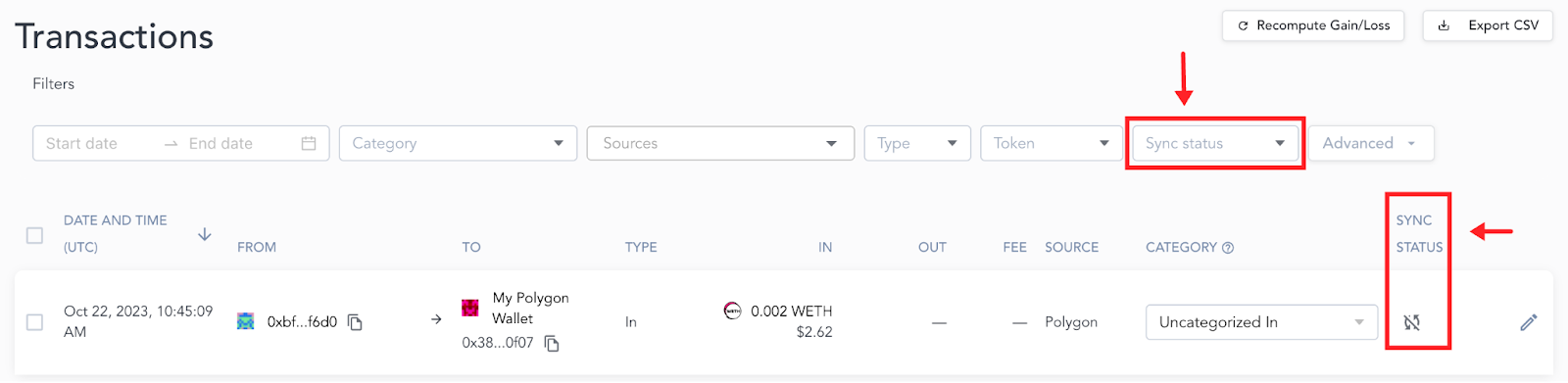
There are four sync statuses:
Status and Meaning
Synced 
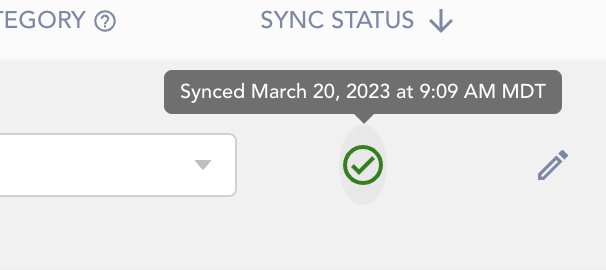
The “Synced” status indicates that the transaction has successfully synced to the connected ERP. When you hover over this icon on the transactions page it will display the date and time that the transaction was synced.
Transactions can be re-synced and a message will appear to confirm that you wish to “overwrite” what was previously posted to your ERP.
Not Synced
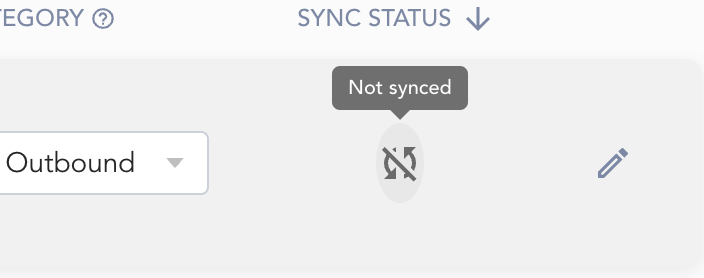
“Not synced” indicates that a transaction has not yet been synced to the connected ERP.
Transactions can be individually synced to the ERP, or transactions can be synced in bulk/as a consolidated entry:
Step 1: In the “Sync Status” tab select “Not Synced”
Step 2: Select “Select all filtered transactions”
Step 3: In the window that pops up at the bottom select the blue “Bulk sync to QuickBooks” Button
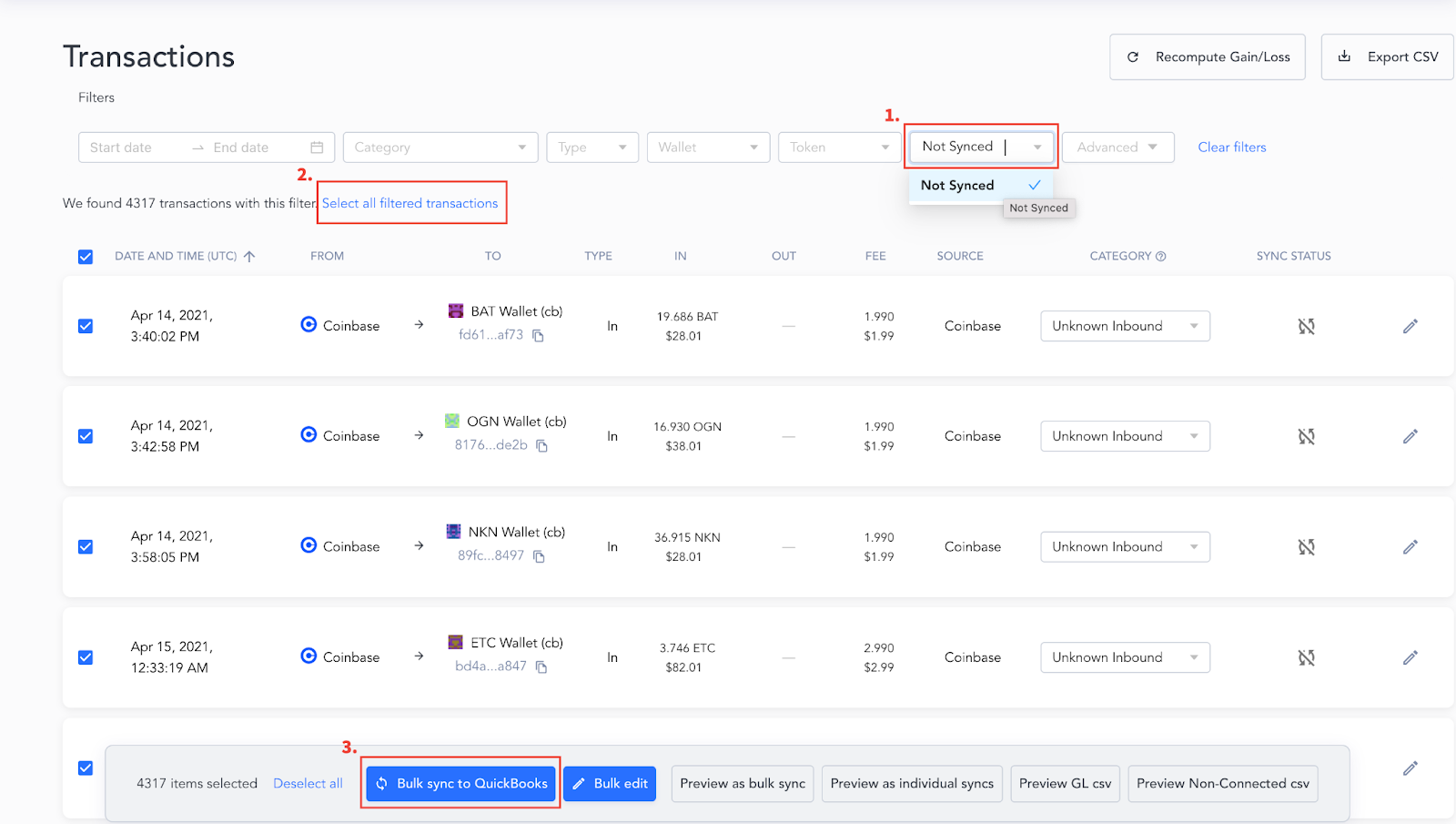
Once these transactions have successfully synced to the ERP, the sync status will update automatically to ‘Synced’.
Ineligible
This means that the transaction is unable to be synced to the connected ERP, which is typically related to spam tokens or transactions, such as an NFT airdrop, that require pricing input. Please speak directly with your Account Manager for additional questions on transactions ineligible for sync.

Please note: Ineligible Icons will be “grayed out” when you hover over them, and you will not be able to interact with them.
Errored 
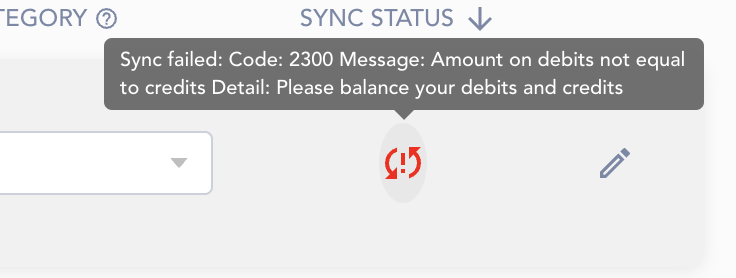
These are transactions that failed to sync with the connected ERP. To find out the specific reason why the transaction is failing to sync, hover over the “errored” icon to view the error message: