
In this guide, you’ll find information on the Principle Market Analysis tool and how you can use it within the Taxbit Accounting Suite.
What is the Principal Market Analysis Tool?
The Principal Market Analysis tool will allow you to run a principal market analysis to compare and identify which pricing source should be used on an asset-by-asset basis. Additional key features include:
Robust Pricing Support
- Comprehensive coverage of assets and exchanges, leveraging our industry-leading pricing data.
Enhanced Accuracy
- Reduces manual efforts in pricing asset portfolios, ensuring accurate and compliant fair value calculations.
Detailed Analysis
- Empowers companies to determine the appropriate pricing source with quantifiable evidence supporting fair value measurements.
Seamless Integration
- Easily integrates with existing accounting workflows, allowing users to select principle markets, override default prices, and export results effortlessly.
How Do I Use the Principal Market Analysis Tool?
Creating a New Principal Market Analysis
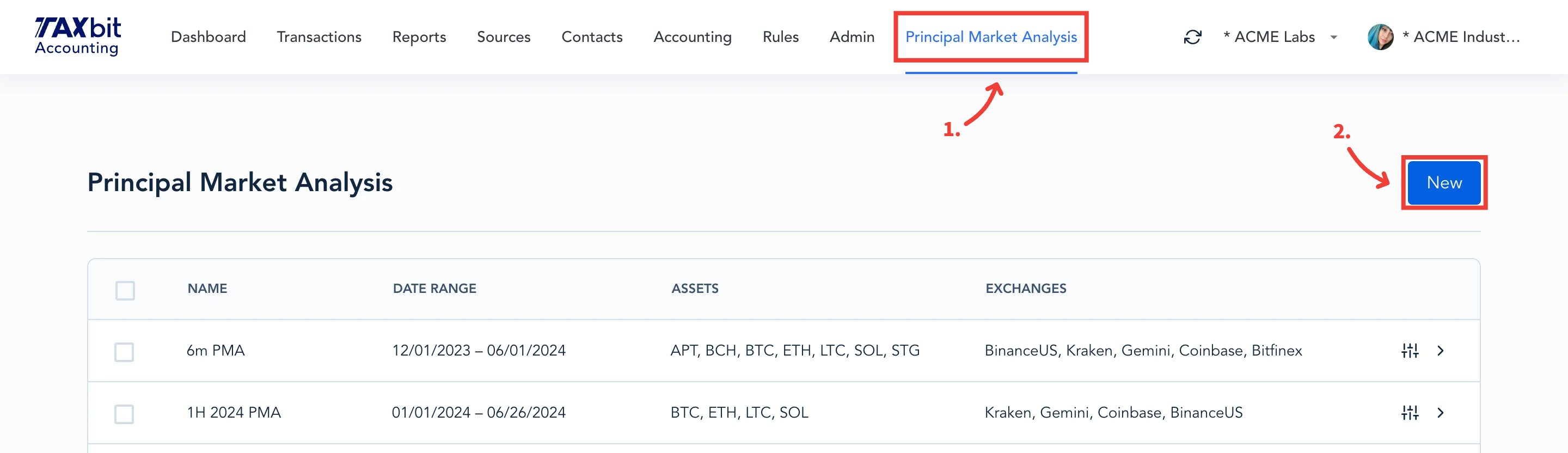
Step 1: To add a new PMA, (1) select “Principle Market Analysis” from the top of the page, (2) then select “New” from the top right.
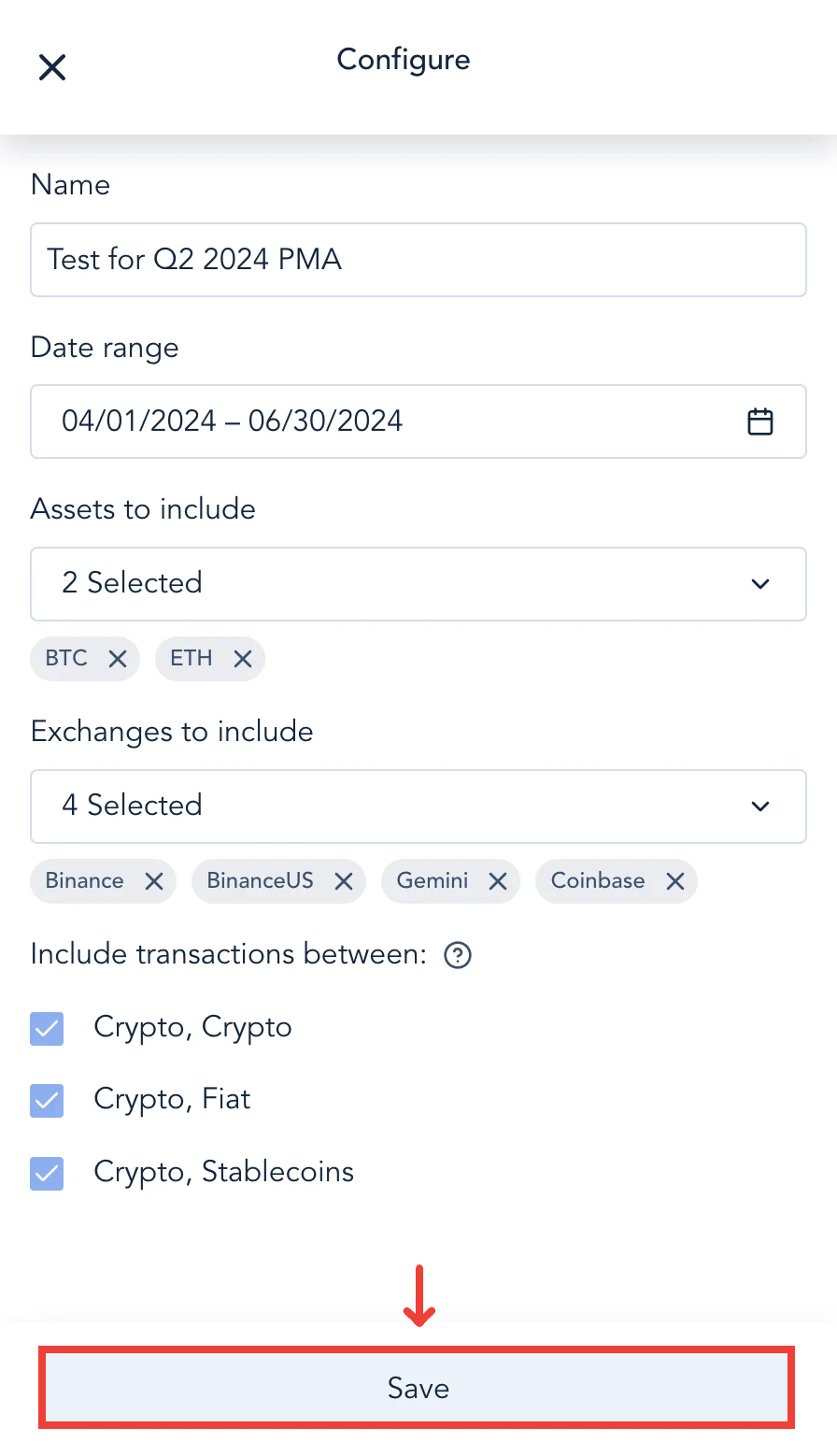
Step 2: Within the configuration window, you’ll be asked to populate the following fields:
Name
The name you wish to assign to your new PMA.
Date range
The date range you wish to analyze the token volume for a particular asset and exchange.
Assets to include
Taxbit currently supports the ability to run analysis on the top 25 assets by volume and will support a much larger range of assets in the future. Select the asset(s) you wish to analyze from the drop-down menu.
Exchanges to include
Taxbit currently supports the ability to run analysis on a select number of popular exchanges. Select the exchange(s) you wish to analyze from the drop-down menu.
Please note: There will also be an option available to analyze token volume for transactions between crypto and crypto, crypto and fiat, as well as crypto and stablecoin. These options are not currently available within the tool, however, will be available to configure soon.
Step 3: Once you’ve populated the above fields, select “Save” from the bottom.
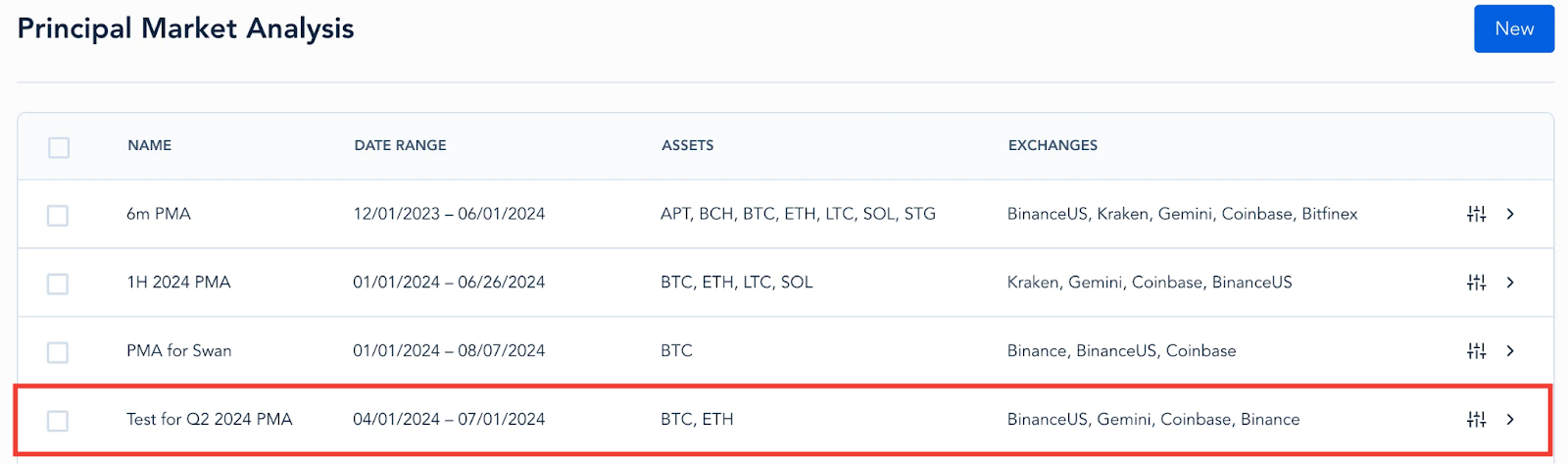
Step 4: You’ll receive a notification on the bottom right that your new PMA was successfully added, and it will now be listed on the PMA page with its name, as well as the date range, assets, and exchanges selected during configuration.
Viewing Results
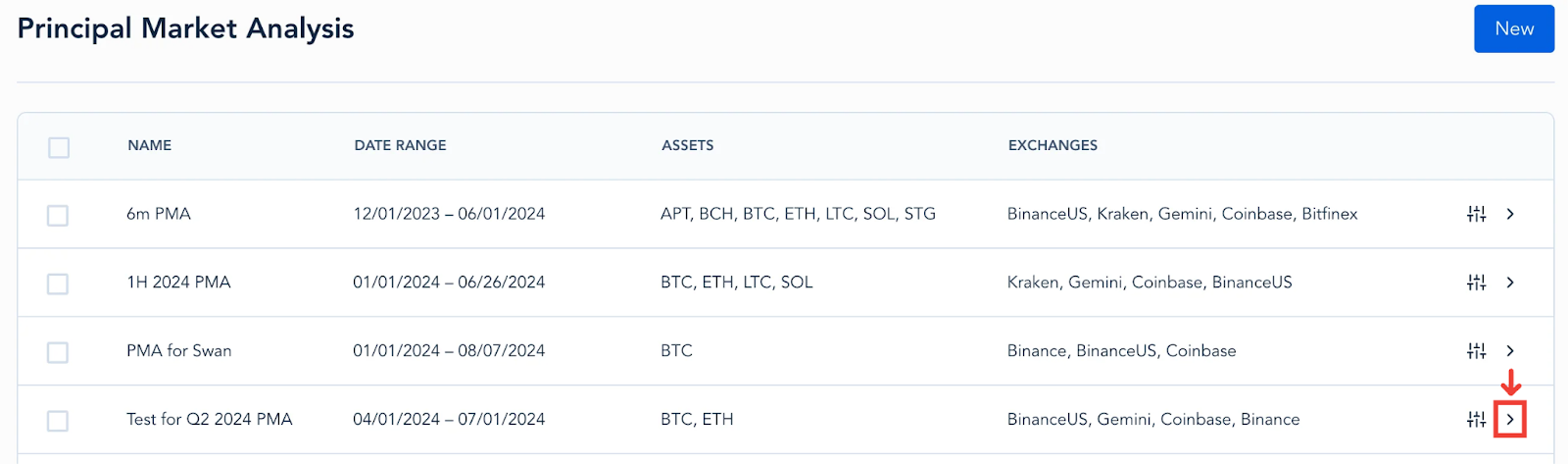
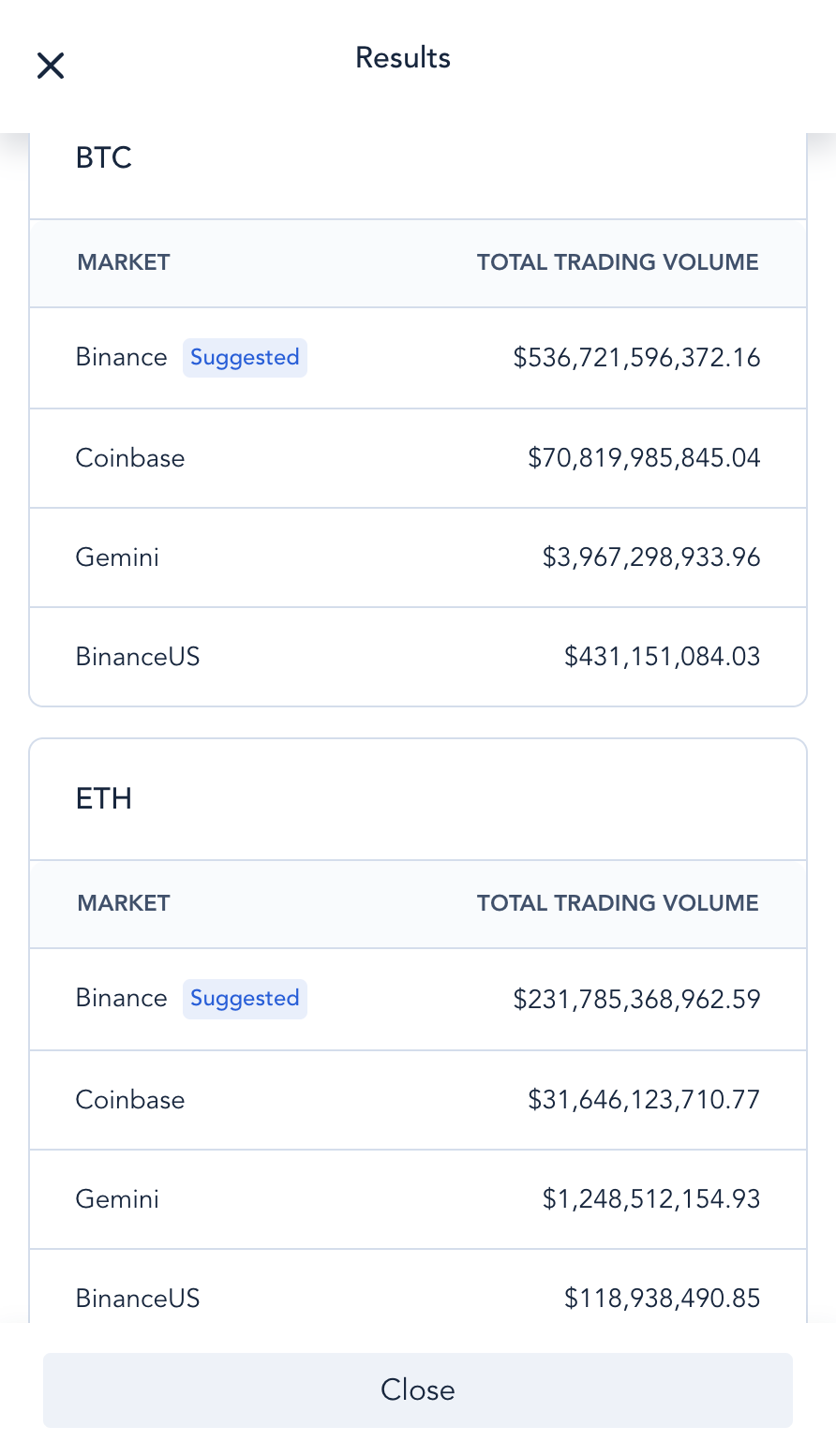
Now that you’ve created the PMA, you can view the results by selecting the “Results” arrow on the right side of the PMA:
From the results window, you’ll be able to see the total trading volume for each asset and market that you configured within this PMA. The results will also display the suggested market for the selected period.
Editing a Principal Market Analysis
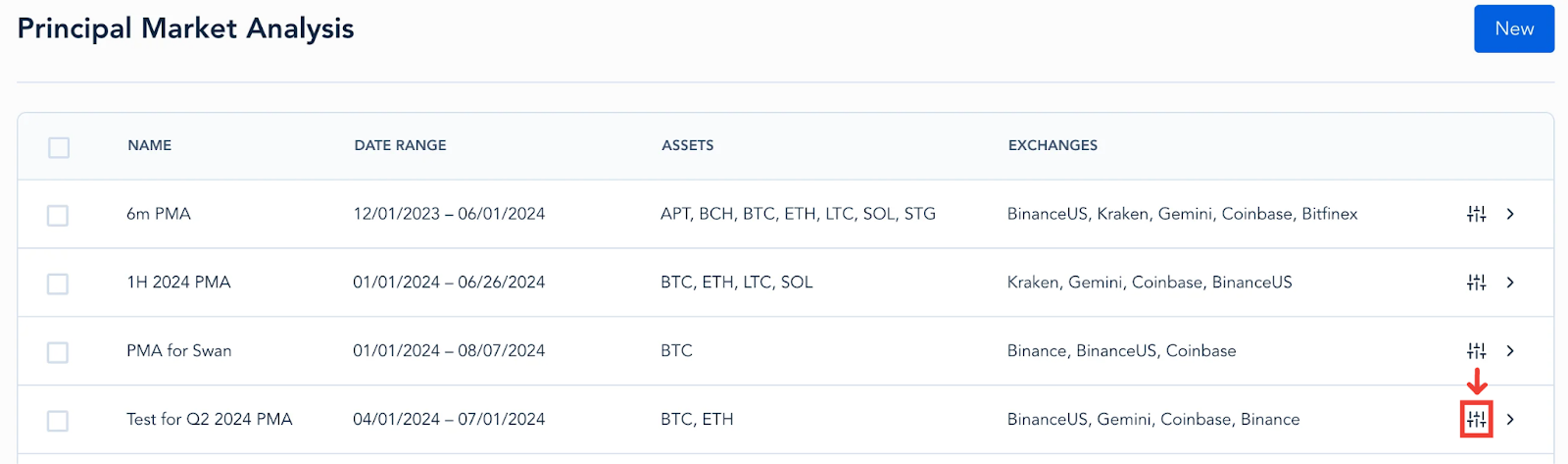
If needed, you can edit the configurations for a PMA by selecting the “Configuration” icon to the right of the PMA, which will take you to the Configuration window to edit any of the configuration fields.
Deleting a Principal Market Analysis
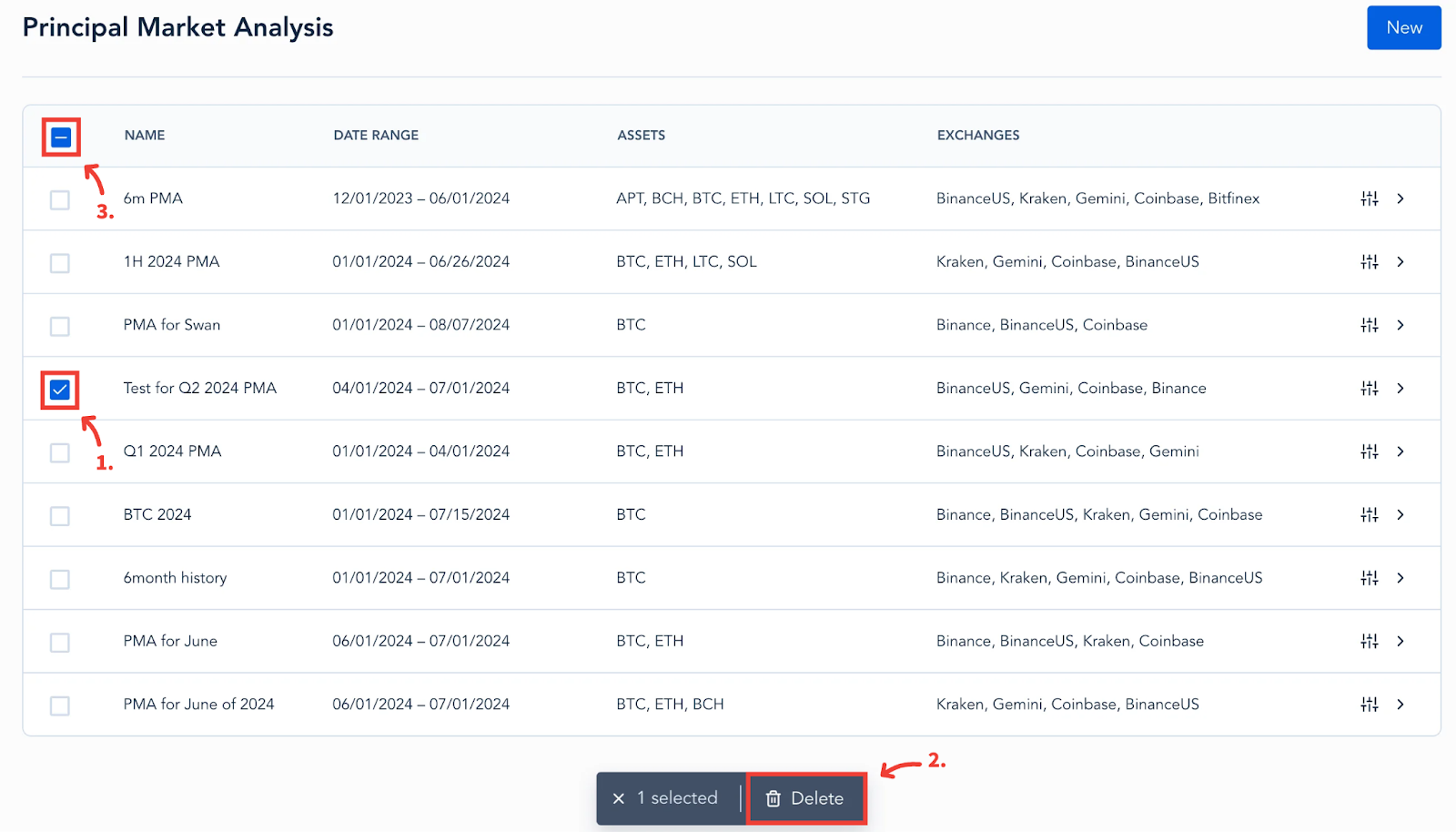
If there is ever an instance where you’d like to delete PMA(s), you can do so by (1) selecting the checkbox to the left of the PMA(s) you wish to delete, then (2) selecting “Delete”. (3) You also have the option to bulk delete all PMAs listed by selecting the checkbox on the top left, and then selecting “Delete” from the bottom.
For a demonstration of the PMA tool, please watch this video: