The Rules tab enables users to bulk categorize transactions based on certain parameters. Rules can be applied to future transactions, or both future and historical transactions.
Please note: Rules are only applied to future transactions by default to avoid modifying already-reconciled transactions, but you can choose to apply rules to historical transactions by clicking the check box when making a rule
How to Create a Rule
In the Rules tab you can create a rule by clicking “New Rule” in the top right corner, name the rule, create parameters for the rule, and assign a category and/or memo to apply to transactions the rule applies to.
Example: Any ETH that is sent to/received by the Ethereum Wallet should be categorized as Income. Without this rule created, any inbound ETH to the Ethereum is simply categorized as “Unknown Inbound” or “Internal Transfer” depending on whether or not it comes from an external or internal wallet.
1. Go to the Rules page > select “+ New Rule”

2. Users are able to create their own transaction type rules by customizing the name of the rule, the parameters needing to be met in order for the rule to apply, and the final applicable outcome of the rule. To start this example:
- Enter the Rule Name. In this example, we'll use “Ethereum Income” as we’ll be making a rule to mark all ETH going into the Ethereum Wallet as Income.
- Set the first condition parameter as “To” the “Ethereum Wallet” address
- Add another parameter and set the second condition parameter as “Token” for the token “ETH”
- Set the outcome of the parameter being met as “Category” for the parameter, with “Income” as the category
- And the Memo being the second outcome parameter, with the memo stating “NFT Project Income”
- Select the box for “Apply this rule to previous transactions”
- Save the rule
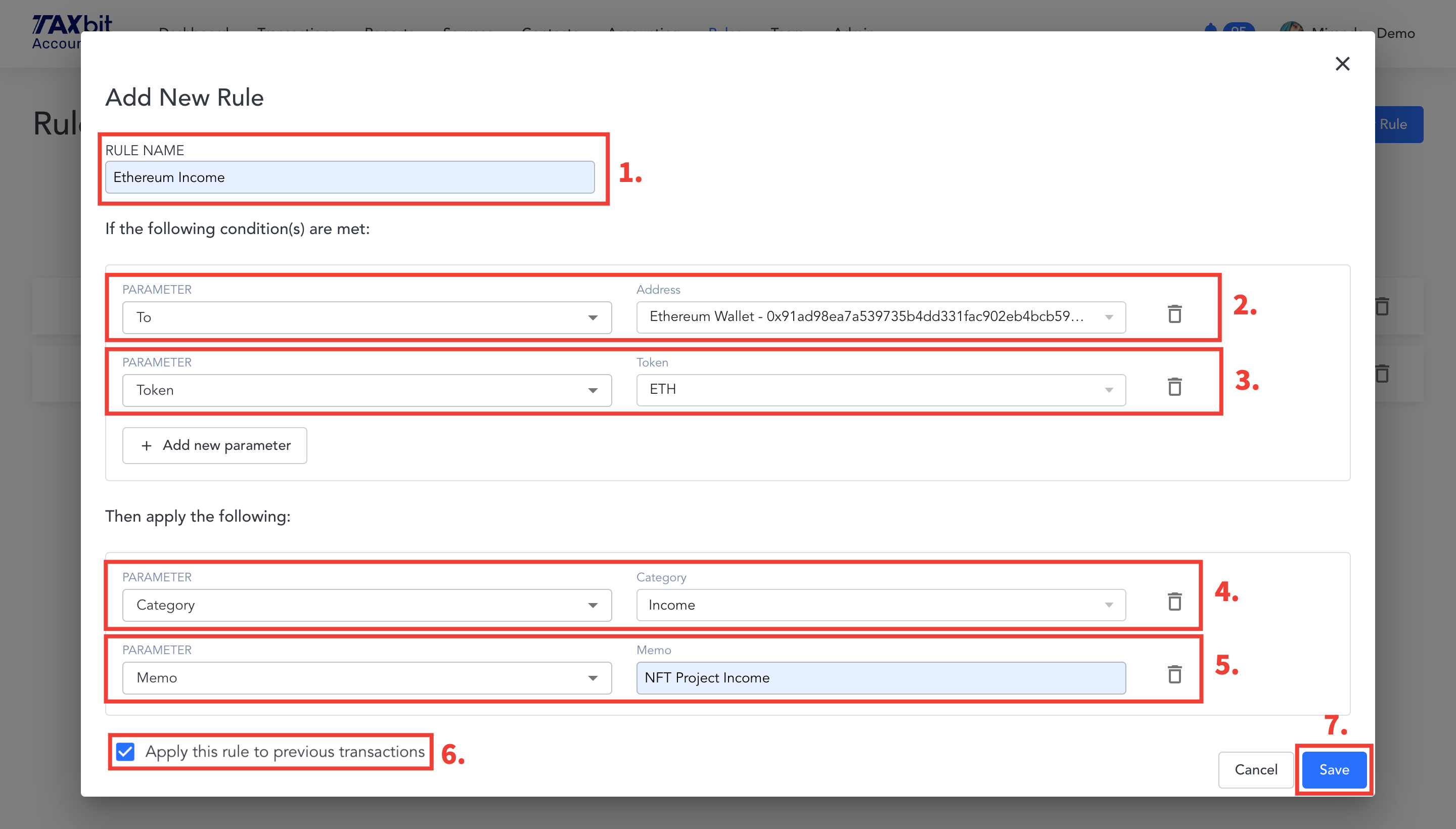
These new parameters tell any transactions that are to the Ethereum Wallet with the token ETH to set their category to Income, and to have a Memo of "NFT Project Income".
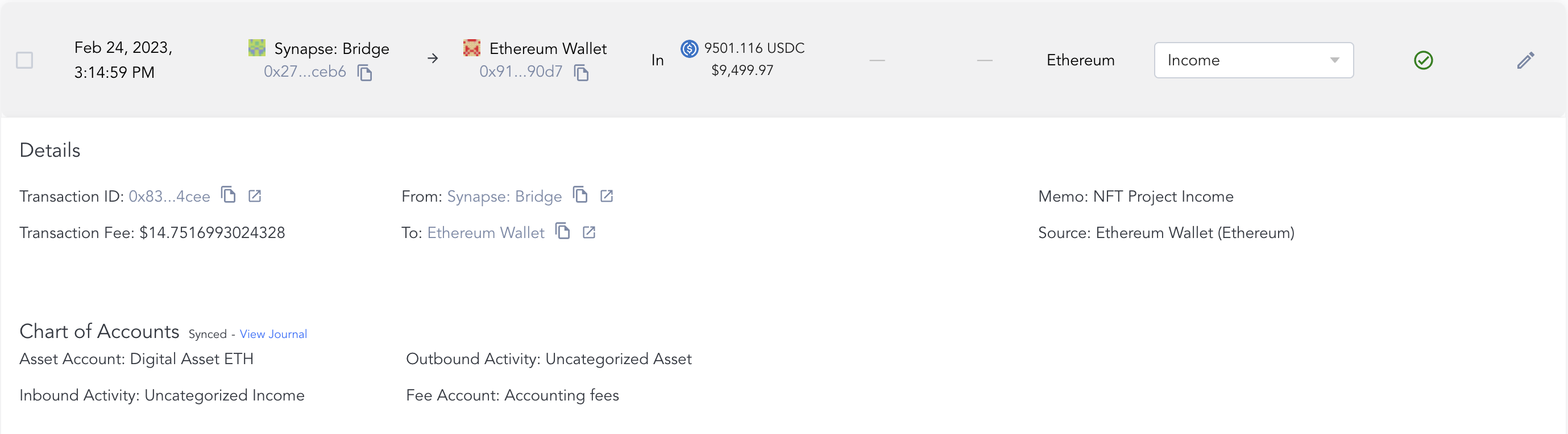
3. To review these transactions, go back to the Transactions page > filter for ETH > notice that the ETH In transactions now reflects the rule that was set from the Rules page.