
In this article, we show you how you can view journal entries associated with transaction data.
Once you have connected your ERP, there are a few ways you can view the synced journal entries:
Transactions Page
Viewing synced transactions from the Transactions page can be useful if there is an individual transaction you want to drill into. You can validate an entry using a link that redirects you to your ERP solution.
Step 1: Select the transaction you wish to view the journal entry for.
Step 2: Select “View Journal” from the Transaction Details window. This will open up a new tab within the ERP where you can view the selected journal entry.

If you select “Preview Journal” (next to “View Journal”), a pop-up window will appear within the Accounting Suite, showing you an aggregate preview of the journal entry for this transaction.
Selecting the “Edit” Icon of the Transaction
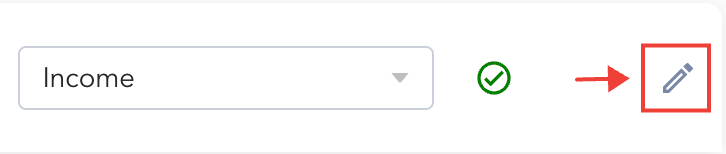
Step 1: Select the “Edit” icon on the right side of the transaction next to the “Sync Status” section.
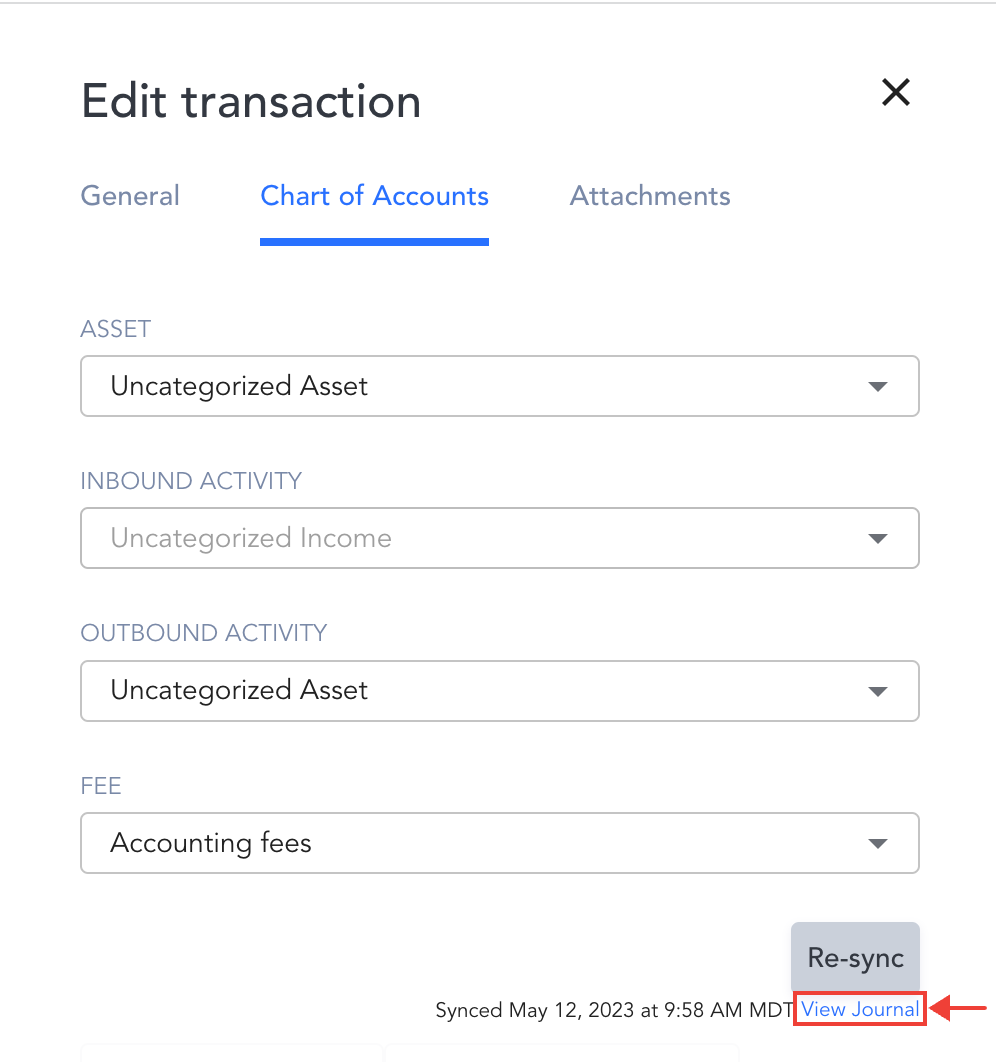
Step 2: In the “Edit Transaction” window, at the bottom of the “Chart of Accounts” tab, select the “View Journal” link. This will open up a new window within the ERP where you can view your selected journal entry.
Viewing Journal Entries Within the Journal Entry Report
To access the Journal Entry Reports, select “Reports” from the top of the page, then select "Journal Entry Report - Detailed".
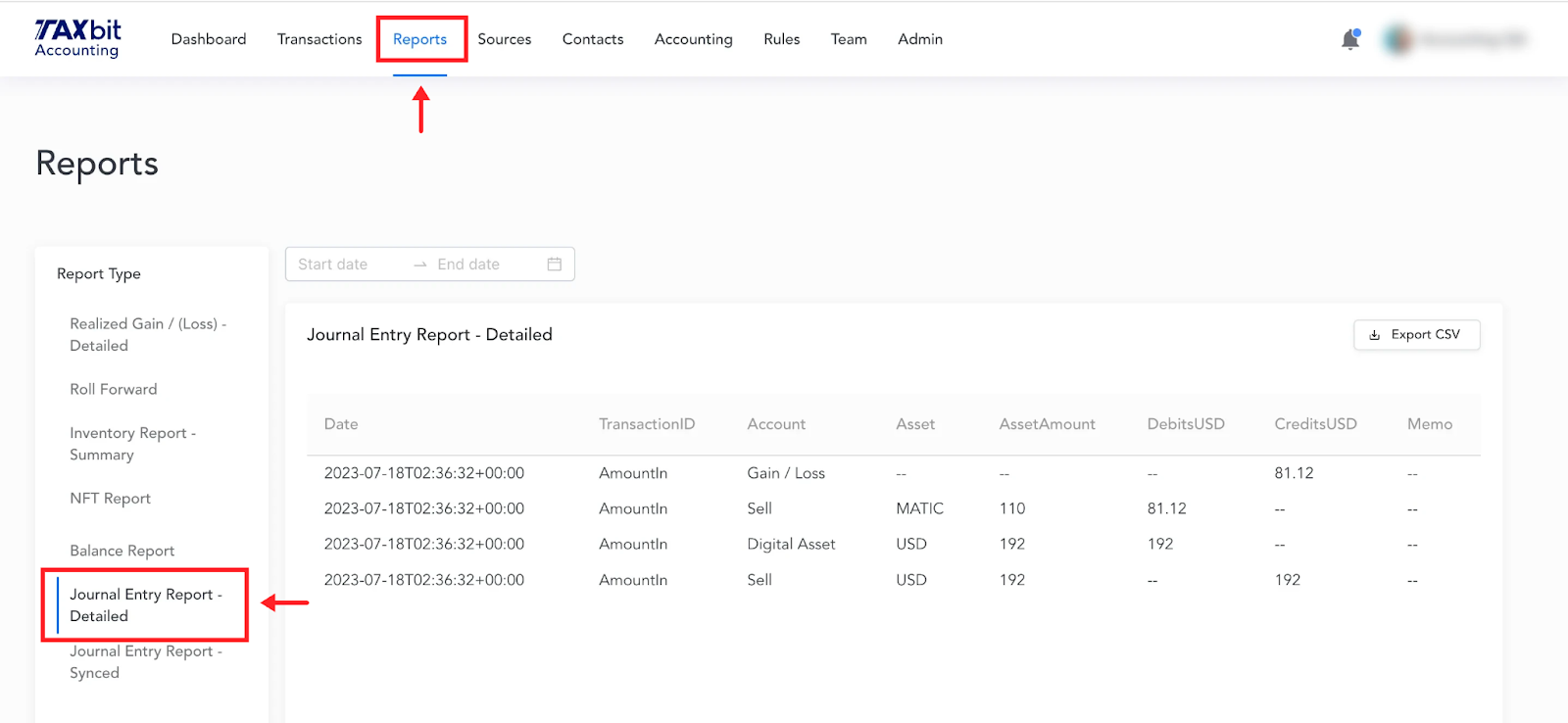
From this report, you’ll have a high-level view of each journal entry which will include the following details:
Date
The date and time that the transaction took place.
Transaction ID
The transaction id associated with the transaction. Multiple entries for the same transaction will display the same transaction id.
Account
The account is representative of the category/transaction type associated with each individual transaction, and/or respective realized gain/loss calculations on disposals associated with the transaction.
Asset
The asset used in the particular entry.
Asset Amount
The amount listed for each entry.
Debits and Credits in USD
Fair Value or Cost in USD associated with the transaction, and respective debits/credits.
Memo
If there is a memo associated with the transaction, it will appear in the memo field, which can be useful for summarizing or identifying specific groups of transactions quicker in journal entry format.