
If you need to edit individual or bulk transaction categories, add memos to transactions, or attach a memo to a transaction, you can do this in a few simple steps:
Step 1: On the transaction that you wish to edit, select the “Edit” icon on the right side of the transaction.

Step 2: Choose which function you wish to edit. There are three functions within the “Edit Transaction” page:
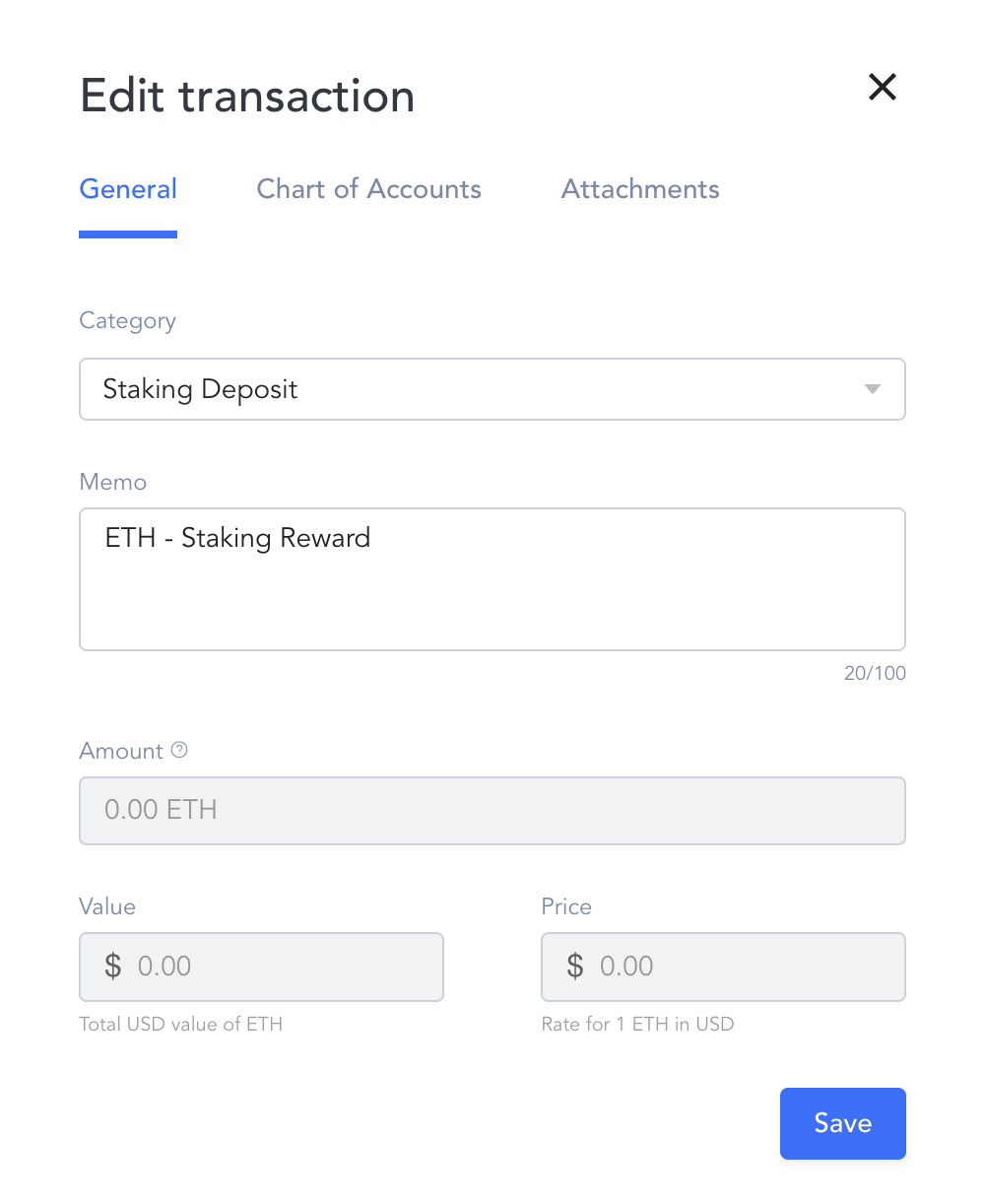
- General: Edit the transaction category and add a memo. Remember that when you add a memo, you are able to search keywords through the “Advanced” filter, and that memos are also included in the data export, which can be useful for additional customization and categorization.
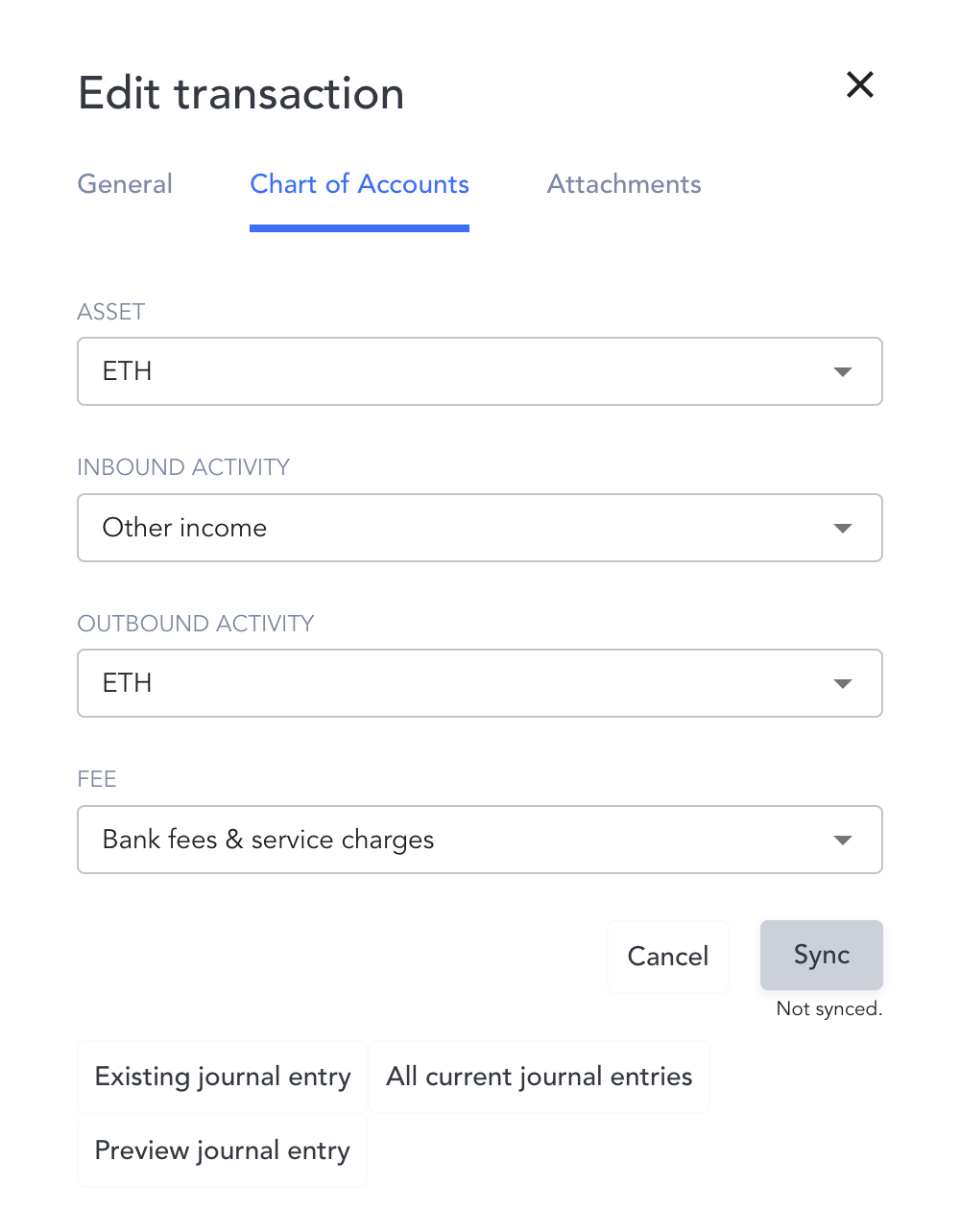
- Chart of Accounts: Here, you’ll be able to customize the transaction’s journal entry detail.
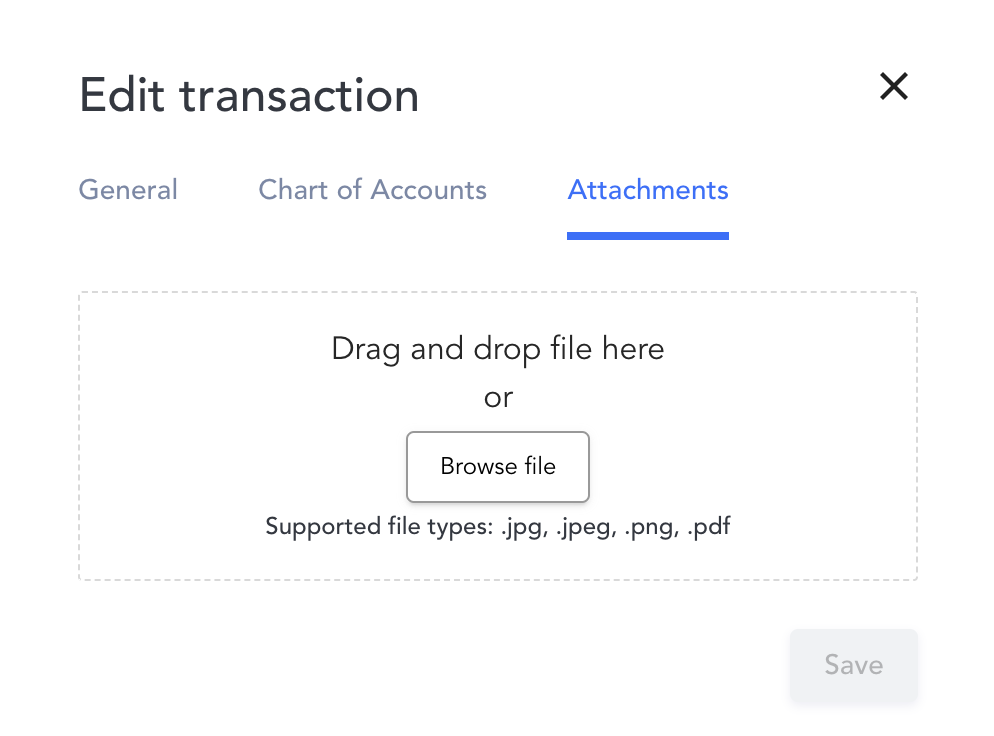
- Attachments: Here, you can attach any files that may be associated with the specific transaction.
Bulk Editing
You also have the option to bulk edit your transactions. This is helpful when you need to edit multiple transactions to contain the same information. To bulk edit, from the “Transactions” page, select the check box next to each transaction you wish to edit, or the check box at the top to select all transactions. Then, you’ll select the “Bulk edit” button located at the bottom of the page.
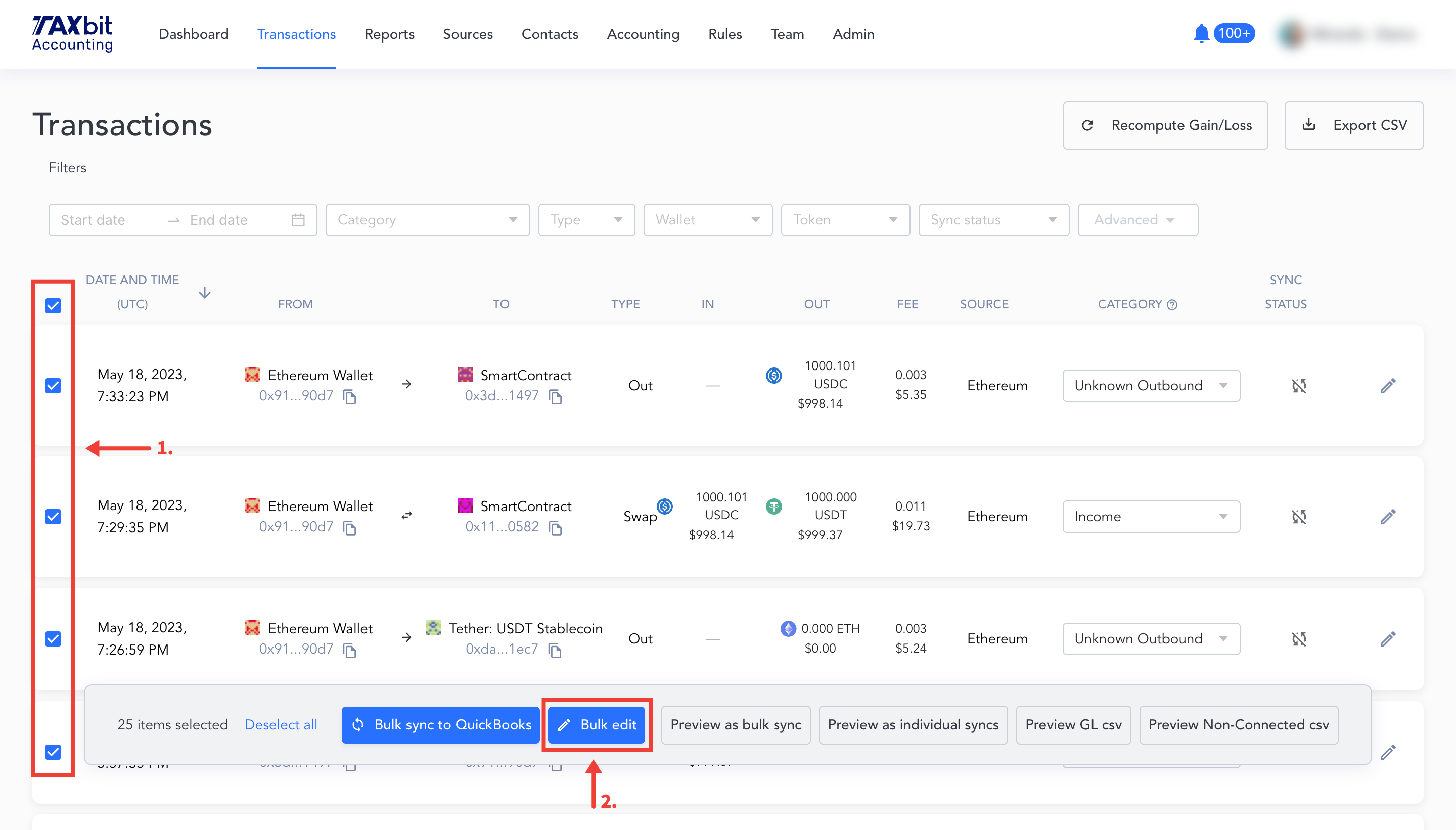
You’ll then have the option to edit the Category and Memo. Once you are done making those edits, be sure to select “Save” at the bottom. You’ll be able to see those changes for the selected transaction in the “Transactions” page.
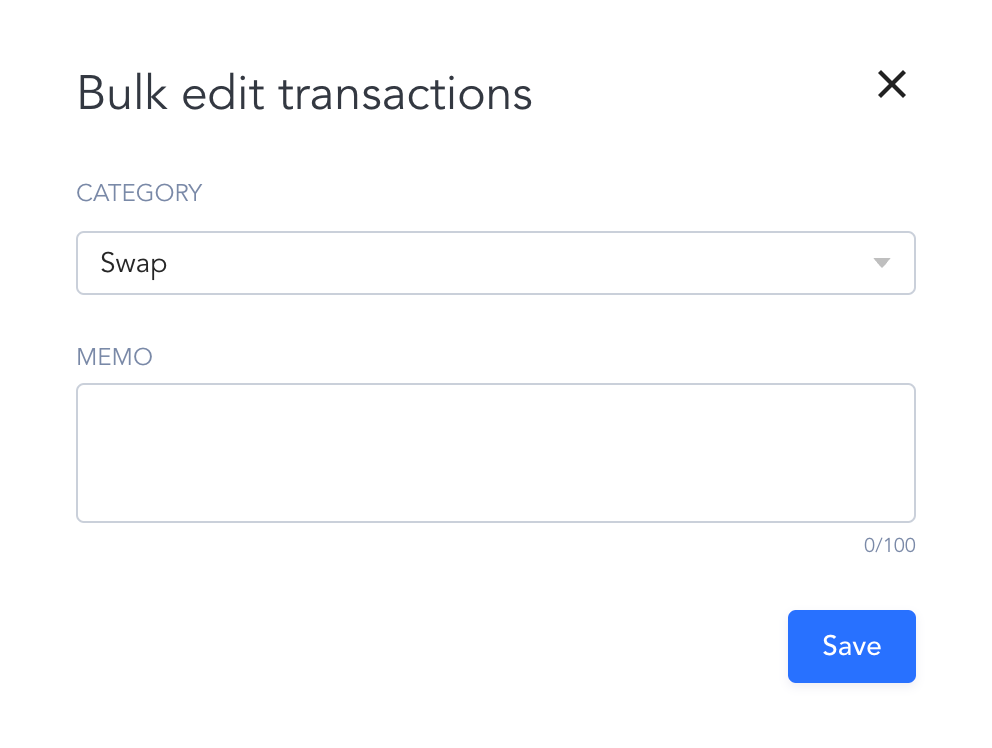
Editable Fields Under the General Tab
The General tab of the “Edit transaction” window contains multiple fields that can be edited including:
Category Field
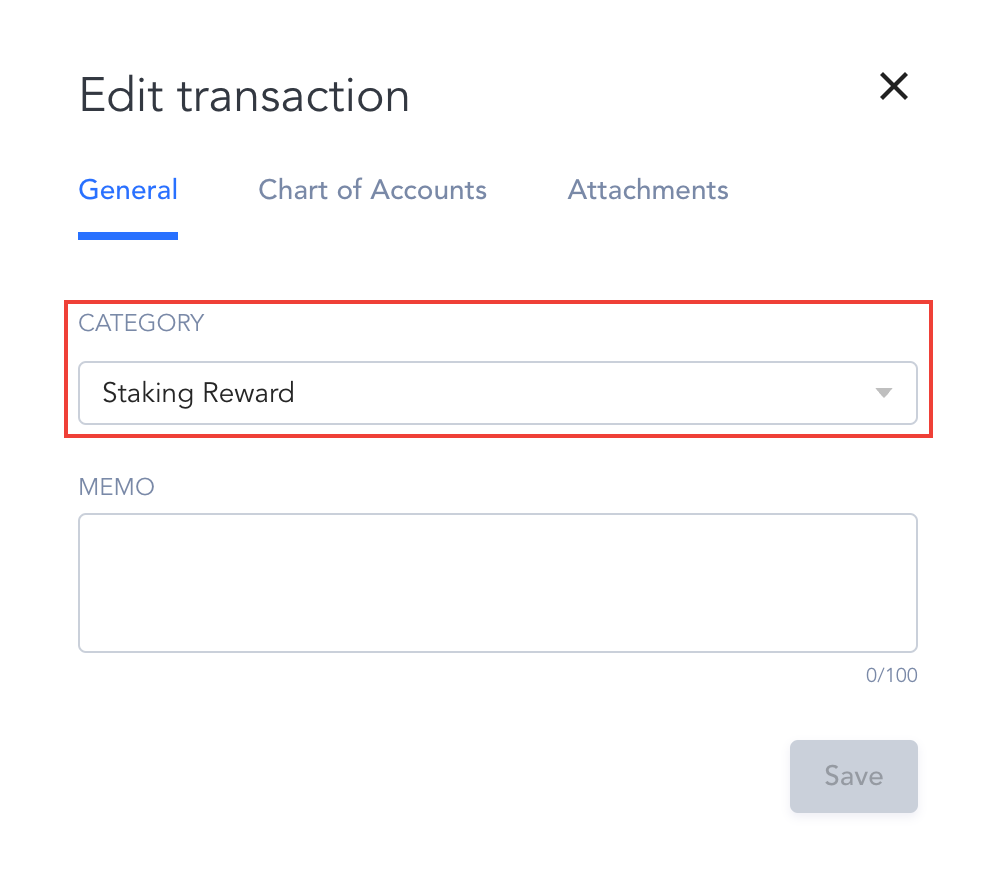
In the “Edit Transaction” window, when you select the “Category” field, it’ll bring up a list of categories that you can choose from to categorize your transaction appropriately. These categories include:
Inbound:
- Buy
- Income
- Airdrop
- Mining
- Equity
- Staking Reward
- Hard Fork Reward
- Interest
- Chain Split
- Cashback
- Fiat Deposit
- Misc Income
- Uncategorized In
- Mint In
- Margin In
- Staking Withdrawal
- Collateral Withdrawal
Outbound:
- Sell
- Contractor
- Software and Web Services
- Fees
- Misc Expense
- Fiat Withdrawal
- Staking Deposit
- Collateral Deposit
- Loan Payment
- Lost/Stolen
- Loan Fee
- Uncategorized Out
- Mint Out
- Margin Out
- Burn
Internal:
Swap:
Ignore:
If you have an existing transaction, and you need to quickly edit the “Category”, you can do so by selecting the dropdown in the “Category” column on the specific transaction you wish to edit in the “Transaction” page.

Please note: The category you choose will directly impact how a transaction is synced to your general ledger, so be sure to properly map categories to your chart of accounts first!
Category Definitions
Buy
A purchase of cryptocurrency in exchange for fiat.
Income
An inbound payment for products or services.
Airdrop
Received tokens as part of an airdrop.
Mining
Income earned from crypto mining.
Equity
Crypto payments specifically for acquiring equity.
Staking Reward
Rewards earned from providing tokens to a staking pool.
Hard Fork Reward
Rewards originating from a hard fork event.
Interest
Crypto interest received from holdings.
Chain Split
Income originating from a chain split.
Cashback
Any rewards earned from crypto cashback services.
Fiat Deposit
Fiat deposits made into a custodial wallet, eg. USD into a Coinbase cash account.
Misc Income
Income category not covered by other classifications. A memo paired with this category can be a useful way to describe further what this specific transaction is.
Uncategorized In
Uncategorized inbound transaction.
Mint In
Asset flows related to minting an asset.
Margin In
Asset flows related to margin activity.
Staking Withdrawal
Withdrawal of previously deposited currency for staking purposes.
Collateral Withdrawal
Withdrawal of previously deposited currency for collateral purposes.
Sell
Sale of cryptocurrency in exchange for fiat.
Contractor
Crypto payments specifically for contracting services.
Software and Web Services
Crypto payments for software and web services.
Fees
Non-gas-related fee payments.
Misc Expense
Crypto payments not covered by other classifications.
Fiat Withdrawal
Fiat withdrawal out of a custodial wallet, eg. USD out of a Coinbase account.
Staking Deposit
Payment into a staking pool with the purpose of generating rewards. Does not trigger a gain event.
Collateral Deposit
Deposit made as collateral. Does not trigger a gain event.
Loan Payment
Payment made on a cryptocurrency loan.
Lost/Stolen
Crypto that has been lost or stolen. This counts as a capital loss at Cost Basis.
Loan Fee
Crypto fees associated with a loan.
Uncategorized Out
Uncategorized outbound transaction.
Mint Out
Asset flows related to minting a new asset.
Margin Out
Asset flows related to margin activity.
Burn
Asset burn related to the burning or eliminating of a token.
Internal Transfers
Standard transfer between two organizational wallets.
Mint
A swap of funds for the purpose of minting an NFT.
Swap
An exchange from one set of digital assets to another set of digital assets.
Ignore
Ignore these transactions from any gains/loss calculations.
Memo Field
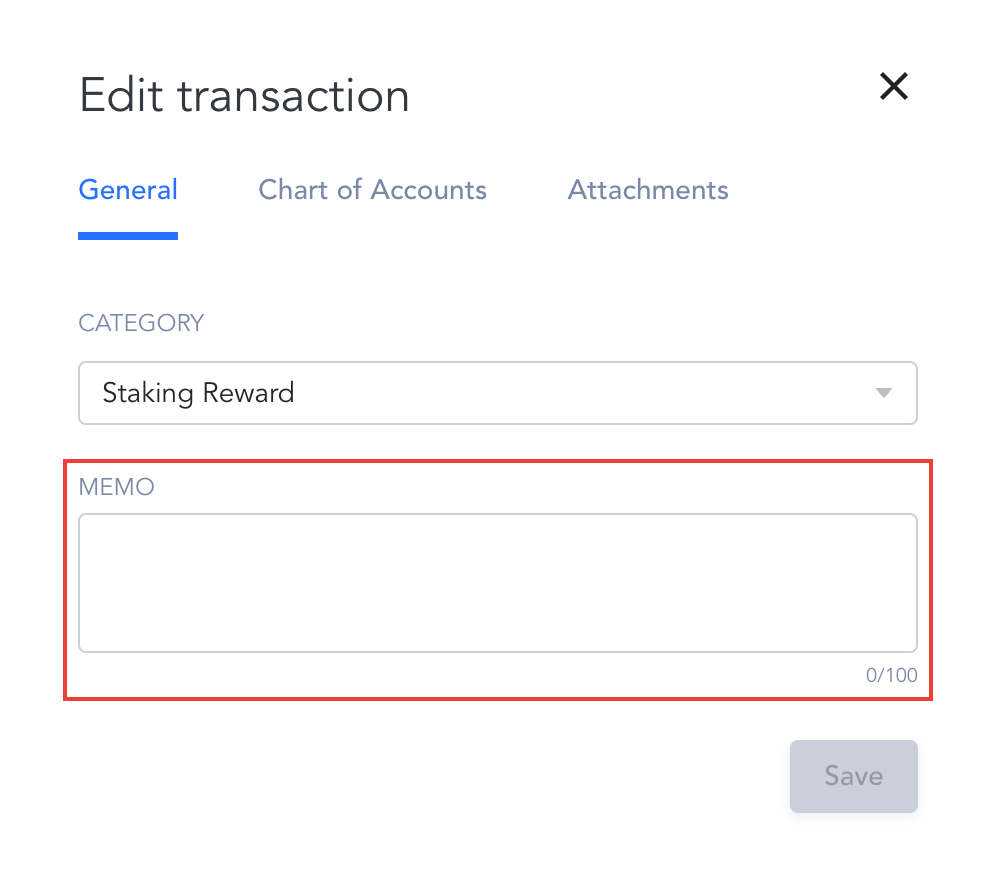
The “Memo” field is where you’ll be able to include any specific notes or details about the transaction that you may not be able to include in any other classifications.
Attachment Tab
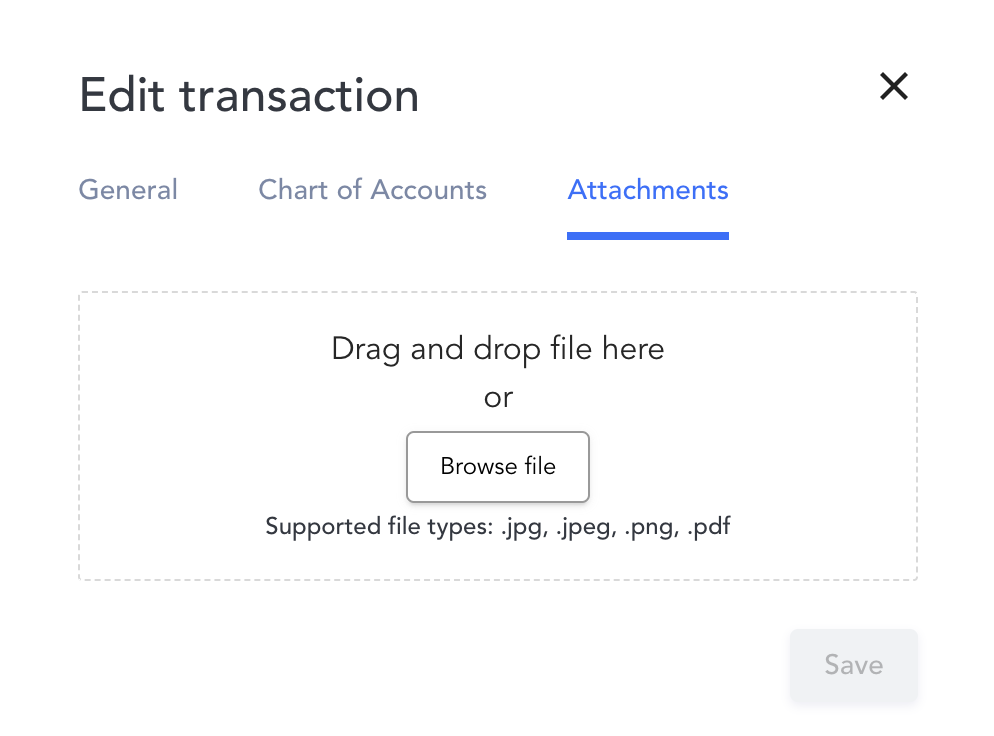
Under the Attachments tab, you can drag and drop a file or click "Browse file" to find an attachment to upload and attach to this specific transaction. This can be particularly helpful if a particular transaction needs a receipt or invoice to be synced with it to your accounting system.