
The "Transactions" tab is where you can see all of the transactions related to the sources you have added, categorize those transactions for syncing into your general ledger, add memos and attachments (e.g., invoices, receipts), and filter or export transaction details for further analysis.
How to Filter Transaction Data
Filter and Export transaction data based on the following attributes:
- Date Range: Refine the data on the Transactions page by any desired date range.
- Category: Filter for an individual or multiple transaction categories (for example, filter for all Income by selecting “Income”, “Staking Rewards”, and “Royalty Income”).
- Sources: Filter by data source(s). Type in the name of the desired integration to find the source quicker in the drop-down list.
- Type: Filter for a specific type of transaction (for example, filter for Inbound, Outbound, Swap, Internal, or Ignore.)
- Token: Filter by asset(s).
- Sync Status: Sync status represents whether or not an individual transaction has been synced to QuickBooks. This sync status will not appear until the QuickBooks connection has been made through the Accounting page.
- Advanced: Filter for other specific transaction details, such as specific Transaction hashes, to/from sources, and memos. Recall that memos can be added to Rules, uploaded in CSV files, and added through individual transaction edits.
How to Export Transactions
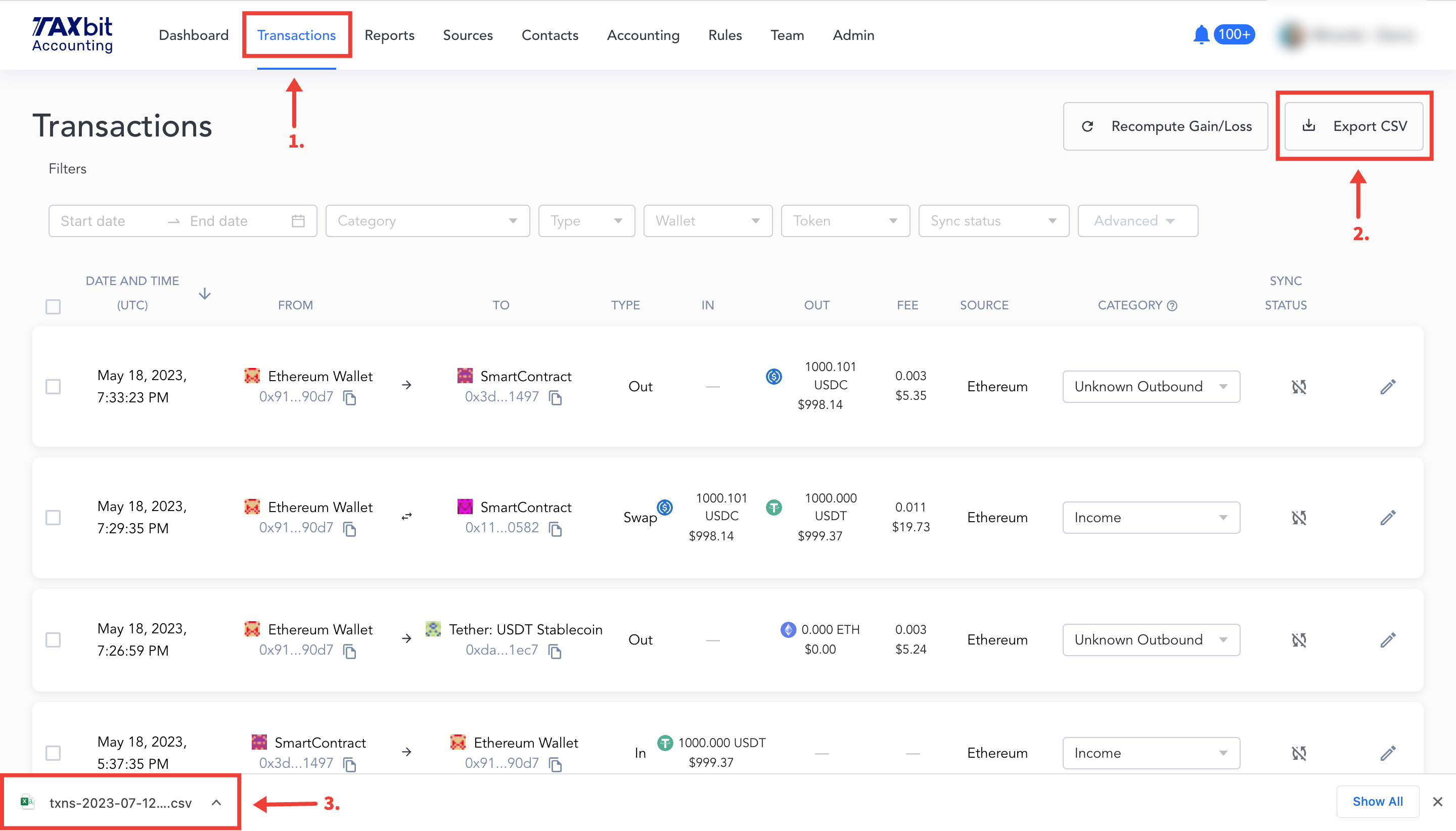
Export transactions by selecting “Export CSV” directly on the Transactions page. Selecting “Export CSV” will generate a CSV export for the entire transaction population, or for the transactions based on a filter(s) applied.
How to Edit a Single Transaction
Example: Edit a single “Unknown Outbound” transaction to be a “Sell” transaction.
Step 1: Select the “Edit” icon next to the transaction you want to edit.

Step 2: Change the Category to Sell > add a Memo, “Disposal of authorization token.” > Select “Save.”
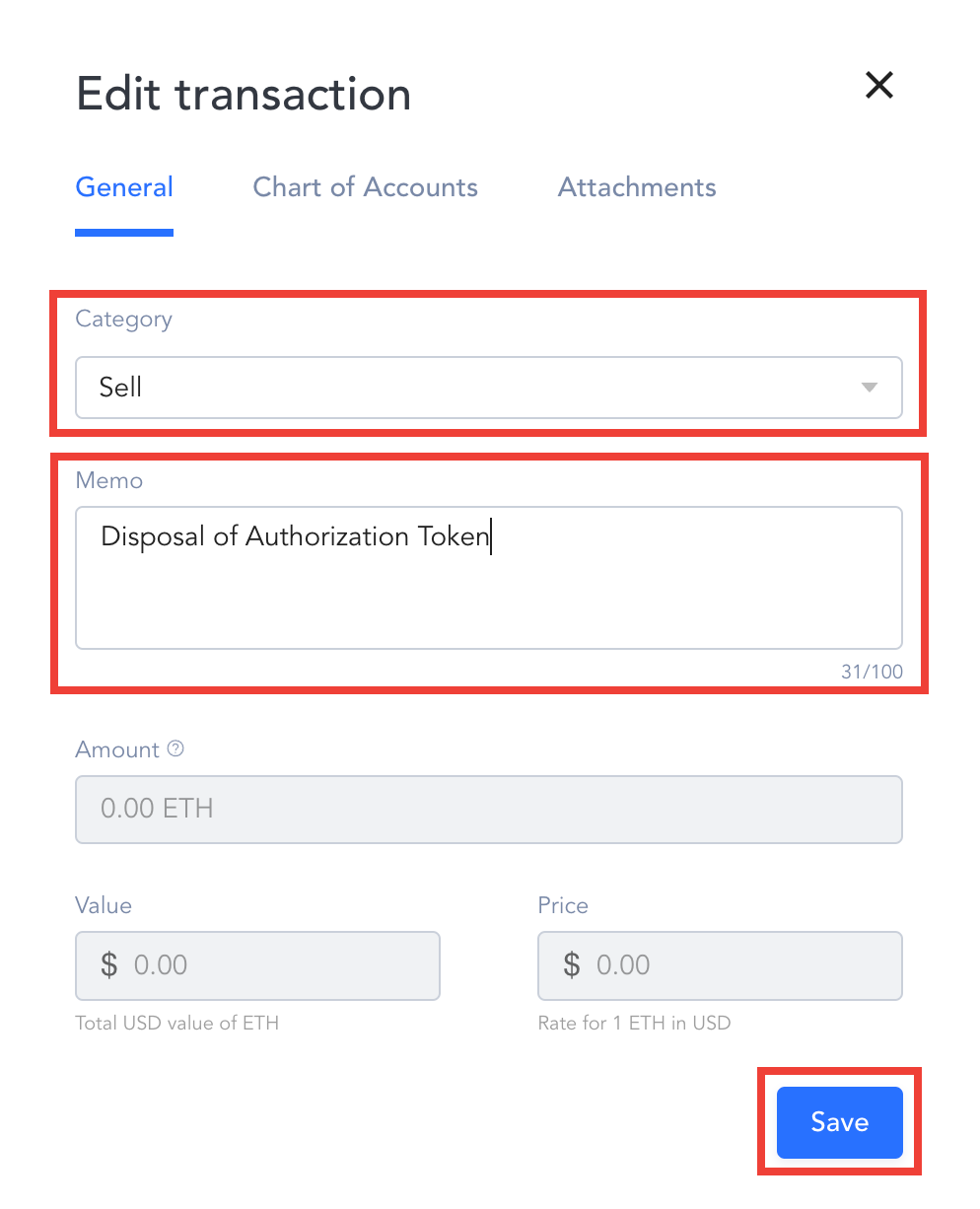
Step 3: Click on the transaction that was just edited > Notice that the Category has changed to Sell, and the Memo has been updated with the verbiage.

How to Bulk Edit Transactions
Example: Bulk edit “Unknown Outbound” type to “Sell”
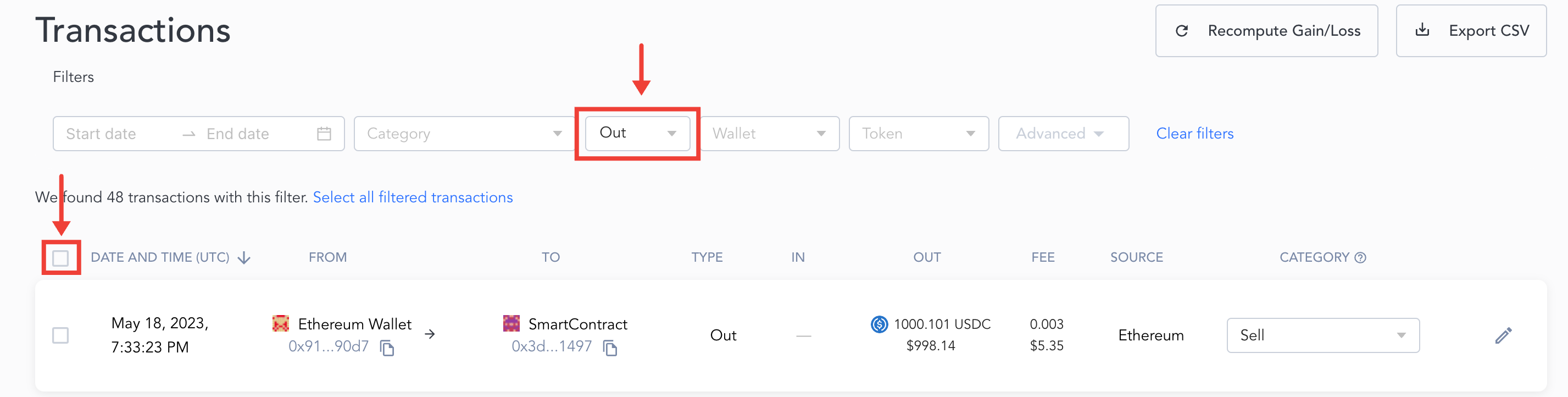
Step 1: Filter to select all transactions that are an “Out” type, then the small box on the top/left of the transactions
Step 2: Select "Bulk Edit".
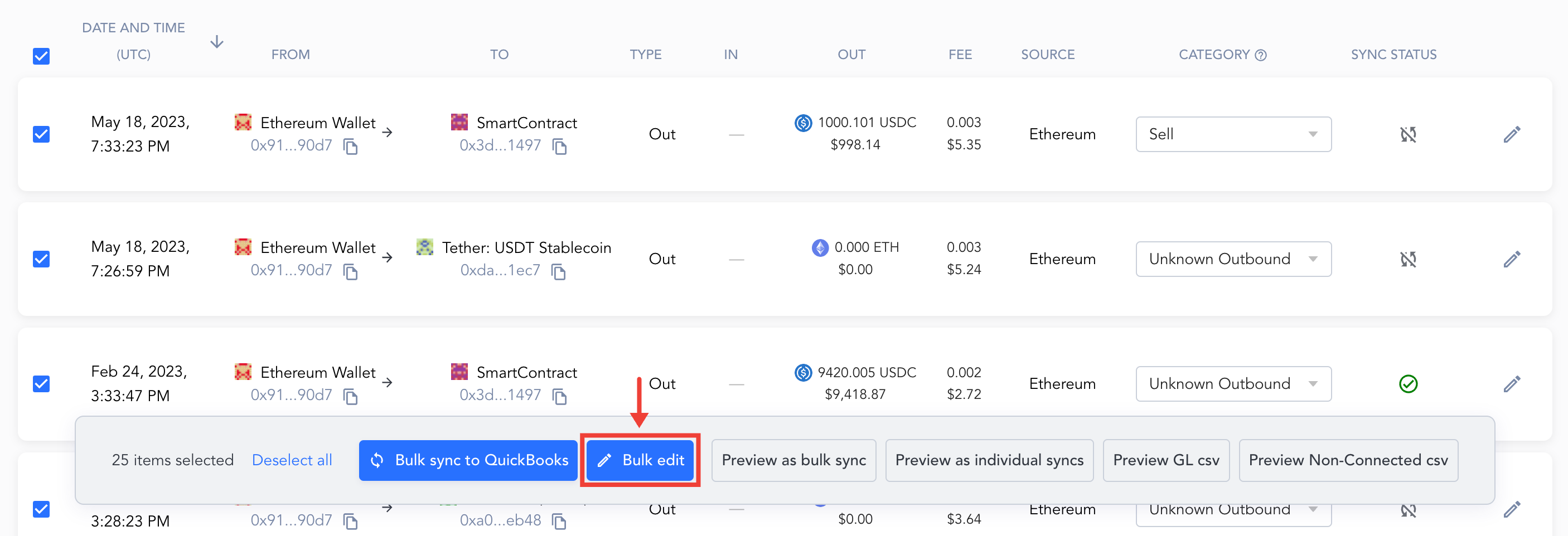
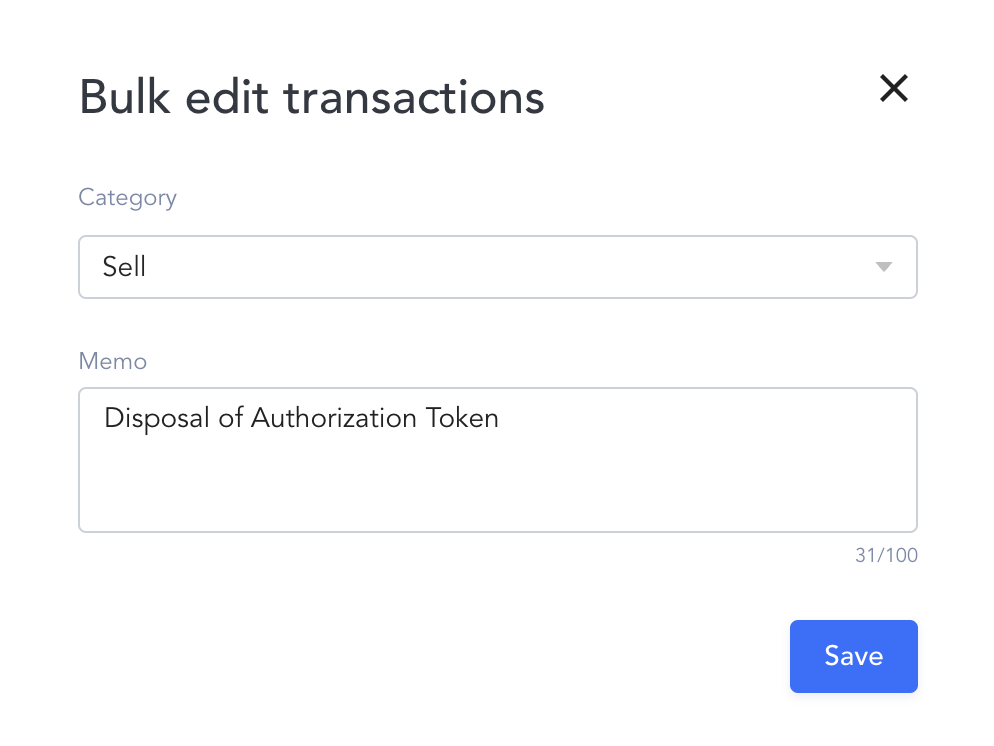
Step 3: Set the Category to “Sell”, and add a MEMO if necessary > Select Save.
For more information on how to use editable fields on the Transactions page, take a look at this helpful guide: How to Utilize the Editable Fields of a Transaction