
In this guide, you’ll find information on how to import a CSV into the TaxBit Accounting Suite.
A Few Things to Consider Before Importing Your CSV
- When considering a CSV import over an automated integration, you should always use the automated integration if it's available.
- In order to provide accurate reports, it's important that all transaction types are included in the source CSV. This includes not only acquisitions and disposals, but other types like transfer activity.
- Many sources will break different transaction types into different CSV export formats. Please ensure all transactions are represented in your exports.
- In the event that a source creates multiple types of reports for the same transaction type, it's generally best to obtain exports that maintain one transaction per row, rather than breaking transactions up into multiple rows.
- CSV imports are all different, and processing large amounts of data like this can lead to inaccuracies. We recommend carefully ensuring that all data is provided in the CSV, and after it's imported that it's checked for accuracy in your account.
Steps to Import a CSV
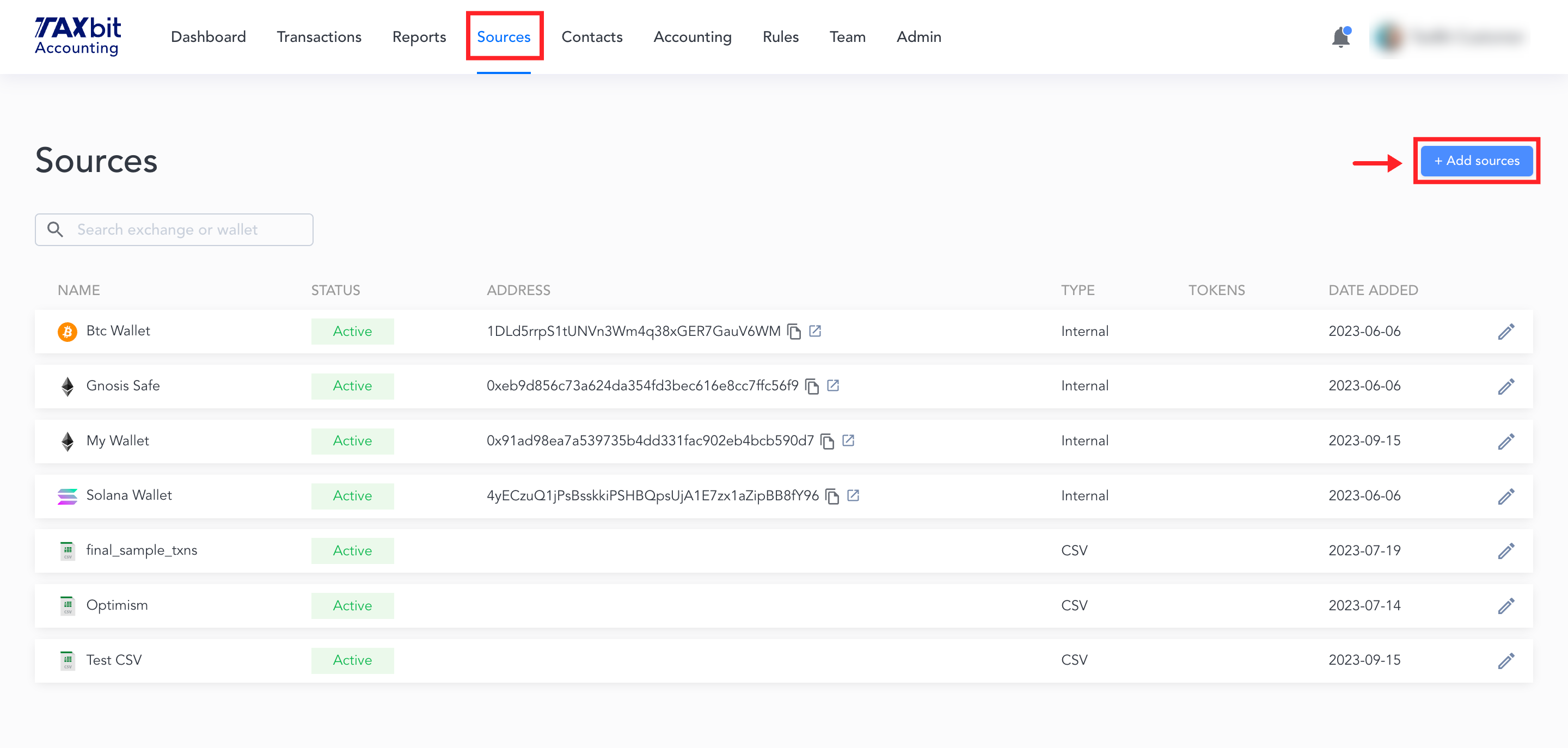
Step 1: From the Sources page, select “Add Sources” from the top right.
Step 2: Scroll down to the “Other Supported” section and select the source you wish to import. If you do not see your source listed here, you can still import your transactions by selecting “Generic CSV” on the bottom right.
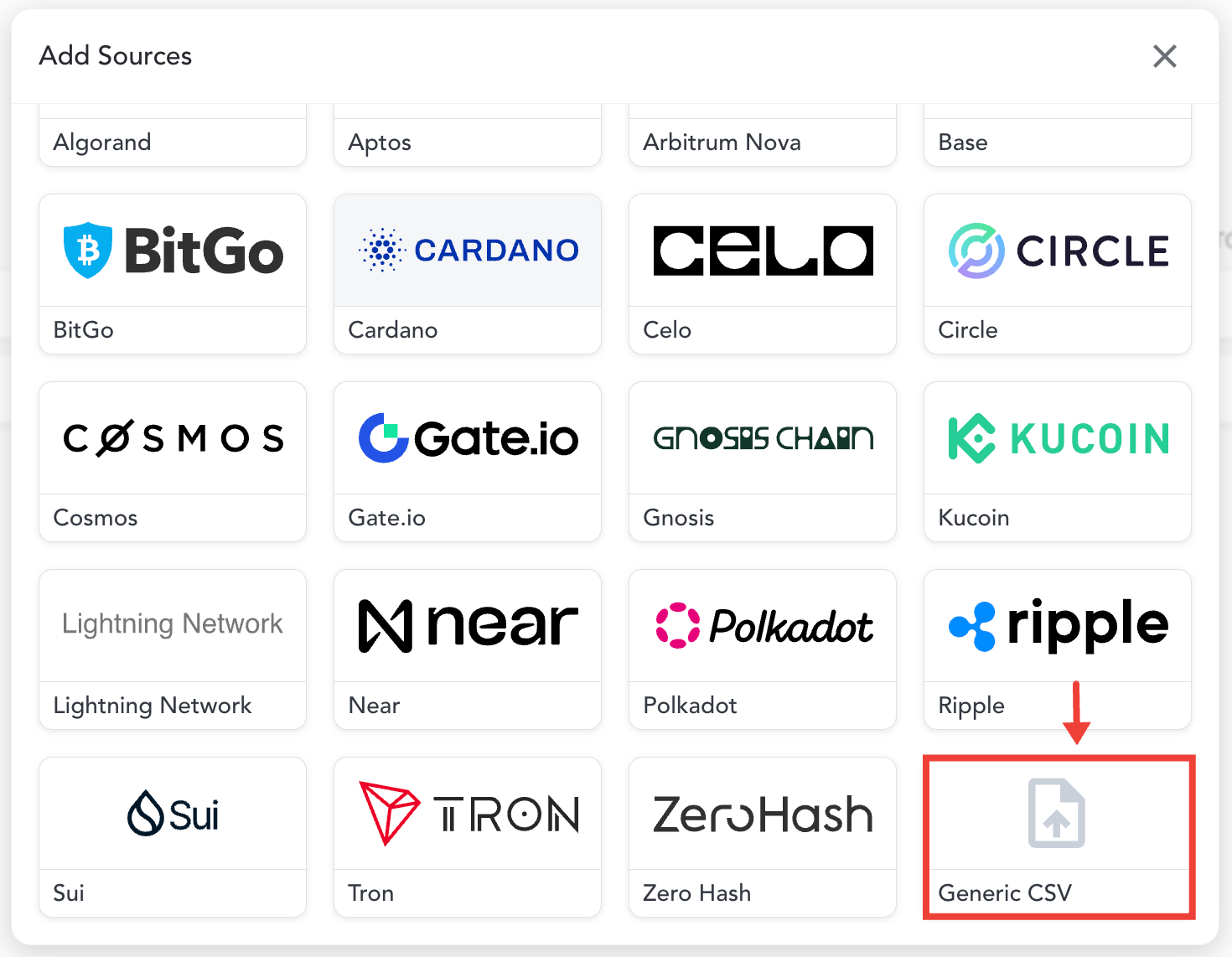
Please note: Before importing your CSV, you’ll need to ensure the format of your CSV matches our CSV template, which can be found by selecting the link within the “Add Sources” window under the “Other Supported” section at the bottom.

If the CSV does not match the format of this template, you’ll need to reformat it before importing. To help guide you in formatting your CSV, please refer to this guide: CSV Import Formatting
Once the CSV has been imported successfully, you’ll be able to see the imported transactions on the Transactions page. It’s important to check the Transactions page once the CSV has been imported to ensure all transactions have been imported to your account and are reflecting as expected.