
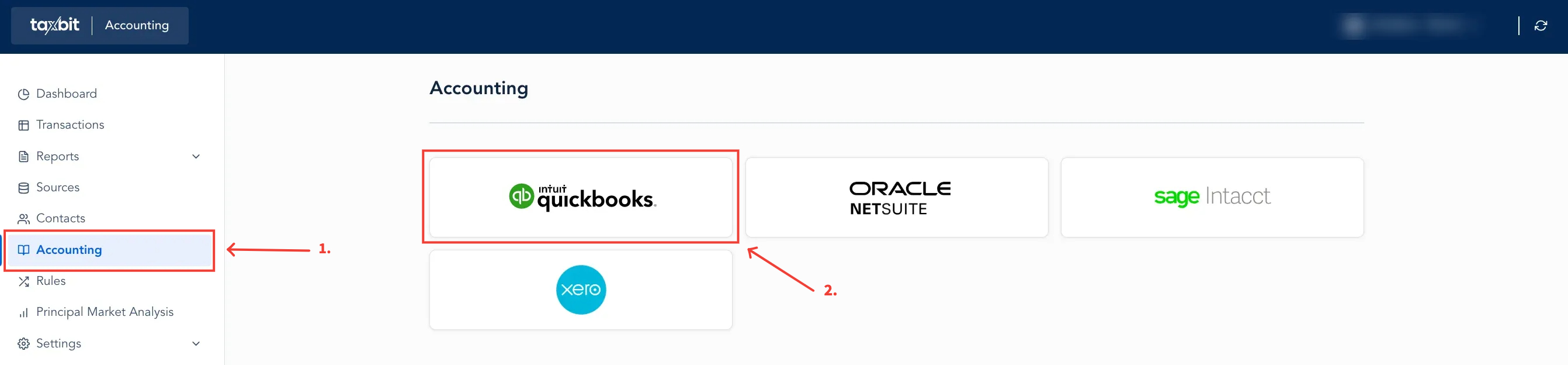
To automate the posting of journal entries to a QuickBooks environment, navigate to the “Accounting” page and connect to your corporate QuickBooks account.
Connect to QuickBooks
Select "intuit quickbooks.", enter the appropriate login credentials, and navigate back to the Accounting page for the account mapping setup.
Add/Edit Default Mappings
A detailed mapping can be set up for each category/transaction type expected. For example, Company A expects to receive royalty Income to an ETH wallet. Company A can create a detailed mapping to automate a journal entry for this specific transaction type to align with their existing chart of accounts. If Company A already has a “Royalty Income” account for their bookkeeping, that account will appear in the set up of the detailed mapping, which in this specific scenario could be a detailed mapping for the particular ETH wallet the royalty income goes to. At a high level, the user is prompted to map an existing account with all Inbound, Outbound, Fee, and G/L activity.
Journal Entry Syncing
Transactions can be synced at the individual transaction level, or transactions can be synced as a consolidated entry. For example, I want to post a monthly journal entry. Select the most recent month, “select all filtered transactions”, and bulk sync those transactions to represent the “monthly” journal entry. Once the journal entry is posted to QuickBooks, the sync status will be updated so that the end user knows the transaction has already been synced.
Please note: If you want to automatically sync over journal entries at a given cadence, contact us at help@taxbit.com and we can set that up for your account.
Is the Cost Basis in QuickBooks?
We do sync over the current cost basis and any realized gains and losses into QuickBooks for a given transaction.