
Below, you will find a detailed guide on connecting Kraken to Taxbit.
Create an API Key and Secret
Before you can add Kraken to Taxbit, you will first need to follow this guide to create a Key (API key) and Secret (private key) for Kraken. Both are required to connect Kraken to Taxbit and can be created by following this guide: How to Create an API Key
Permissions
When it’s time to select the permissions for the key, ensure that you select each of the permissions listed in the screenshot below before clicking “Generate key” at the bottom. This will ensure the proper permissions are selected to pull and authenticate the necessary data to Taxbit. The remaining settings below these permissions can all remain switched “Off”.
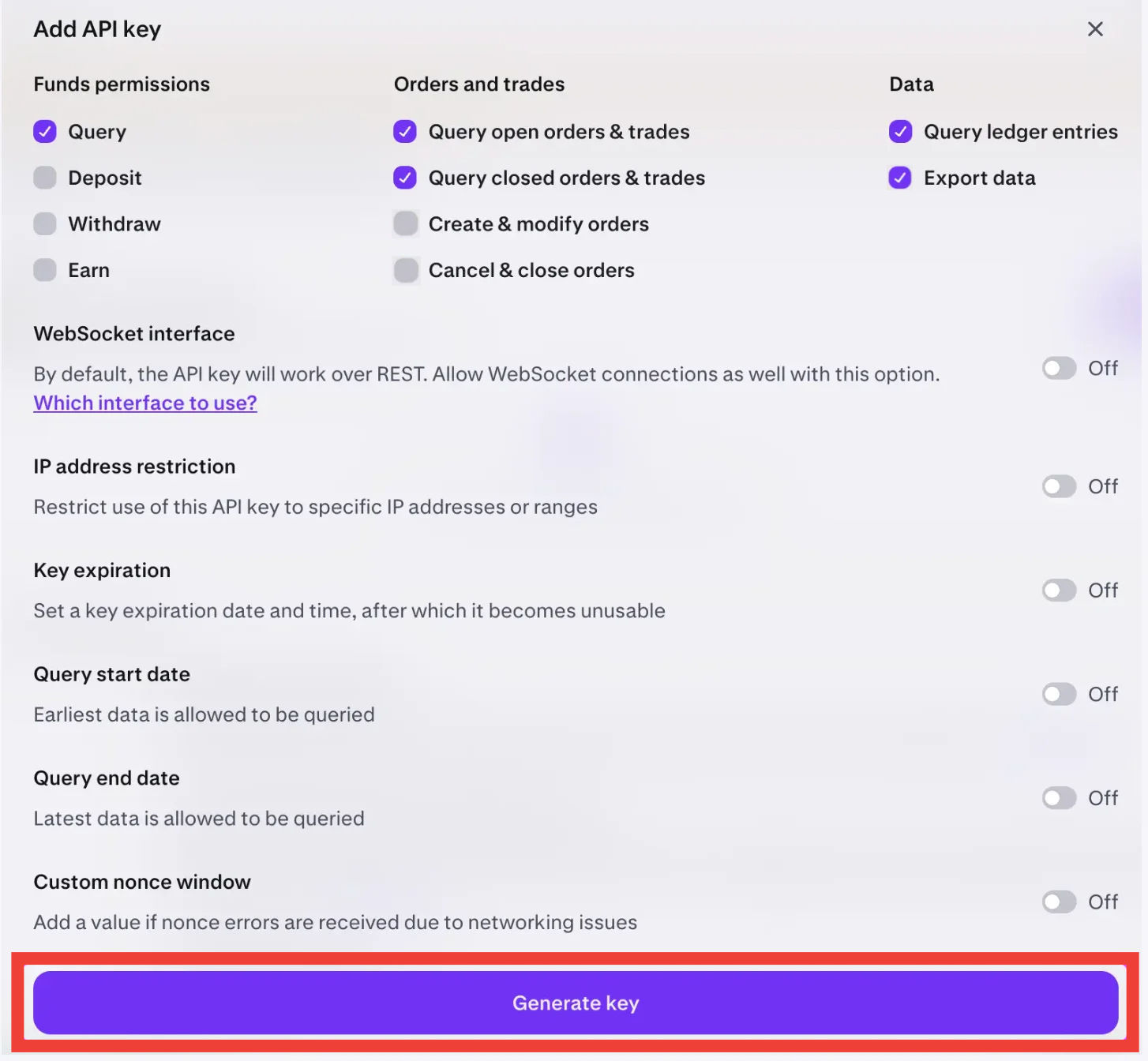
Please note: Taxbit does not currently support the Kraken transaction types: Margin Trade, Rollover, Settled. Any transactions from Kraken with these transaction types will need to be imported via a CSV file. Please refer to this helpful guide on how to format and import CSV files to the Taxbit Accounting Suite: CSV Import Formatting
Once you have created your API for Kraken, you’ll be able to access it for future use by selecting the drop-down on the top right of your Kraken account, then, selecting your username from the top right, selecting “Settings”, and then selecting the “API” tab. You can also copy your secret key from this page.
Please follow the steps below to connect Kraken to your Taxbit environment.
Connection Steps
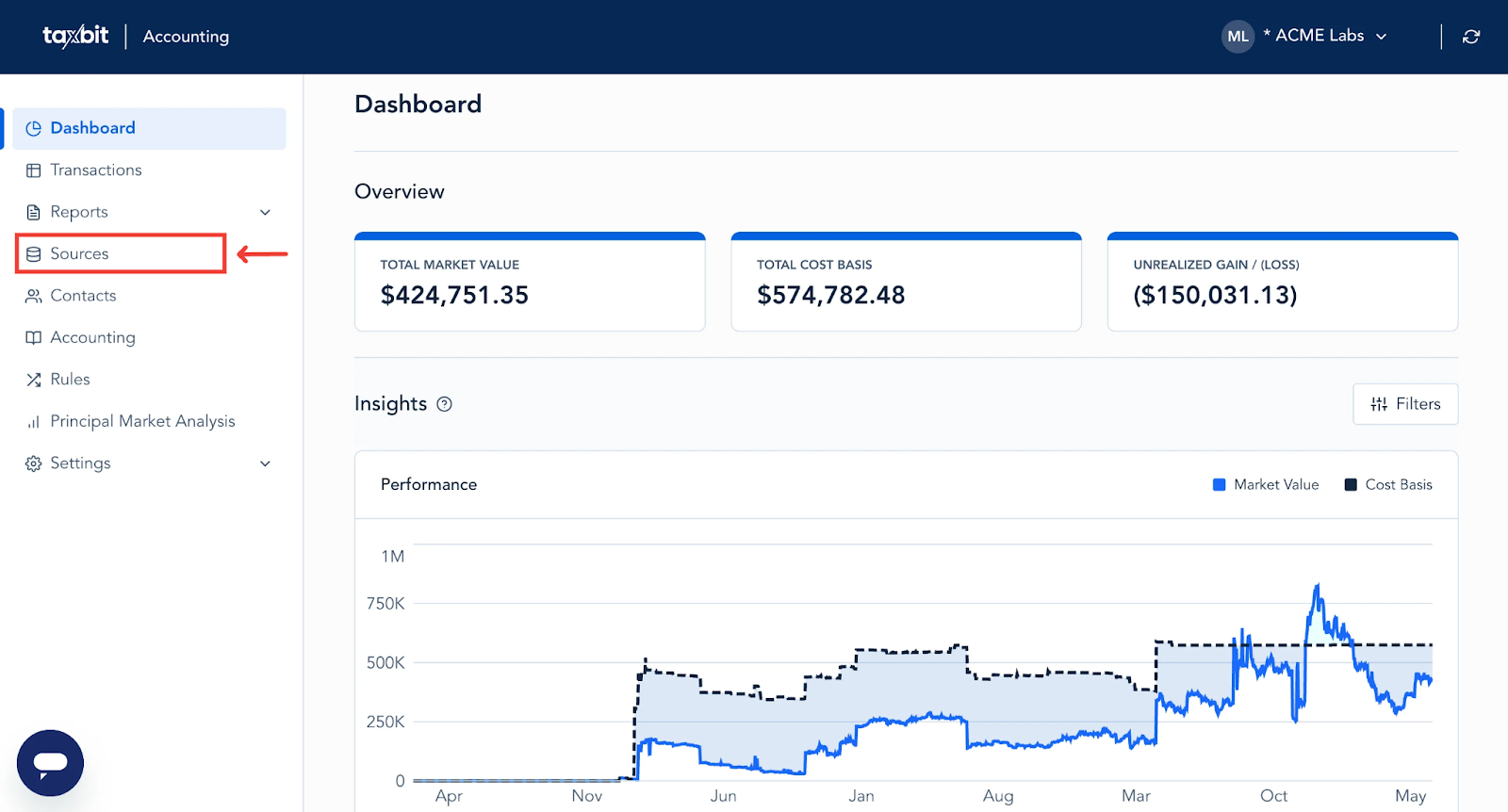
Step 1: Beginning from your Dashboard page, navigate over to the "Sources" page.
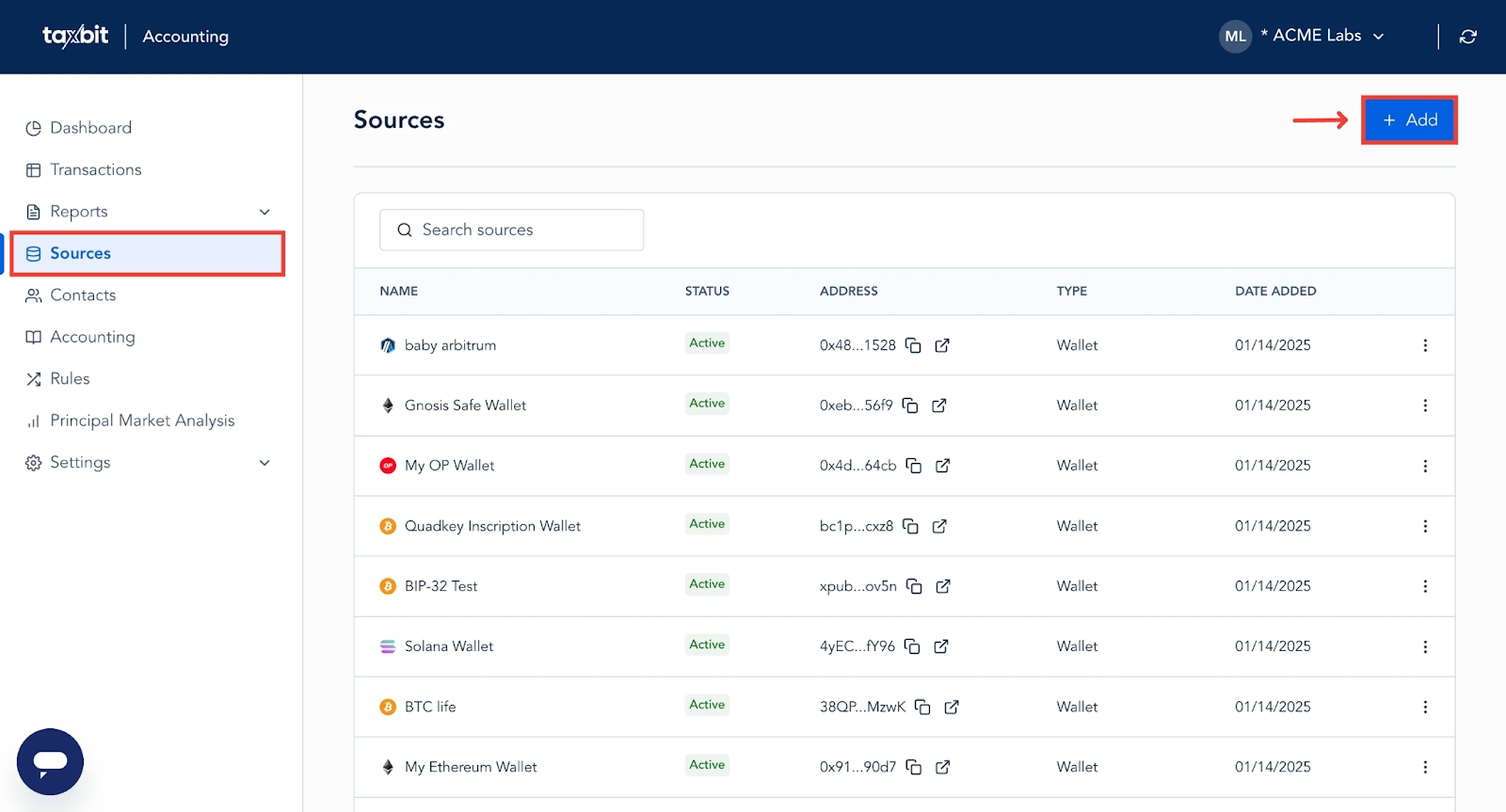
Step 2: From the Sources page, click the "+Add" button.
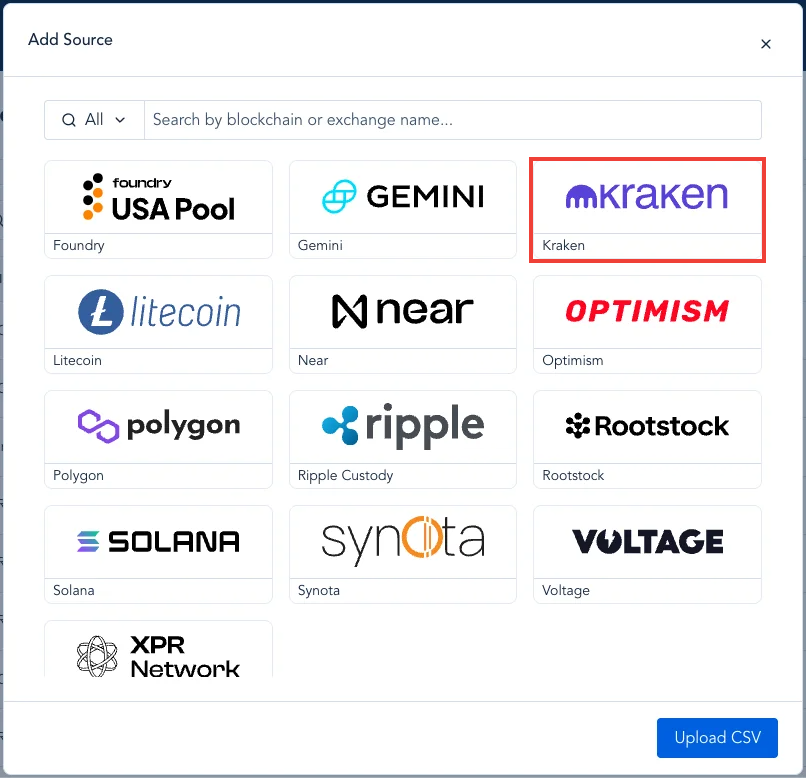
Step 3: Select “Kraken” from the Add Source page.
Step 4: Enter your API key and Secret for Kraken within the following fields and then select “Add”.
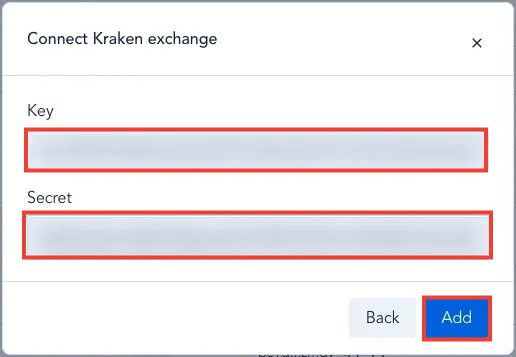
Once you have successfully connected Kraken to Taxbit, you will see a message appear that your source is connected.
Please note: It can take between 30 to 60 minutes for the data to load into your account after the connection is complete, depending on the transaction volume of the source connected.