
Below, you'll find a detailed guide on how to connect Fireblocks to the TaxBit Accounting Suite.
First, you’ll need to follow this guide to create your API and Secret with Fireblocks. You’ll need both in order to connect Fireblocks to the TaxBit Accounting Suite: Fireblocks How To: Adding New API Users
A few things to note regarding the above guide:
- This guide includes a video tutorial that you can follow to help create your Fireblocks API.
- When it’s time to select the “Role”, you will need to select “Viewers”.
- The API Keys that you will need to use in our app are:
- API Key (from above)
- Content of your CSR file
Connection Steps
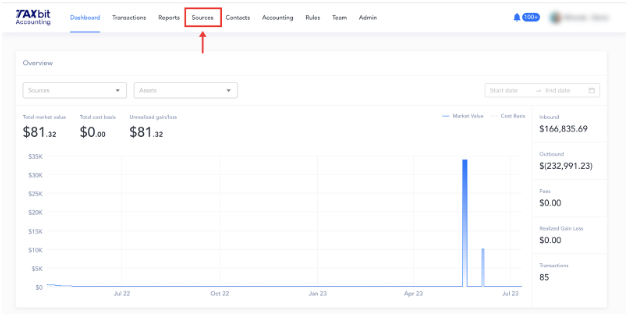
Step 1: Beginning from your Dashboard page, you'll need to navigate over to the "Sources" page
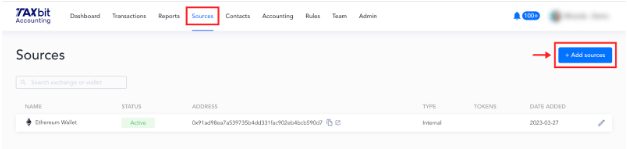
Step 2: From the Sources page, you'll click the "Add sources" button
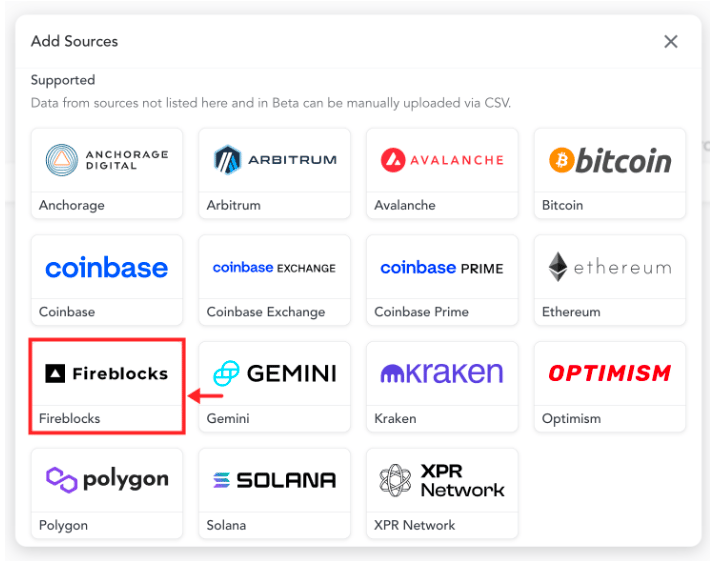
Step 3: You'll see this screen appear, and then you'll select "Fireblocks"
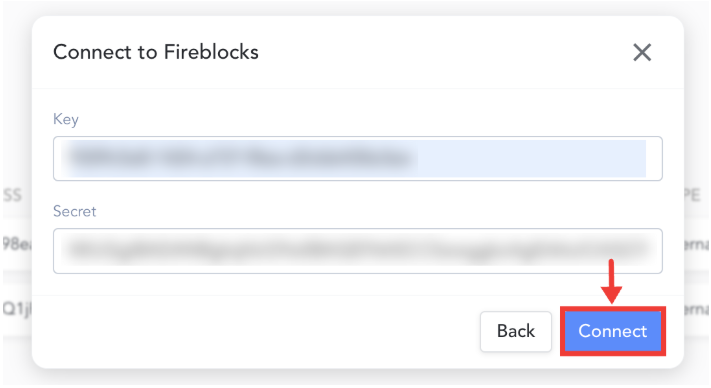
Step 4: Follow the instructions and enter your API key and Secret for Fireblocks in the appropriate fields
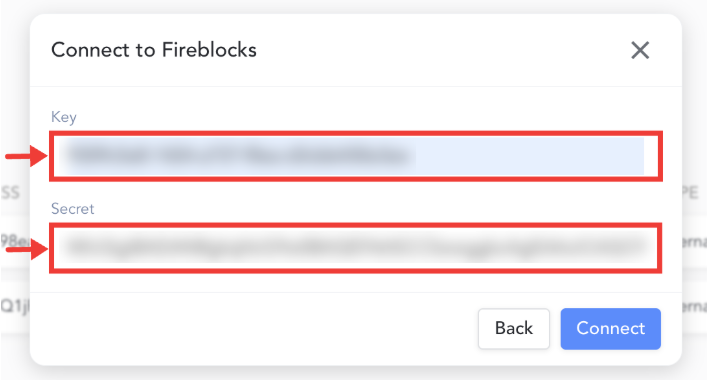
Step 5: Hit "Connect"
Once you have successfully connected Fireblocks to your TaxBit Accounting Suite, you'll see a message appear that Fireblocks is connected. You can either "Add another" if you have more that you need to connect, or if you don't have other sources to connect at this time hit "Close".
Please note: It can take between 30 mins to 60 mins for the data to load into your account after the connection is complete.