
In this guide, you will find a detailed guide on connecting BitGo to the Taxbit Accounting Suite.
Contents
- Creating a Token Address
- Connection Steps
- How do BitGo Sub-Accounts (Child Enterprises) Reflect in Taxbit?
Creating a Token Address
Before you can connect BitGo, you will first need to create a Token Address (Account Token) within your BitGo account. To do this, please follow the steps listed below:
Step 1: Log in to your BitGo account at app.bitgo.com
Step 2: Navigate to the Account Settings page.
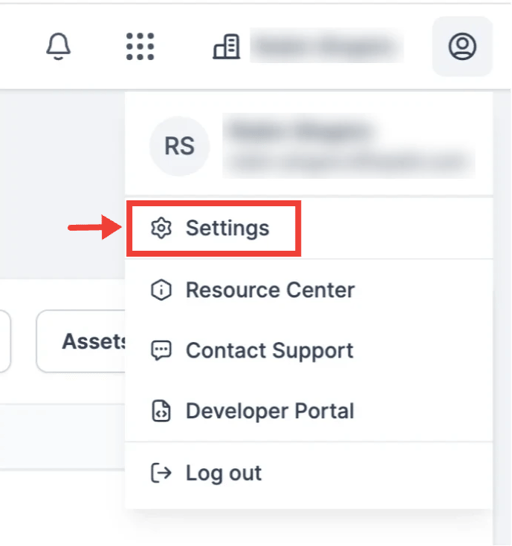
Step 3: Select the “Developer Options” tab.
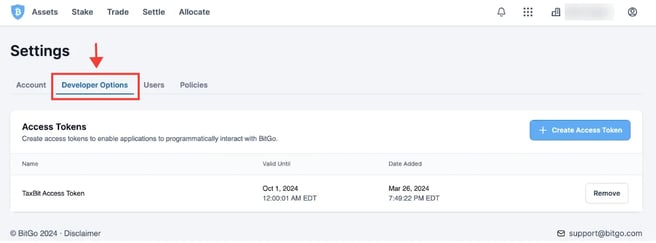
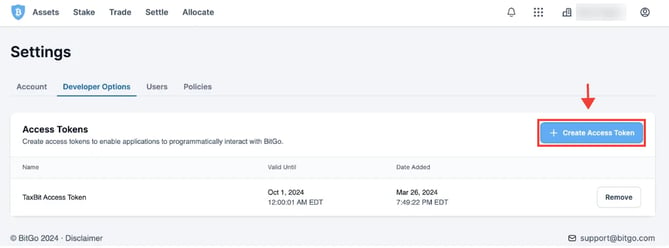
Step 4: Select “Create Access Token” from the right.
Step 5: Give your Access Token a name.
Step 6: Set a timeframe for how long this token will be valid. We recommend choosing a date far in the future (i.e., 2+ years) unless you plan on rotating these keys frequently.
Step 7: Jump down to “IP Addresses Allowed”. Here, you will need to enter Taxbit's IP Addresses. Please reach out to your dedicated CSM or our Customer Experience Team, and we can ensure those are sent to you securely to finish creating your Access Token.
Step 8: It is also important to ensure the proper permissions are selected, which include:
- Wallet (View all)
- Settlement Network
- Prime (View Trades)
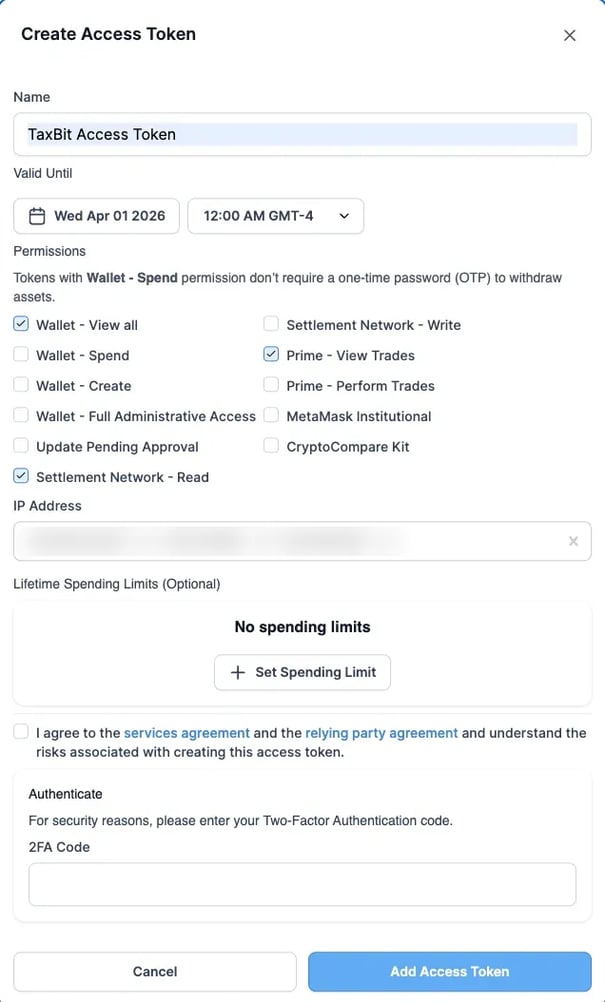
Step 9: Once you have read and agreed to the terms and conditions, select “Add Access Token” from the bottom.
Step 10: Please ensure that you save your token address in a secure location once created, as BitGo will not display the token again.
Now, you’re ready to add BitGo to your Taxbit account! Please follow the steps outlined below to do so.
Connection Steps
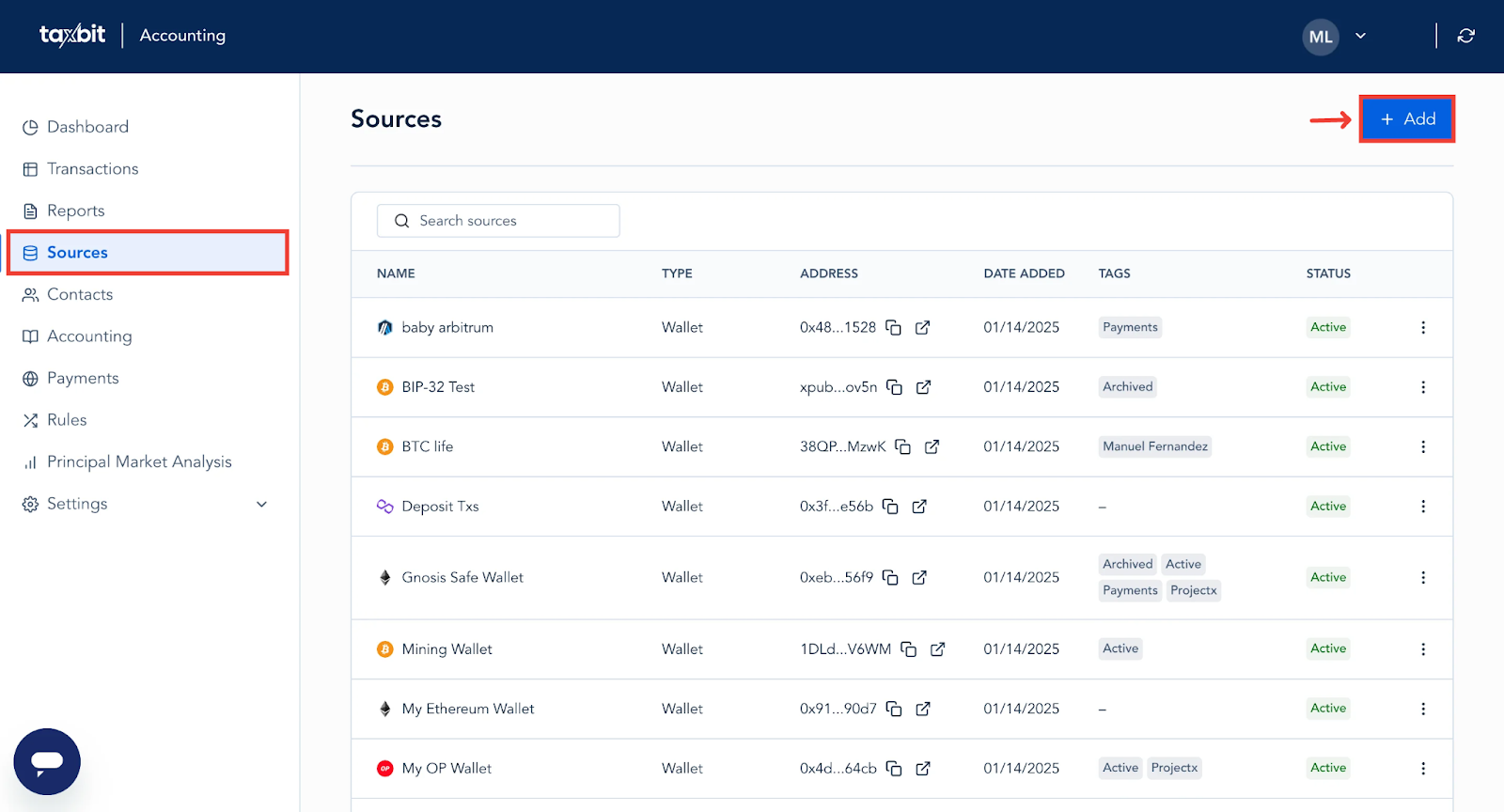
Step 1: Navigate to the "Sources " page.
Step 2: From the Sources page, click the "+Add" button from the top right.
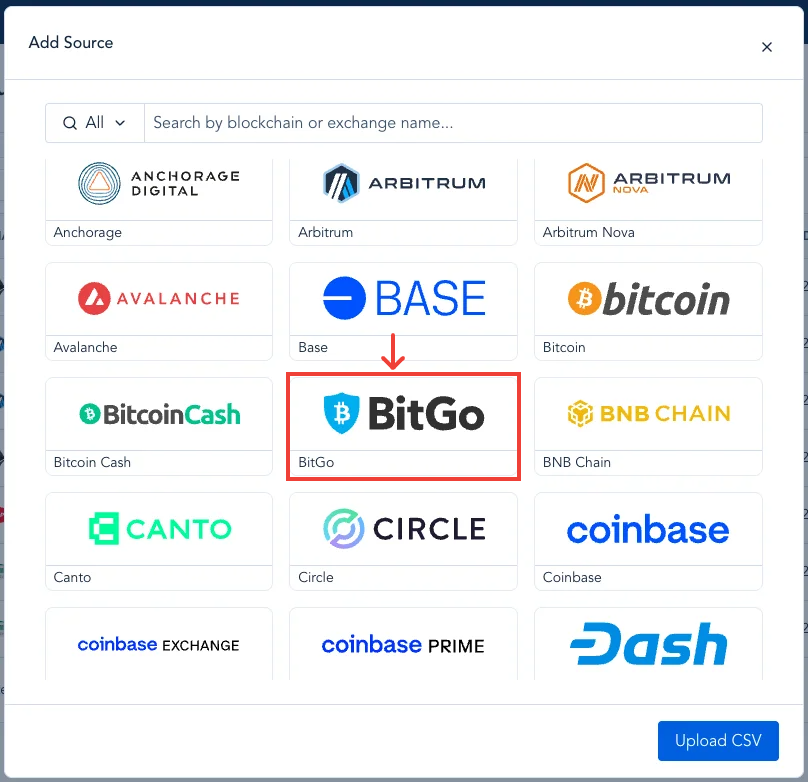
Step 3: Select "BitGo" from the Add Sources page.
Step 4: Next, you’ll add your Token Address, then select “Connect”.
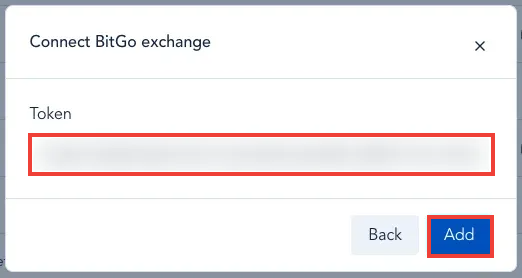
Once you have successfully connected BitGo to Taxbit, you will see a message appear that your source is connected.
Please note: It can take between 30 to 60 minutes for the data to load into your account after the connection is complete, depending on the transaction volume of the source connected.
How do BitGo Sub-Accounts (Child Enterprises) Reflect within Taxbit?
BitGo uses “Child Enterprises” (Sub-Accounts), and each child enterprise comes with its own “Go Account” as well as the option to house other wallets based on the user's activity. These child enterprises are each housed within a single parent enterprise in BitGo, overseeing the child enterprise activity, which can all be ingested to Taxbit by following the steps listed above. With this in mind, in Taxbit, you can filter by BitGo as a whole via the Source Type filter, or by each wallet address/sub-account within your BitGo account from the Transactions, Dashboard, and Reports pages using the Source filters.
Please note: Taxbit treats each sub-account as its own inventory pool, rather than bundling all activity within the overall BitGo connection. For accounts configured to Universal cost basis methodologies, this would not have an impact, but for Source-based methodologies, all gain/loss calculations will be based on inventory movements within each distinct sub-account.