
Contents
The Team page within Settings is where you can add users to your Taxbit environment as well as assign each team member their necessary roles.
Please Note: At this time, if the user is not going to use SSO (e.g., Google Workspace, SAML, or IODC) to log in, they can be added to the environment as a team member from the Teams page using that email. Once added to Taxbit, you will need to contact our team by submitting a request through our online submission form with the role the new user was assigned and their email address, and we can help complete authentication and enable login for that new team member.
How to Add a New Team Member
When it is time to add a new user, please follow the steps outlined below:
Step 1: 1) Select the “Settings” drop-down from the left, and then 2) select the “Team ” page.
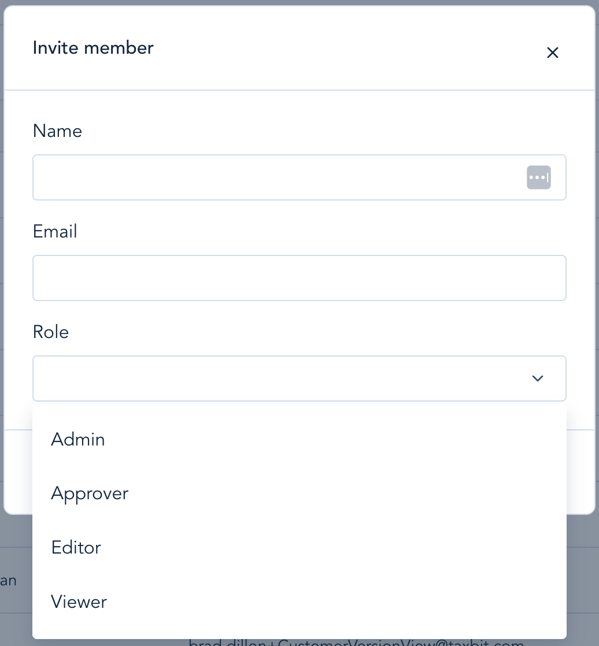
Step 2: Within the next window, enter the email address, name, and role for the team member you are adding, select “Invite” at the bottom of this window, and then the team member added will receive an email with an invitation link.
Once the team member accepts the invite, they will be able to access Taxbit. Depending on the role selected here, they will be able to view and edit the data within the account. The roles available to select from are Admin, Approver, Editor, or Viewer. Please see the section below for more information on each role.
Updating A Team Member’s Role
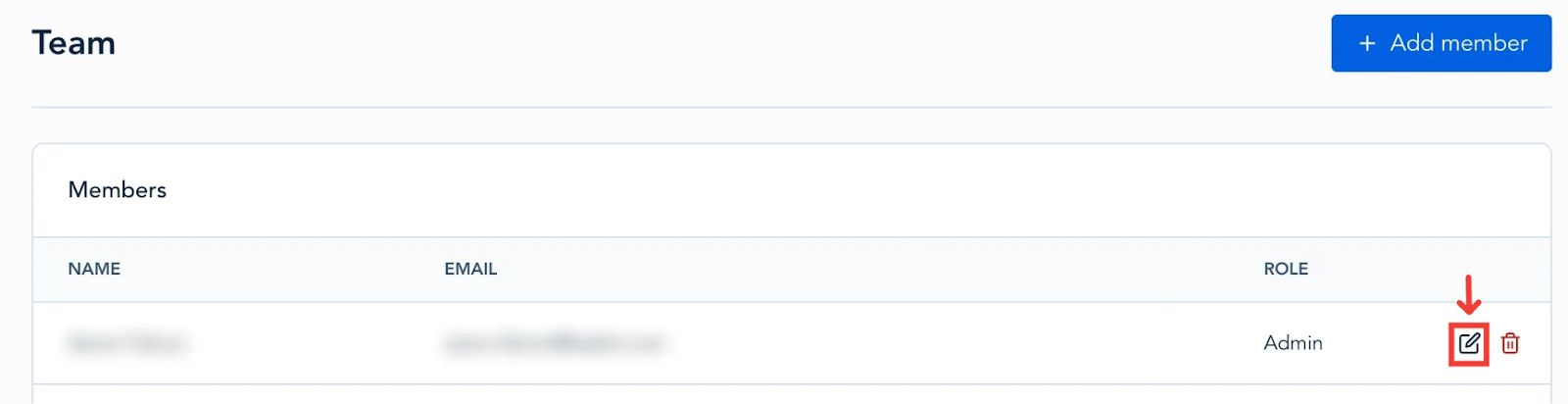
If you need to update the role of a team member, select the “Edit” icon to the right of the team member, then select the new role you wish to assign to them.
Removing a Team Member
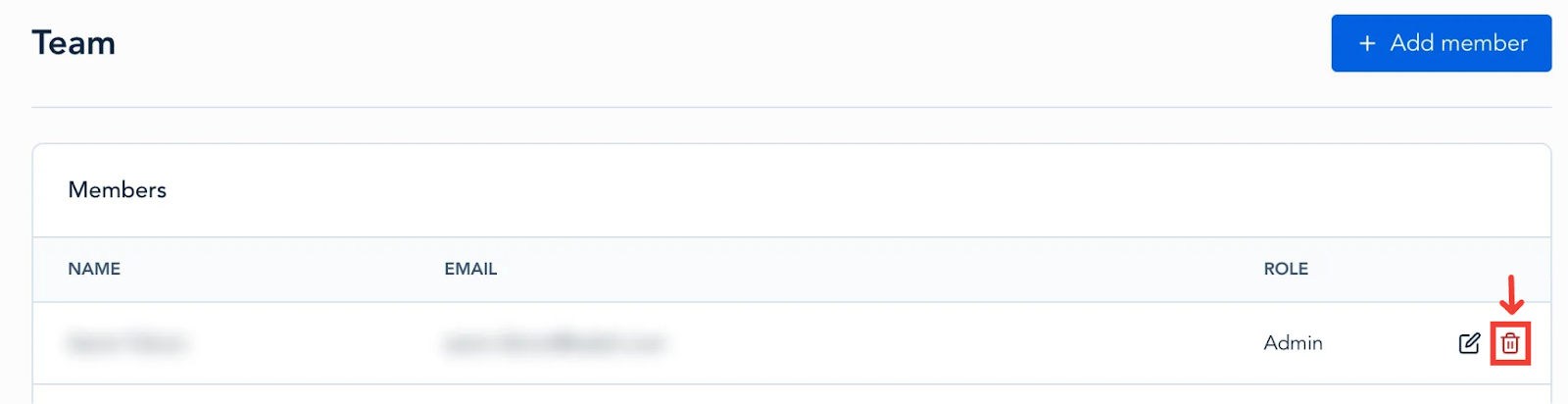
To remove a team member, select the “Delete” icon from the right side of the team member. This will remove their access from the associated environment entirely.
Available Roles
| Permissions | Admin | Approver | Editor | Viewer |
| Adding/Editing Sources | ✅ | 🚫 | ✅ | 🚫 |
| View Sources | ✅ | ✅ | ✅ | ✅ |
| Delete Sources | ✅ | 🚫 | ✅ | 🚫 |
| Rule Creation/Editing | ✅ | 🚫 | ✅ | 🚫 |
| View Rules | ✅ | ✅ | ✅ | ✅ |
| Contact Creation/Editing | ✅ | 🚫 | ✅ | 🚫 |
| View Contacts | ✅ | ✅ | ✅ | ✅ |
| Delete Contacts | ✅ | 🚫 | ✅ | 🚫 |
| Transaction Editing | ✅ | 🚫 | 🚫 | 🚫 |
| View/Export Transactions | ✅ | ✅ | ✅ | ✅ |
| Updating Prices | ✅ | 🚫 | 🚫 | 🚫 |
| ERP Management | ✅ | 🚫 | 🚫 | 🚫 |
| View ERP Mappings | ✅ | ✅ | ✅ | ✅ |
| Preview Journal Entries | ✅ | ✅ | ✅ | 🚫 |
| Sync Journal Entries | ✅ | ✅ | 🚫 | 🚫 |
| View/Export Reports | ✅ | ✅ | ✅ | ✅ |
|
Edit Organization Settings/ Configuration |
|
|
|
|
|
View Organization Settings/ Configurations |
|
|
|
|
Admin
The "Admin" role can be assigned to users who are meant to have admin permissions within the environment. Under this role, the user will be able to perform the following within the environment with limited restrictions:
- Add/Edit/Delete sources:
- Exchanges
- Wallets
- CSV Files
- Edit transaction details:
- Category
- Market Value
- Memo
- Add Attachments such as receipts, etc. to the transaction.
- Create/Edit/Delete Rules
- Manage ERP connections and Chart of Account mappings
- Connect ERP
- Add/Edit Detailed and Chart of Account mappings
- Sync journal entries to the ERP
- Export Reports
- Add/Edit/Delete contacts
- Edit Settings and configurations
This role is useful when a user needs to have full access to be able to update the data and settings within the environment when necessary.
Approver
The “Approver” role can be assigned to users who only need access to the features necessary to appropriately manage ERP connections and book Journal Entries within Taxbit. Under this role, the user will have access to perform the following:
- View sources
- View/export Transactions
- View Rules
- View ERP connections, Chart of Account mappings, and preview journal entries.
- Sync journal entries
- Export Reports
- View Contacts
- View Settings and configurations
Editor
The “Editor” role has similar permissions as the “Approver” role except for the ability to book Journal Entries. This user will be able to stage the environment for the “Approver” to then book Journal Entries by adding the necessary sources and reviewing transactions and reports. Under this role, the user will have access to perform the following:
- Add/Edit sources
- Exchanges
- Wallets
- CSV Files
- View Transactions
- Create/Edit Rules
- View ERP connections, Chart of Account mappings, and preview journal entries.
- Export Reports
- Add/Edit/Delete contacts
- View Settings and configurations
Viewer
The “Viewer” role will allow read-only type permissions for the user. Any users with this role will not have permissions to edit any data or configure any settings within the environment. This role can be assigned to users who need to simply view the environment. Under this role, the user will have access to perform the following:
- View sources
- View/export Transactions
- View Rules
- View ERP connections, Chart of Account mappings, and preview journal entries.
- View/export Reports
- View contacts
- View Settings and configurations
Once the user has been added to Taxbit and accepted the invite, they will be able to log in. If the user's email is a Google email, then they will be prompted to continue to log in to the account through Google.
Logging into Taxbit
You can log into the Taxbit Accounting Suite via Google Authentication, your organization’s authentication provider (like Okta) through SSO options, or by using an email/password combination. See below for steps on how to authenticate via these options:
Google Authentication
Step 1: From the Log in page , select “Continue with Google”.
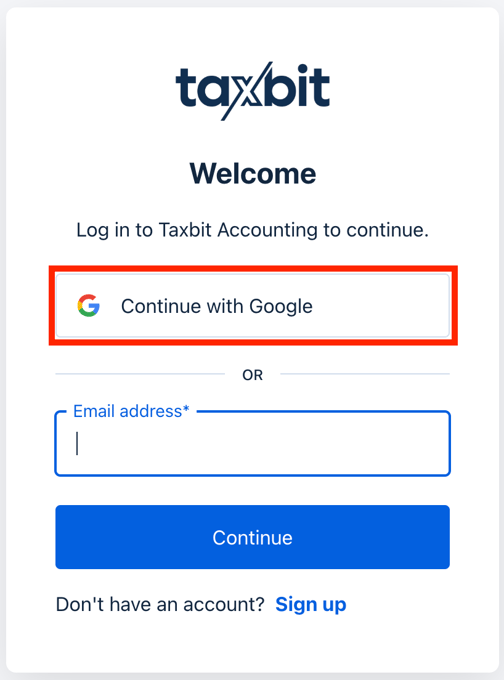
Step 2: Next, you will be prompted to sign in to your Google account.
Step 3: Once you have signed in to your Google account, complete the rest of the authentication steps that are prompted, and you will then be successfully logged into your Taxbit environment.
Username/Password Sign In
For any users who will be using username/password to log in, please reach out to our team by submitting a request via this online submission form, and we can ensure that your email has been added to our database to log in via this method.
Once we have added your email to our database, you will need to complete a password reset to update to your permanent password (see “Password Reset ” section below), as well as set MFA (see “Multi-Factor Authentication (MFA) Setup ” section below).
After you have reset your password and set up MFA, you can then follow the steps below to log in:
Step 1: From the Log in page, enter your email address into the “Email address” field, then select “Continue”.
Step 2: From the next page, enter your password into the “Password” field and then select “Continue”.
Password Reset
If you need to reset your password, please select “Forgot password?” from the bottom, then enter the email address associated with your account. Once you select “Continue” from the bottom, password reset instructions will then be sent to that email address.
Multi-Factor Authentication (MFA) Setup
You will also be asked to set up MFA (Multi-factor Authentication) via an MFA app such as Okta, Google Authenticator, etc. Please see the steps outlined below to set up MFA:
Step 1: Log in with your username and password that you just created.
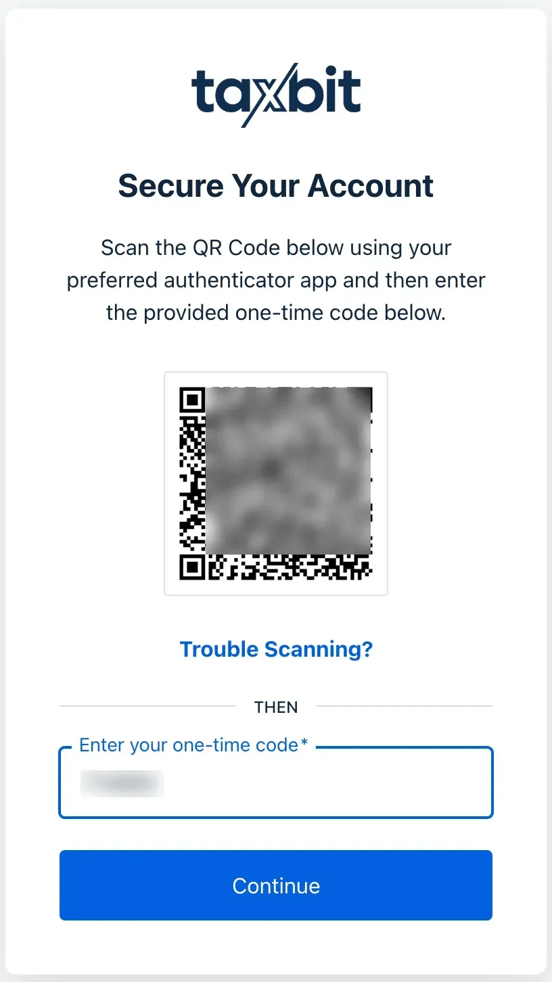
Step 2: Next, you will be prompted to Secure Your Account by scanning the barcode using your preferred authenticator app, and then you can enter the one-time code that your app provides you. Select “Continue”.
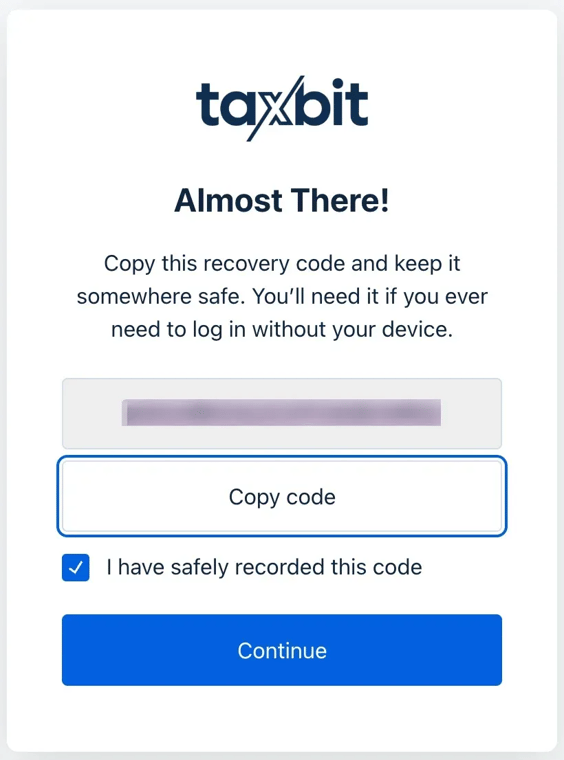
Step 3: In the next window, it is recommended to copy and paste the recovery code displayed to a secure location. Once you’ve done this, select the checkbox “I have safely recorded this code” from the bottom, and then select “Continue”. This code will allow you to login in the event you lose the current device with MFA set up.
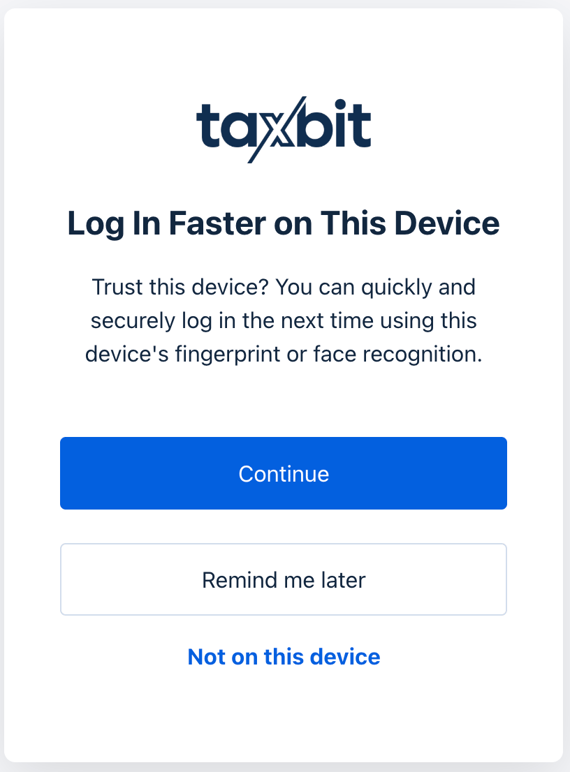
Step 4: Finally, you will be asked if you would like to complete biometric authentication (fingerprint or face recognition) to allow you to log in faster. If you wish to do this, please select “Continue”, otherwise, you may select “Remind me later”.
I don’t have access to my old phone, how can I change the MFA device associated with my account?
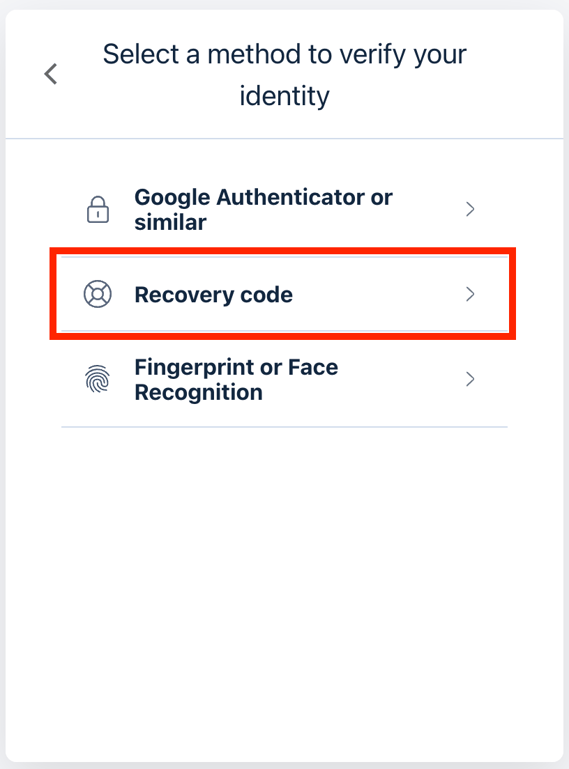
If you lose access to your authenticator app, select login, and then select “Try another method” from the bottom of the “Use fingerprint or face recognition to login” page. Then select “Recovery code” and enter the recovery code that you had securely saved earlier. You will receive a new recovery code, which you will need to save to use on your next login.
Some password managers and OTP (One Time Password) applications support migrating from one device to a new device. This is the preferred method, and you should follow the instructions for your OTP or password manager.
If migration is not supported by your device or application, Taxbit support can reset your MFA configuration. Please submit a request via our online submission form if you need to reset your MFA.
- Please note: This will reset ALL methods–the MFA device, the backup code, and any Passkeys or biometric authentication.
SSO Authentication
The following SSO types are currently supported. Please reach out to your designated CSM, and they will be able to assist you in completing the necessary SSO configuration:
- SAML
- OpenID Connect (OIDC)
- Google Workspace