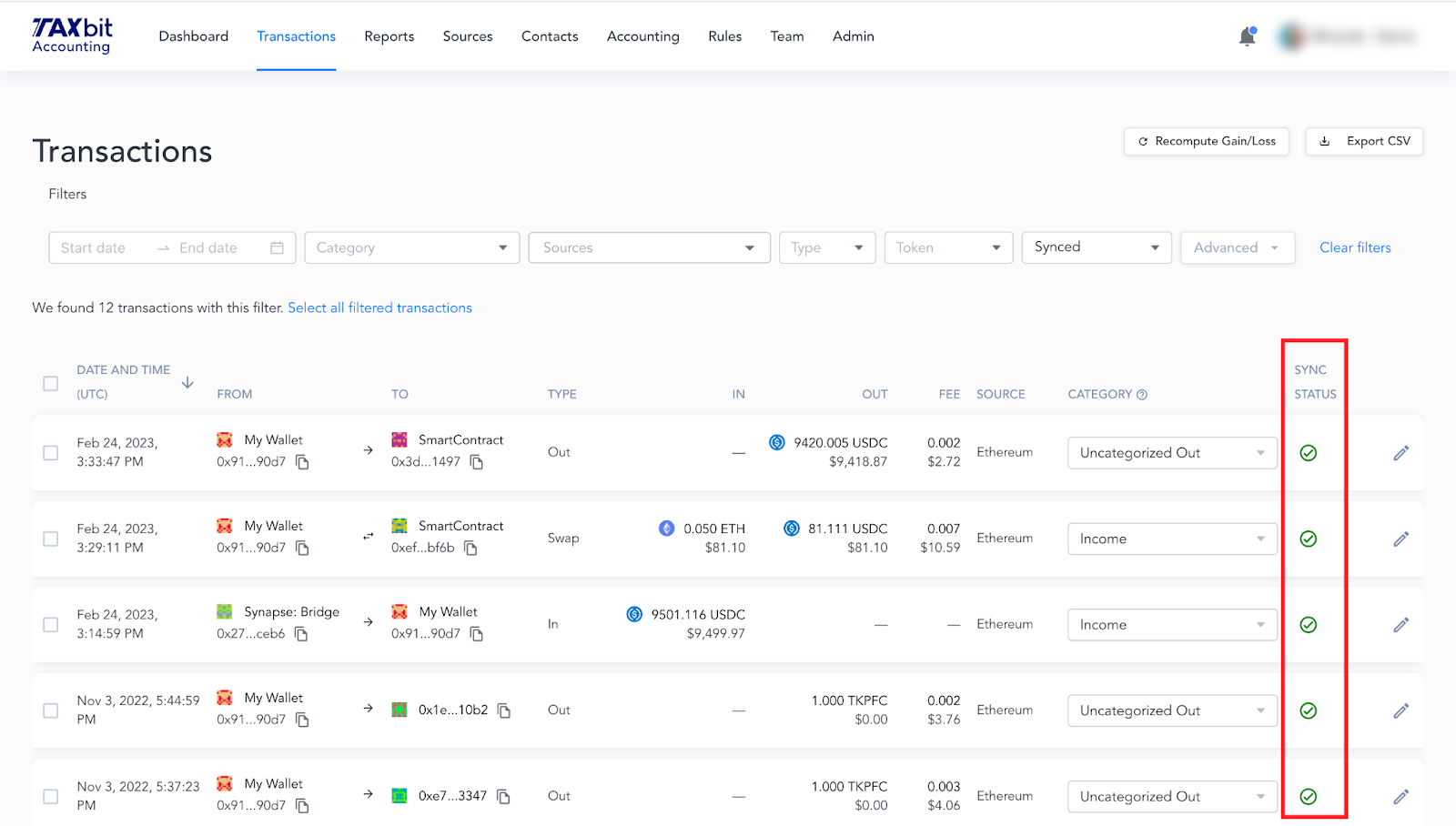
In this guide, you’ll find information on the bulk edit and bulk sync feature within the TaxBit Accounting Suite.
Bulk Edit
In the TaxBit Accounting Suite, you can edit the category and/or memo of multiple transactions at once using the bulk edit feature on the Transactions page. You can bulk edit groups of transactions using the following filters: date range, source, type, category, token, etc.

Select the check-box in the top left-hand corner of the Transactions page (this box will select all data that the filter applies to) then select “Bulk edit” in the window on the bottom of the screen.
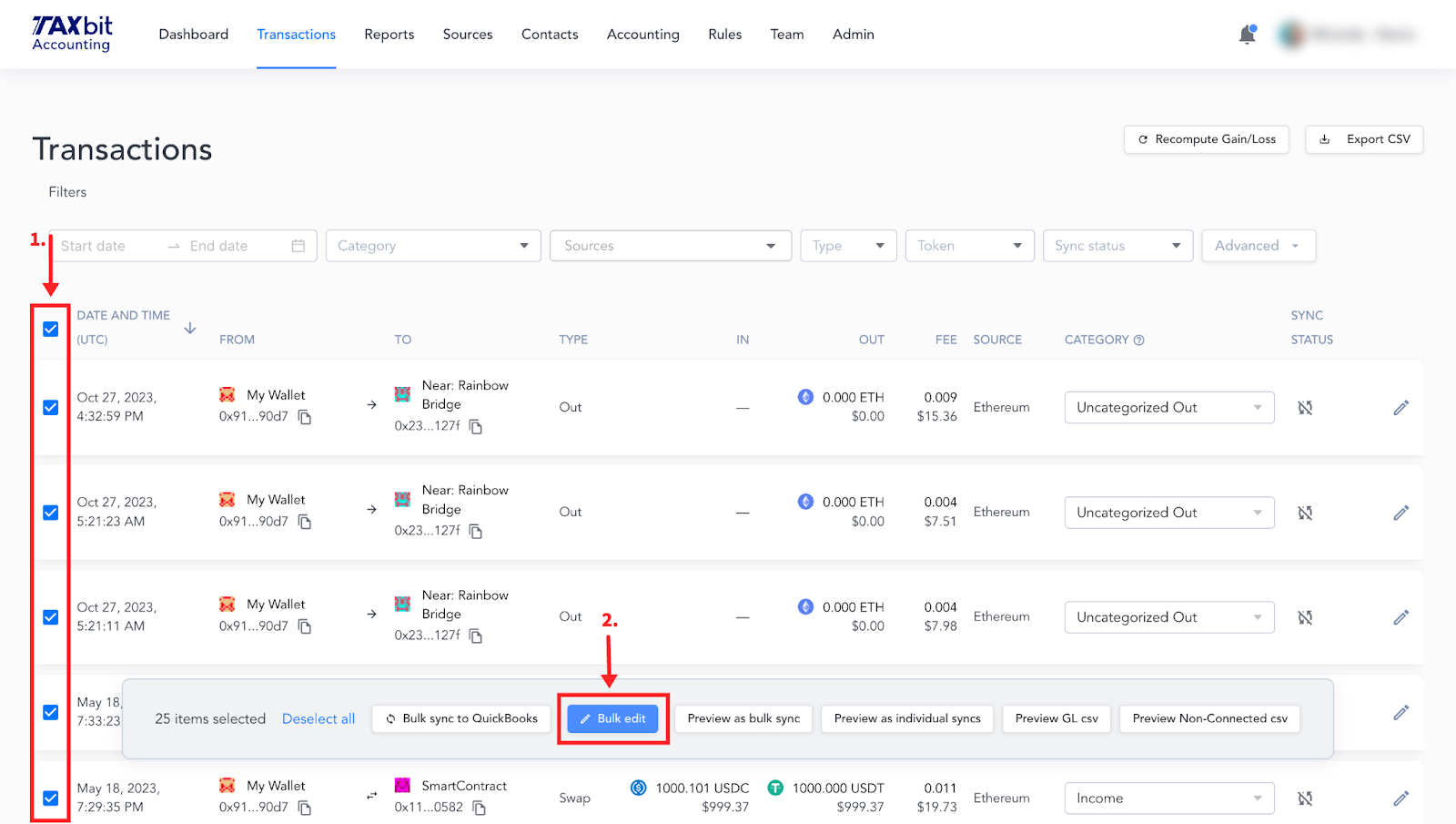
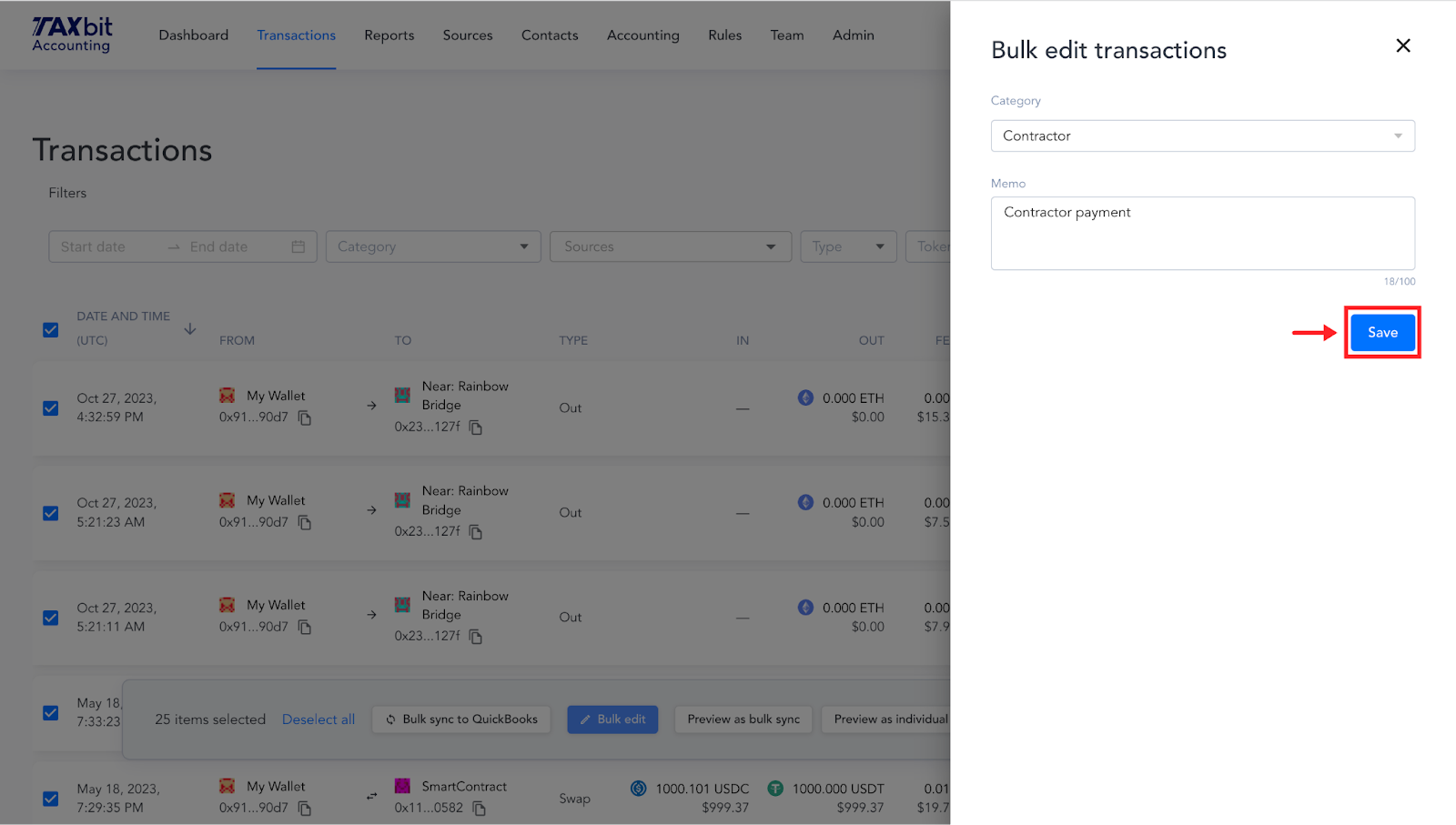
Once you select “Bulk edit” you will be able to edit both the category and the memo as desired. Once you’ve finished editing, select “Save” and the changes will appear for those filtered transactions.
Bulk Syncing
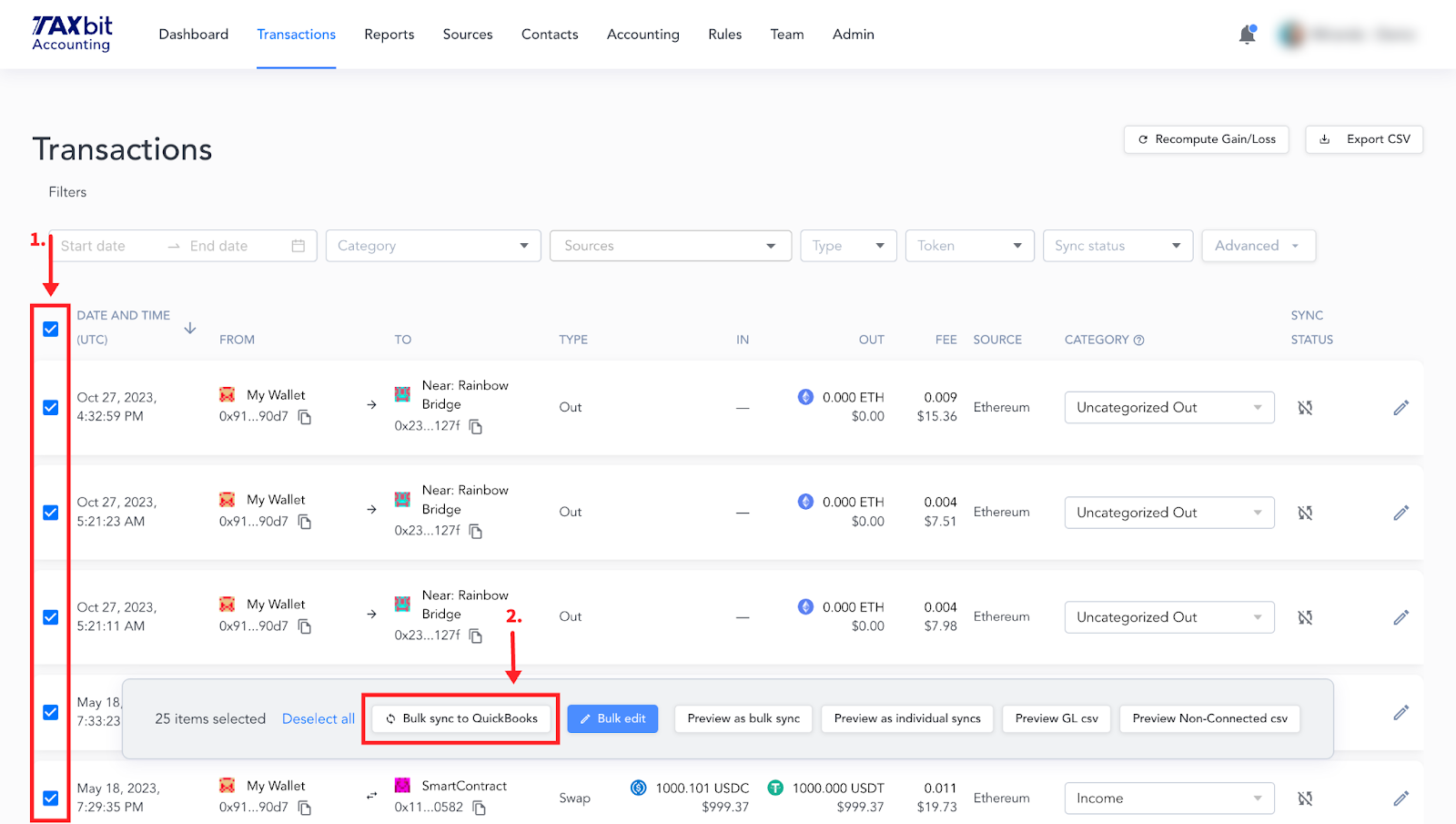
The “Bulk Sync to QuickBooks” button is only available if you have an ERP, QBO for example, connected to the Accounting Suite.
By selecting the “Bulk sync to QuickBooks” button, for example, you can select multiple transactions that you wish to sync to your ERP. Once synced, each transaction will have a single journal entry associated with your ERP, which can also be used to bulk sync transaction journal entries by month in a consolidated format, if desired.
Once successfully synced, the icon under the ‘Sync Status’ section of the transactions will update to show ‘Synced’.